
It’s not uncommon to come across issues with your Verizon router. It does not always mean there is an issue with the router hardware. Frequently, you can find causes in the network. But to understand what goes wrong, you should understand the Verizon router lights.
I had trouble with this confusion when I got started. I have prepared this guide explaining the Verizon router lights, their meanings, and easy fixes.
Key Takeaways
- Depending on the Verizon router model, the device may have a single LED status light or separate lights for individual aspects.
- On most models, a solid Green or White light indicates that the router is connected to the Internet. Other lights may indicate specific issues.
- You can solve most of these problems by reconnecting the cables, upgrading firmware, and ensuring that you have an active Internet plan.
Understanding Verizon Router Lights Meanings
Verizon FIOS and DSL routers have indicator lights that indicate the internet connection status. If the light is green, you have a stable internet connection. Otherwise, you may have to restart the router or contact Verizon support.
Types of Routers from Verizon
You generally have two options when choosing Verizon routers.
Verizon FIOS Routers
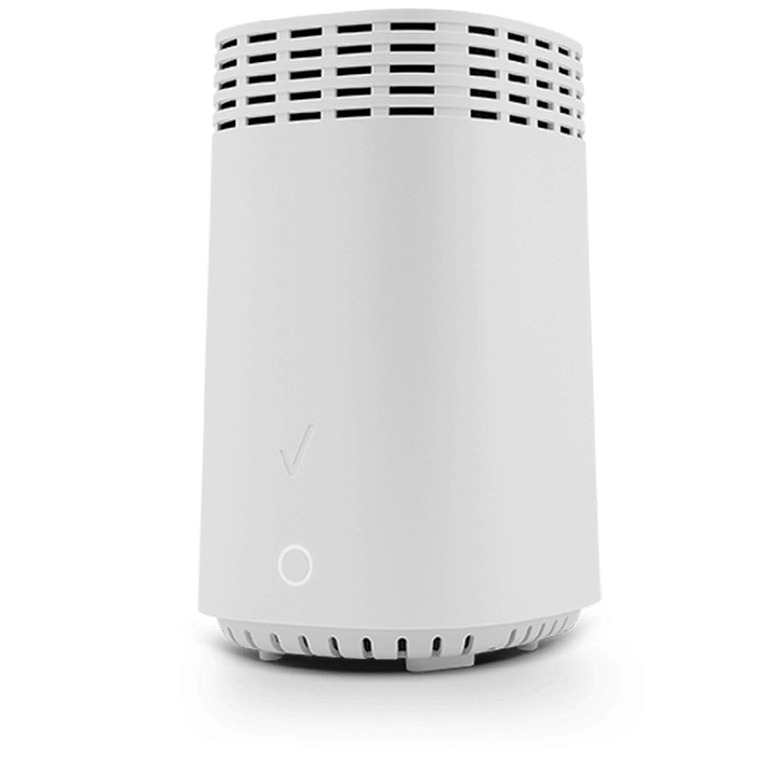
Verizon FIOS Routers are more common these days. You will receive one of the FIOS routers when you subscribe to a fiber-optic plan from the ISP. Let’s look at the standard router models in this category.
Router Model | Description | Status Light |
|---|---|---|
G3100 | The latest model provided to FIOS customers | Single status light |
G1100 | An older model FIOS router | Single status light |
Quantum Gateway CR1000A | Another previous generation router | One indicator light |
So, even if you have the older Verizon router model, you can use the indicator light to identify the issue. However, this guide will focus on the G3100 model, which is also the most popular one.
Verizon DSL Routers
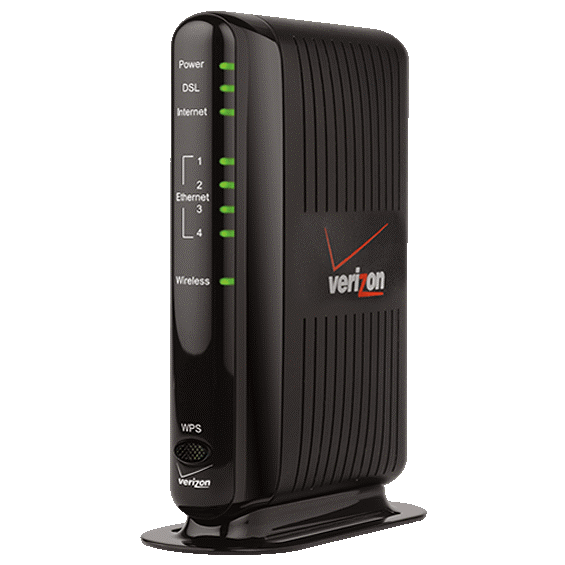
Verizon DSL Routers are available if you are getting non–fiber optics internet connection. You might find one of the following router models if you still get your internet connection via telephone cables.
Model | Wireless Standards | Ethernet Ports | USB Functionality |
|---|---|---|---|
Actiontec MI424WR | 802.11b/g/n | 4 x 10/100 Mbps | Yes |
Actiontec C1000A | 802.11b/g/n | 4 x 10/100 Mbps | Yes |
Actiontec GT784WN | 802.11b/g/n | 4 x 10/100 Mbps | No |
Westell 6100 | Not Applicable | 1 x 10/100 Mbps | No |
Westell 7500 | 802.11b/g/n | 4 x 10/100 Mbps | No |
Unlike FIOS routers, these DSL router models have multiple indicator lights. Each of these lights shows the status of a single aspect. Don’t worry; I’ll explain them in detail.
Lights on Verizon FIOS Modem and Meaning
To confirm, the following lights and their meanings apply to the Verizon FIOS G3100 model router. Before we check the details of each light, here’s a quick table.
Light Color | Meaning | Troubleshooting |
|---|---|---|
Green | Internet connection issue (could be network-wide or user-specific) | Reboot if no green light |
Yellow | Router is powered on | Check ONT and cables, reboot devices, contact Verizon |
Red | Hardware failure | Contact Verizon support for replacement/repair |
Blue (blinking) | Wi-Fi Protected Setup (WPS) pairing mode enabled | Reboot router. Contact support if persists |
White | The router is powered on | Unplug and replug router if stuck over 5 mins |
I’ll take you through these lights, their meaning, and recommended solutions.
Green Light on Verizon FIOS Router
Steady Green Light: A steady green light on your Verizon router indicates it is connected to the Verizon network. You do not need to do anything, and you will have stable Wi-Fi internet access.
Blinking Green Light: If the green light is flashing, the router is having trouble connecting to the internet. You will probably not have internet access via Wi-Fi.
Solution: The first step is to reboot the Verizon FIOS router. It will force the router to connect to the Verizon network from scratch. If it does not work, you may have to contact Verizon support.
Yellow Light on Verizon FIOS Router
Steady Yellow Light: If your Verizon FIOS router shows a steady yellow light, it refers to a problem with the internet connection. The cause of the problem could be the router, the ONT, or the internet network from Verizon.
Solution: First, reboot the Wi-Fi router, then reboot the ONT. ONT is the device that converts optical fiber signals to Ethernet. I have the ONT in my basement, which is kept far from the Verizon router.
I do not recommend meddling with the ONT device, though. If you do not have success even after rebooting the router and the ONT, you should contact Verizon support.
Red Light on Verizon FIOS Router
Steady Red Light: This indicates a serious hardware issue on your end. It could also be a problem with the fiber or Ethernet cables.
Solution: Even though you can try rebooting the router and reconnecting the cables, you may not have much luck. So, if I were you, I would contact Verizon immediately and request a repair/replacement.
Blue Light on Verizon FIOS Router
Blinking Blue Light: Flashing blue light on your Verizon FIOS router means the device is in WPS pairing mode. You may have enabled this mode by pressing the WPS button on the back of the router. If so, you can move forward with the pairing process.
Solution: You do not have to worry if you did not trigger the pairing process. If the pairing fails, your Verizon router will automatically return to its default state. But, if the issue is not resolved, you may try rebooting the router or contacting customer service.
White Light on Verizon FIOS Routers
Steady White Light: A white light appears when you switch on the router. However, it should turn into either green or blue in a few minutes. However, if your Verizon FIOS router is stuck at the white light, you must do something.
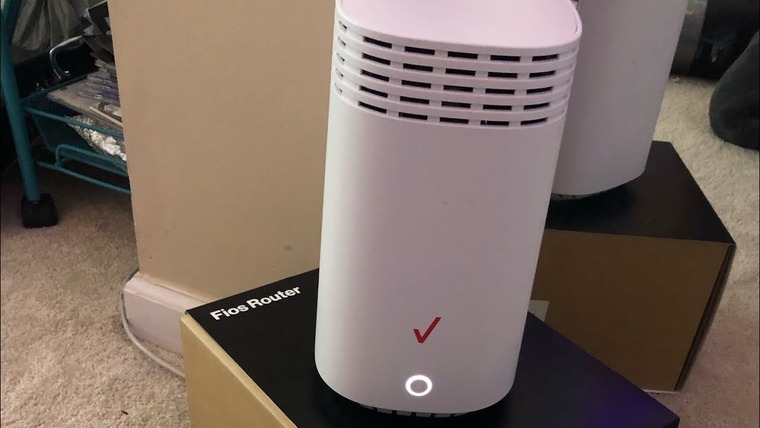
Solution: First, reboot the router to see if the white light gradually changes to blue or green. If not, there may be a hardware issue.
Lights on Verizon DSL Router and Meaning
Now that you know what to do about Verizon Fios routers and their light status meanings, I will move on to Verizon DSL routers and their light status meanings. You can check this quick table before I explain each light and its status in detail.
Indicator | Status | Troubleshooting |
|---|---|---|
Power – Green | Router powered on | No action required |
Power – Off/Red | Electrical issue | Reboot router, and check for service outages. |
DSL – Green | DSL connected | No action required |
DSL – Off/blinking | DSL line problem | Check cables, contact Verizon if unresolved. |
Internet – Yellow/blinking | No internet access | Check the USB cable and connections; restart device. |
Ethernet – Off | Wired connection problem | Verify Ethernet connections; test with new cable. |
USB – Off | USB device connection issue | Reset WPS, and ensure proximity and compatibility. |
Wireless – Off | Wi-Fi radio disabled | Press the Wi-Fi button to enable, and check router settings. |
WPS – Flashing | Can’t complete WPS pairing | Check the USB cable and connections; restart the device. |
Power Light on Verizon DSL Router
Power Light Off/Red: If the power light on the Verizon DSL router is off or red, it means the Wi-Fi router is not receiving power. You will not have internet access.
Solution: Check whether the power adapter and cable work properly. You may change the adaptor and cable if necessary.
DSL Light on Verizon DSL Router
DSL Light Off/Blinking: If you see the DSL light blinking, the router has trouble connecting via DSL. It could be due to network-wide issues or the cables you use.
Solution: First, reconnect all network cables and check whether the situation changes. Otherwise, you need to contact Verizon support.
Internet Light on Verizon DSL Router
Yellow/blinking light: If the internet light on the Verizon router shows yellow or blinking, an issue prevents the router from connecting to the internet.
You should also check the DSL light to see if it is causing the connection issue.
Solution: As always, you should start by rebooting the router. After that, you can check whether all the basic cables are correctly connected. If not, you may want to reconnect the DSL cables.
Ethernet Light on Verizon DSL Router
Light Off: If the Ethernet light on the Verizon DSL router is off, it means the Ethernet-connected devices may not have internet access.
Solution: After rebooting your Wi-Fi router, reconnect the Ethernet cables. Keep in mind that the issue could also be with the endpoint device.
Wireless Light on Verizon DSL Router
No Light: The wireless network will be unavailable if there is no light in the Wireless space. You may need to turn on Wi-Fi manually via a dedicated button.
Solution: If the problem persists, you may have to reboot the router or contact technical support.
WPS Light on Verizon DSL Router
If the WPS light on your DSL router is blinking, it indicates that the router is trying to connect to a WPS-enabled device. In most cases, this pairing process will take no more than a few minutes.
Solution: If the light keeps blinking for more than 5 minutes, you may need to restart the router. But you should do it only after trying multiple times to connect to the WPS device.
Frequently Asked Questions
What color should the Verizon router light be?
When connected to the Verizon network and providing internet access, the Verizon router light should be green. The green light indicates that the credentials have been approved and that you are connected to the network. Yet, even with a green light, you may still face issues like slow speed.
How long does a Verizon router take to reset?
On average, a Verizon router may take anywhere between 2 minutes to 10 minutes to reset. The actual time will depend on the router model and your usage history. But if the process takes more than 15 minutes, you may need to intervene.
Where is the WPS button on my Verizon router?
The WPS button on your Verizon router is placed on the back of the router. You can find it alongside the coaxial cable and Ethernet ports. Press the WPS button on the router to start the WPS pairing process.
Wrapping Up
As I told you before, the meaning of Verizon router lights is not rocket science.
If you ask me, things have become only better with these single-light status systems. It means you do not have to worry about multiple lights and what they mean.
But I’ll be honest. Whenever my friends using DSL modems have a doubt, I nearly lose my mind. And that is fortunately not a problem lately, thanks to the popularity of fiber-optic internet and FIOS routers.
