
Many a time, features intended to improve user convenience end up causing rampant security issues. You’d also end up turning these features off to be better off. I had to do the same with Universal Plug n Play (UPnP) and Wi-Fi Protected Setup (WPS) on my Wi-Fi router. Here’s the story of why I did it, and why you should too.
Why UPnP is Dangerous
Universal Plug and Play (UPnP) became popular on Wi-Fi routers in the early 2000s. It was a time when you’d have a lot of trouble setting up ports for every single connection, such as a game server.
It also meant you’d spend a lot of time in the setup phase for a multiplayer game. I remember spending well over 30 minutes setting up ports so that we could play some multiplayer titles.
So, when UPnP became a thing, I was relieved.
This feature handled port management by automatically opening and closing ports as requested by different software. It also simplified the setup and access of media servers across your home network and other spaces. I also remember people raving about the power of UPnP for IoT setups.
Soon enough, however, security researchers found fatal flaws with UPnP:
- UPnP lacked an authentication system, which allowed almost any device on the network to use the feature and modify port activation.
- This also meant that malware on your system could manage this port-forwarding system without requesting your permission.
- If ports on your router are left open without your knowledge, it could lead to further issues, such as router hijacking and unauthorized access from anywhere on the internet.
In other words, though UPnP offered a lot of convenience over manual port forwarding, it meant we had to trade security and privacy in that process. Now, as someone who uses the Wi-Fi router for all things work, I was not willing to take the risk.
That’s how my tryst with UPnP ended! And you may want to do this on your router if you share my views on security and privacy.
How to Disable UPnP
Fortunately, it is easy to disable UPnP on most Wi-Fi routers. These days, most devices ship with this option disabled by default. However, if you want to check for an outlier and disable it, follow the steps below.
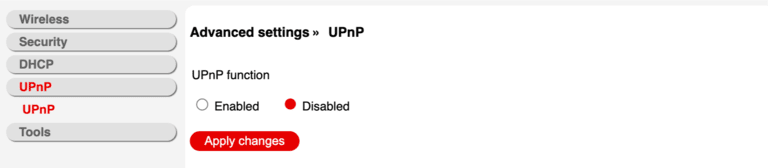
- Log in to the admin dashboard of your Wi-Fi router. You can use the default credentials to log in.
- Go to Network Settings to find the UPnP entry.
- You can disable this option and save the settings to ensure that UPnP is no longer enabled on your Wi-Fi.
As you can see, the process takes less than a few seconds. However, it can protect your network and devices from a wider variety of threats, including hijacking.
Note: I have come across many pieces of advice that say it’s okay to keep UPnP on, but to use additional protection layers, such as an antivirus program and a strong Wi-Fi password. However, the risk that UPnP poses at the system level is so high that these measures may not fully protect you.
The Security Risks of WPS
We find a similar story with Wi-Fi Protected Setup (WPS).
Even today, most Wi-Fi devices ship with a dedicated WPS button. It was designed to offer a quick way to set up a Wi-Fi connection, especially when using devices without keyboards or screens. For instance, when you have a Wi-Fi extender, it makes more sense to use WPS than a manual connection. However, like UPnP, WPS is also flawed.

The PIN-based entry method of WPS is probably the biggest security vulnerability in this system. So, a WPS PIN is an 8-digit numeric code you can set up for a connection. So instead of entering a complex alphanumeric password, you can enter this numeric code and connect to a device. However, attackers can use brute-force methods to crack the PIN in just a few hours.
The result? Unauthorized devices can easily access your Wi-Fi network. I don’t have to tell you how chaotic this can be, do I?
There are also other issues.
For instance, the WPA system on many routers does not have a maximum number of attempts; that is, attackers can try the PIN as many times as they like. Even this push-button configuration option poses a few risks, as anyone with access to your Wi-Fi router can establish a connection and access your network settings.
As you can see, these pose grave risks to your device’s security and privacy.
Alternatives to WPS
I understand it’s difficult to turn off WPS because of its convenience. However, you can consider alternatives for an easy Wi-Fi connection.
#1 QR Codes
Easy-to-scan QR codes are an effective way to connect devices quickly without entering a password. These QR codes can be designed, printed, and pasted on your wall or in a place accessible to you. This way, people can connect to your Wi-Fi network without entering a complex password.
#2 NFC Tags
You can also configure NFC tags for this purpose. However, you need NFC-enabled devices for this to work. You can configure NFC tags and place them close to your router. Those who want to connect to the Wi-Fi network can tap the tag.
How to Turn Off WPS
Here’s how you can turn off WPS on most Wi-Fi routers:
- Connect to the Wi-Fi router using Wi-Fi or Ethernet.
- Open the default IP address using a browser and access the dashboard.
- Navigate to Wireless Settings and choose WPS from the menu.
- Ensure that the main toggle is OFF.
This setting turns off the WPS functionality of your Wi-Fi router until further change. So, even if someone tries the push-button method, the router will not do anything.
Wrapping Up
I hope you learn from my experience and disable WPS and UPnP for good. I’m sure these options were super-convenient for the most part. However, sometimes, you have to prefer security over ease of use, and the case of WPS and UPnP is one of them.
