
Wireless networks have become a standard part of our daily lives, and we depend on them for nearly everything. However, the growing popularity of Wi-Fi networks also brings a rise in potential threats. Even your home network can be vulnerable to attacks. It means you should take proactive steps to secure your wireless network against these risks—and when you’re on the go, using the best eSIM can help you stay connected more securely than relying on public Wi-Fi.
In this guide, I will share the top 12 tips for enhancing the security of your wireless network.
What Is A Wireless Network?
A wireless network, popularly known as a Wi-Fi network, is a type of network that uses radio waves instead of wires/cables. In the case of a Wi-Fi network, allows computers, smartphones, and other Wi-Fi-enabled devices to communicate without having a physical connection.

Compared to wired connections, a wireless network offers slower speeds and may cause issues like signal interference and packet loss. However, in recent years, we have seen the rise of high-speed Wi-Fi networking technologies, including the use of a super-fast band like 6GHz.
Wireless networks are preferred for the convenience they offer compared to other options. These networks, however, are susceptible to a variety of threats, as anyone with a Wi-Fi device can access them. The number of such threats is increasing every day.
Threats to Wireless Networks
We will look at some of the common threats to wireless networks before discussing the solutions.
- Unauthorized Access: People gaining unauthorized access to your Wi-Fi network is the most common threat to wireless networks. Residential and enterprise networks become victims of this issue. If gone unnoticed, it can lead to further issues like data loss, identity theft, etc.
- Sniffing/Eavesdropping: These attacks make use of network vulnerabilities to steal data from your wireless network transactions. If your data is traveling unencrypted, a threat actor in the vicinity can get sensitive data like passwords.
- DDoS Attacks: Distributed Denial of Service attacks are also common for Wi-Fi networks these days. These attacks work by overloading your network with so many requests that you would be unable to access the network.
- Session Hijacking: Session hijacking is an after-effect of unauthorized access in most cases. The attack allows hackers to steal session tokens and other information, which they can use to steal your data or identity.
These threats can affect your home Wi-Fi networks too, especially if you live in a highly populated area. You should keep in mind that other threats, like Evil Twin attacks and traffic monitoring, are also common.
How To Secure a Wireless Network – 12 Tips
Given below are 12 tips that will help you secure a wireless network from a variety of threats. Some of these are fundamental security steps, whereas others are preemptive steps.
#1 Strategic Router Placement
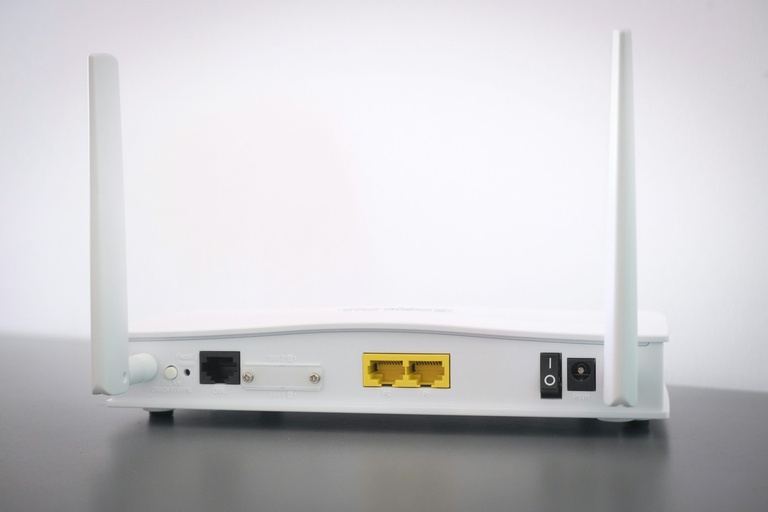
As you can understand, most types of wireless network attacks rely on accessing the Wi-Fi signals. Wouldn’t it be great if you could strategically place the router to avoid the situation? This way, a threat actor will not receive enough signals to pull off anything problematic.
I understand this is a complex task at a time when Wi-Fi routers are becoming more popular than ever before. However, you won’t lose anything by trying. Just keep in mind that you need to keep the router away from devices that can cause interference.
This practice, along with the tips given below, can protect your wireless network from most types of threats out there.
#2 Use Unique SSIDs and Passwords
Something I know for sure today is that an unhealthy number of people use the default SSID and password for their Wi-Fi routers. I am talking about the difficult-to-remember Wi-Fi name and password that your Wi-Fi router ships with. On top of causing inconvenience, these default credentials can land you in trouble.
Given that threat actors use these credentials to access your network, the first step of network security must be changing the SSID and the password. Use your creative skills and choose an interesting SSID for the Wi-Fi network. For the password, use a combination of letters, numbers, and special characters.
An unguessable password alone can protect your Wi-Fi network from many threats.
#3 Use Network Encryption
The next step to secure your wireless network is to use network encryption. Encryption makes sure that third parties cannot decipher your signals even if they can access those signals. The easiest option here is to select the WPA3 protocol for the network.
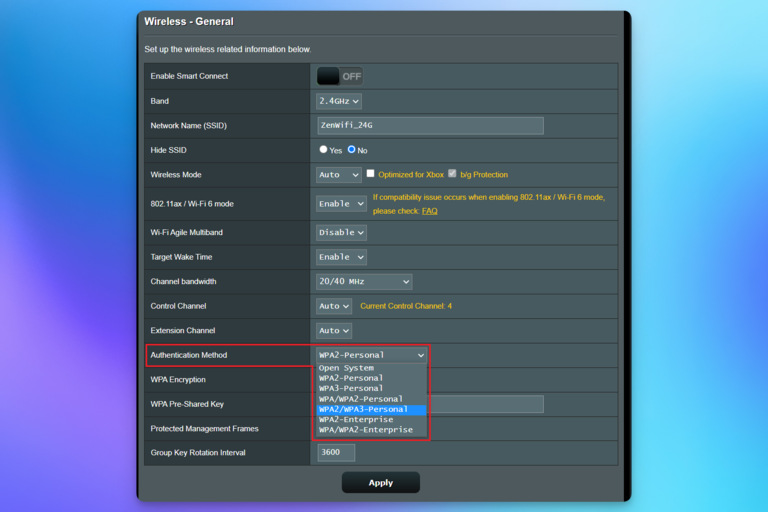
If your Wi-Fi router does not support WPA3, it is high time you upgrade to a newer router. Similarly, you’ve got to check for the HTTPS padlock icon whenever you enter some sensitive information on a website. It uses an additional encryption layer to avoid eavesdropping by threat actors.
#4 Use the Guest Wi-Fi Network
The Guest Wi-Fi Network option on your Wi-Fi router is definitely your friend. You should not hesitate to use this feature instead of sharing the default network SSID and password with everyone. Sure, you may trust the people who visit your house, but they may accidentally compromise the Wi-Fi password.

So, the safer option is to enable the Guest Wi-Fi Network. This network will provide Internet access to all the connected devices, but they will not have additional privileges. In other words, even if the guest network is compromised, the threat actor cannot do much.
#5 Use VPN When Possible
If you think the encryption from WPA3 is not enough, you should consider using a VPN at the device or Wi-Fi router level. Because a VPN would encrypt every bit of data before it leaves your device, threat actors will find it difficult to decipher anything from the data they sniff.
As you know, using a VPN will help you increase anonymity and access geo-blocked content. So, it is multiple bids with a stone.
#6 Update Router Firmware
You need to update the Wi-Fi router firmware just like you update Windows or macOS on your PC. These firmware updates contain fixes to critical security issues. Skipping these updates is equal to exposing your network to threat actors who will
#7 Turn off UPnP
Universal Plug and Play, better known as UPnP, offers a lot of convenience. However, it isn’t worth the safety risks you have to go through. Therefore, I recommend turning off UPnP to be on the safe side. Sure, UPnP is designed to make it easy for devices like smart TVs and security cameras to communicate with each other.
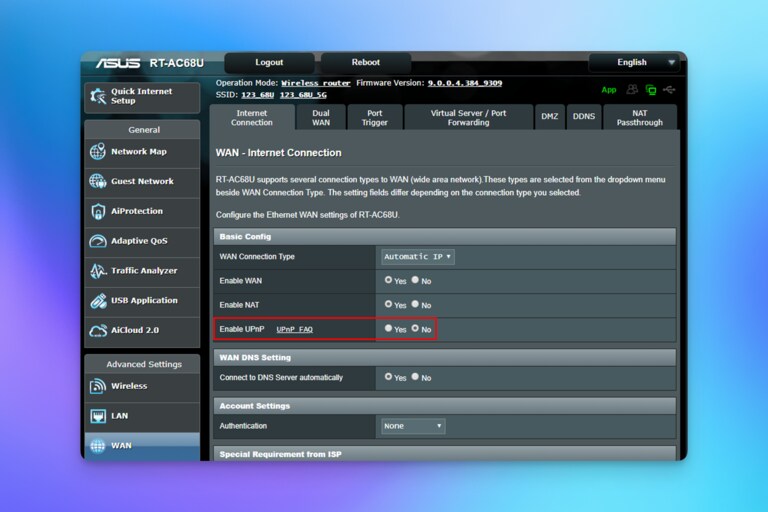
However, keeping your network’s security in mind, you can easily choose an alternative option. Attacks that make use of vulnerabilities with UPnP execute themselves by adding unauthorized devices to your Wi-Fi network.
You can turn off UPnP by accessing the web interface of your Wi-Fi router.
#8 Check Your Logs for Unauthorized Entries
It is also possible that a silent threat has already affected your network. You won’t get to know about these threats until a specific point. So, I recommend following a protocol where you check your network logs for any unauthorized devices connected to the network.
You should be able to recognize the devices that you do not own. As to how devices can connect to a network without your consent, something like WPS could be to blame. So, you must do these weekly/monthly checks if you have turned on options like WPS or UPnP.
#9 Use A Firewall
You might think that a firewall is overkill for residential networks. However, considering the magnitude and types of data we handle every single day, it has become a necessity. So, if your Wi-Fi router ships with a built-in firewall, you must turn it on and actively use it.

You should check whether your router has a similar feature. You can do it by going to Settings > Security > Firewall from the web interface of your router. Depending on the model, you can use a button or a toggle to turn on the firewall.
Once enabled, the firewall will protect your Wi-Fi network from unauthorized access attempts. It is a crucial feature when you want to use features like port forwarding or hosting.
#10 Enable Network Segmentation
Network segmentation may sound like something so tech-savvy, but it is easier these days. It means setting up separate (virtual) networks within a physical network. You can dedicate one of these networks for general use while using another one for specific needs where you handle sensitive data.
You should check whether your Wi-Fi router offers an option for network segmentation. Even otherwise, it may be an option to use third-party tools for the same purpose.
#11 Use Two-Factor Authentication
Two-factor authentication requires a one-time passcode/passphrase on top of the username and password. If your Wi-Fi router offers the 2FA option for the dashboard login, you must enable it. This step ensures that people cannot modify your network settings even if they know the router’s login credentials.
#12 Limit Physical Access
Here’s the unfortunate part:
Even after all these steps, someone with physical access to the router can use the factory reset function to restore default credentials. Then, they can hijack the network. So, probably the best security practice for Wi-Fi networks is limiting physical access to the router.
Wrapping Up
I have recommended several methods to secure a wireless network, and I apply most of these strategies to my own network. In particular, network segmentation has had the greatest impact. It is reassuring to know that threat actors cannot access my devices or network settings, even if they discover the SSID and password for the general network. Additionally, I find it helpful to use a separate network specifically for my IoT smart home devices.
