
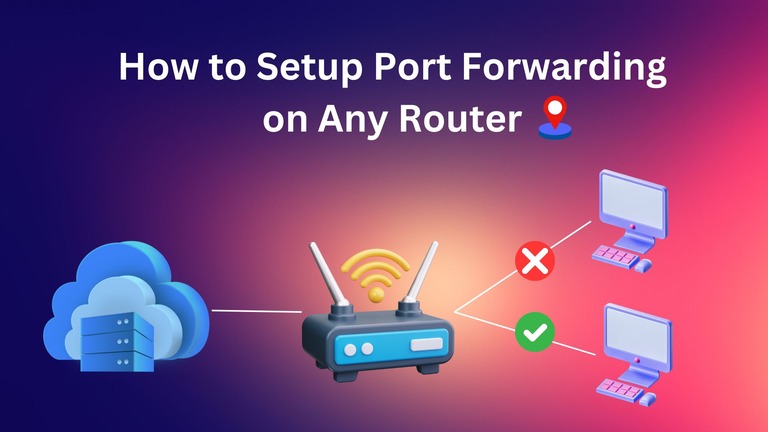
You may have come across the term port forwarding while trying to set up a Minecraft server or enabling a remote desktop access setup. For those new to networking and routers, it may seem not very clear. It may lead to questions like what port forwarding is and how to set up port forwarding on your router. In this complete guide, I will share the steps to set up port forwarding on any router.
What Is a Router Port?
Depending on the context, a router port may mean two things:
- First, router ports mean physical ports such as LAN and WAN ports. These are ports where you plug in WAN (Ethernet cable from the modem) or LAN (Ethernet cable connected to clients) cables.
- Second, router ports are software-based logical components that services and applications can use to handle data. These router ports are identified by numbers such as ports 80 and 443.
In this article, we are talking about the second thing: software-defined port numbers. These ports will help us enable multiple services and applications and ensure that they work with the Internet.
What Is Port Forwarding?
Port forwarding is a technique where you teach your network router to forward external requests that a port receives to a specific application/service. As you can understand, the port is designed to forward, thus the name port forwarding. I will use an analogy here:
- Think of your network as a huge apartment building with multiple residences.
- Your router is the address of the building, and all mail is sent to this address.
- The building may receive mail to a single address, but it doesn’t know where to send the mail to.
- When you set up port forwarding, you provide a list connecting a sub-address to a residence.
- This way, when a mail asks for this sub-address, the router will forward the mail to the apartment.
Let’s say that you have set port forwarding for port 22 for remote administration on your PC. Now, when the router gets an external request through port 22, the router forwards that request to the PC. Via this method, someone outside your network can access devices inside your network.
As I said, it becomes useful when you want to set up a server that you want others to access. Other common uses of port forwarding include gaming, remote access, and setting up web servers. Some other situations, like P2P torrenting, may also require port forwarding to work fine.
Some standard ports like 80 and 443 are open by default and are used for HTTP and HTTPS, respectively.
Why Port Forwarding Is Important
Depending on your network environment and requirements, port forwarding plays some crucial roles.
It primarily enables devices on your local network to interact with the Internet. As I said, port forwarding is handy when you want to play multiplayer games, have remote access to devices, run servers, etc. You might need it for specific needs like VoIP and file sharing as well. Until you set up port forwarding, all requests from external sources like the Internet will be blocked.
Another common use for port forwarding is for P2P networking. You may know that P2P networking is quite crucial for torrenting, but video games also use P2P technology. So, you may need to open some ports on your router to provide these games with better connectivity. As a result, you can enjoy a better gaming experience.
You may need open ports for IoT devices, which you can control using the Internet.
Overall, you need to use port forwarding for a variety of network-related tasks. For most of you, port forwarding becomes necessary when it comes to games and torrenting.
Steps to Set Up Port Forwarding
We shall now look at the steps to set up port forwarding on any router. Sure, the steps slightly vary based on the router model, but you get the gist.
#1 Access Your Router’s Interface
You can start the process by accessing the router’s dashboard interface. You can do it by opening the router’s default IP address. Access this IP address and log in using the administrator username and password. Once you have logged in, you should navigate to DHCP settings and look for DHCP Reservations.
#2 Assign a Static IP Address to Your Device
On the DHCP Reservations page, you will see a list of IP addresses and corresponding devices. Now, you need to connect the designated device to a static IP address. You first need to locate the MAC address, which is a unique device identifier. You can get this address from your device’s Network Settings page.
After you have the MAC address, you can set up a new static IP rule. Choose an available IP address and put the MAC address of the device you want to bind. From this point, the router will use the specific IP address for that particular device instead of assigning random ones after booting up.
#3 Navigate to the Port Forwarding Section
Now that you have assigned a static IP address to the device you want to access, we will move to the actual steps of setting up port forwarding.
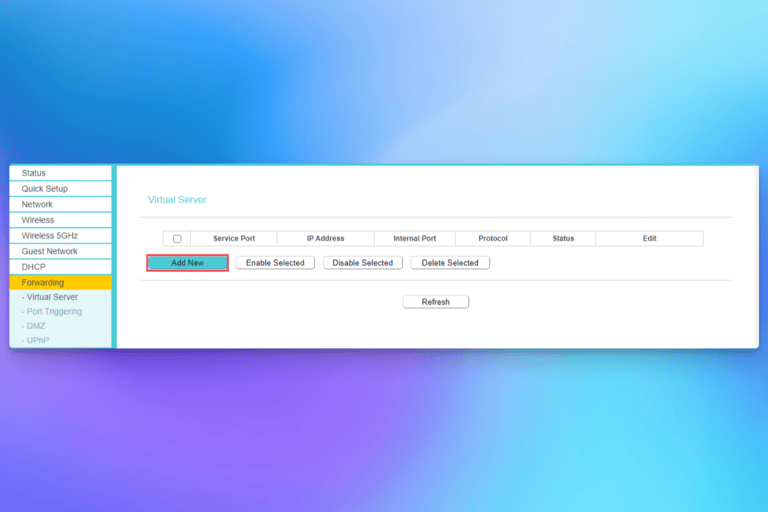
To begin, open your router’s dashboard and navigate to Network > Port Forwarding. On some devices, you’d have to look for this entry under NAT or QoS as well.
#4 Create a Port Forwarding Rule
On this page, look for a button named Add Rule, New Rule, or New Entry. In this step, provide all the required info:
- Provide an appropriate name for the service, like Minecraft server or FIFA
- Choose an Internal and External port for the service. It could be identical or unique
- Select a protocol between UDP/TCP based on your requirements for speed and reliability
- Now, paste the static IP address of the device you want the requests to reach.
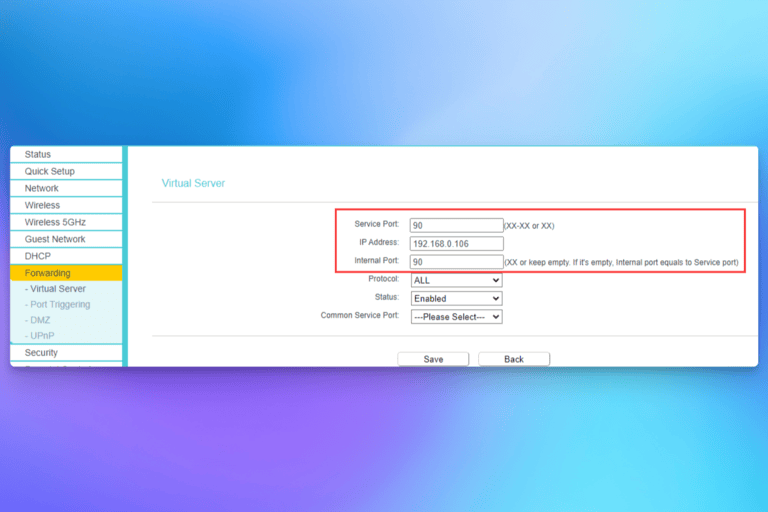
By the way, note that some routers may allow you to choose a device instead of manually entering the static IP address. However, you should have enabled a static IP address before.
#5 Save and Test the Configuration
Once you have made these changes, you can save and enable the port forwarding rule. After that, you will have to Save router settings and probably reboot the router. After rebooting, you can test the configuration to see if everything is working.
The easiest way to test the configuration is to use a Port Checker tool. It will tell you whether a port is open or not. However, if you have used port forwarding to set up a web/gaming server, you can try connecting to the server/device from an external network.
If everything works, it means you have set up port forwarding well and well. The port will remain open until you change these settings.
Common Issues and Troubleshooting
Here is how you can solve some common issues you may face while setting up port forwarding.
- Blocked Connections: Sometimes, NAT settings or the firewall system may block connections through a port. So, even after enabling a port forwarding rule, you might have to manually allow inbound connections through a port. You can do it from your device or at the router level.
- ISP-blocked Ports: For security and related reasons, Internet Service Providers may block some ports for the connection. It means your router will not receive connections through those ports. In these cases, you need to either ask the ISP to open the port or use another port.
- IP Address Issues: You may face issues after entering the wrong internal IP address as well. You may also encounter IP address conflicts depending on router/device-based settings. So, double-check the internal IP address you provided.
- Dual-router Setup: You may face port forwarding issues while using two different routers in a single network environment. It happens because two NATs will be active. You can solve this problem if you enable Bridge Mode between the two routers.
- Port Conflicts: You should also check whether an application/service is already using the port. In that case, the new rule won’t work, and the existing port forwarding rule will take precedence.
With these steps, you can seamlessly enable port forwarding on any router.
Security Considerations
Though port forwarding is a secure system, it doesn’t cost much to take some precautions.
- Choose your open ports wisely because they are vulnerable to DDoS attacks. If an app/service offers a range of ports, choose the one that is less used.
- It makes sense to update the router firmware and firewall software, as vulnerabilities can allow threat actors to use your devices/network.
- UPnP may seem convenient, as it enables remote access from the Internet. However, this feature is prone to more threats.
- Never provide access to the entire network through a single port. Instead, make sure you limit access to device-specific IP addresses.
Though these steps mean having more rules, they improve security by a long shot.
Conclusion
I believe this guide helped you understand the basics of port forwarding on routers. The screenshots I have used are from a TP-Link router, but the core navigation remains the same. If you can dedicate the necessary resources, you should isolate your gaming servers instead of bringing everything into your primary network.
