

QR codes have become one of the standard technologies for everyday use. They are being used for an immense variety of needs, from payments to sign-ups. Yet, many don’t know that they can use QR codes to share access to a Wi-Fi network. As it happens, scanning a QR code is one of the most convenient ways. In this guide, I shall tell you how to create Wi-Fi QR codes to access Wi-Fi.
What is a Wi-Fi QR Code?
You are probably familiar with Quick Response (QR) codes that offer quick access to information. You might have come across them in many places. For instance, you can scan QR codes to access a particular link or a payment portal. Depending on the design, QR codes may contain various amounts of information. Based on where they are placed, QR codes can assist you with tasks like contacts, check-in, authentication, and flyers.
Wi-Fi QR codes are a little different. These are specialized QR codes that allow devices that scan the QR code to connect to a specific Wi-Fi network. This QR code works by arranging all the necessary information within a particular template. This way, any device compliant with QR code scanning can understand that the QR code is talking about a Wi-Fi network.
These days, many devices have QR code scanning features built into their camera app. For instance, iPhone cameras can scan a wider variety of QR codes without any external app. Many Android manufacturers have also brought this feature into their camera apps. Even if the stock camera app does not have the option, apps like Google Lens will help you connect to Wi-Fi networks using the right QR code.
Why We Need Wi-Fi QR Code
Like other QR codes, Wi-Fi QR codes are also pretty useful. Depending on where you place these QR codes and how they are created, Wi-Fi QR codes can offer the following benefits.
- The user does not have to manually enter the Wi-Fi network password or select the Wi-Fi SSID.
- There are fewer chances of people connecting to the wrong SSID (evil twin attacks use this method).
- QR codes can also reduce the chances of people mistyping the password and causing errors.
- Unlike other Wi-Fi sharing options, QR codes are almost universal. It means you can use it on a variety of devices.
- As the network admin, you don’t have to display the password anywhere publicly. Keep in mind that most devices can access the password once they are connected to the Wi-Fi network.
- QR codes make it easy to set up complex passwords since users don’t have to type them.
- You can set up as many Wi-Fi QR codes as you want. So, with the help of the right indicators, you can easily delegate people to the right network.
- Wi-Fi QR codes are pretty customizable these days. So, you can customize how these QR codes look and use the space for branding and marketing.
In short, Wi-Fi QR codes can help you save a lot of time while also ensuring the privacy and security of the network. So, it doesn’t matter whether you want to keep a QR code at your home or want an easy way to share the Wi-Fi password with a friend; you can count on QR codes.
Now that you know how useful Wi-Fi QR codes are, we shall talk about creating these QR codes.
Create Wi-Fi QR Code on Android and iPhone
Both Android and iPhone offer straightforward ways to create a Wi-Fi QR code. Android has the option built into the Settings, whereas the iPhone may require a few additional steps. I will now explain how you can do it on both devices.
Create Wi-Fi QR Code on Android
You can follow these steps to create a Wi-Fi QR code on almost all Android smartphones.
- First, ensure that your Android smartphone is connected to the Wi-Fi network you want to share the password of. Only then will Android have access to the information it needs to put on the QR code.
- Open Settings on your smartphone and navigate to Network > Wi-Fi.
- Choose the Wi-Fi network that you want to share and press the (i) button next to the network SSID.
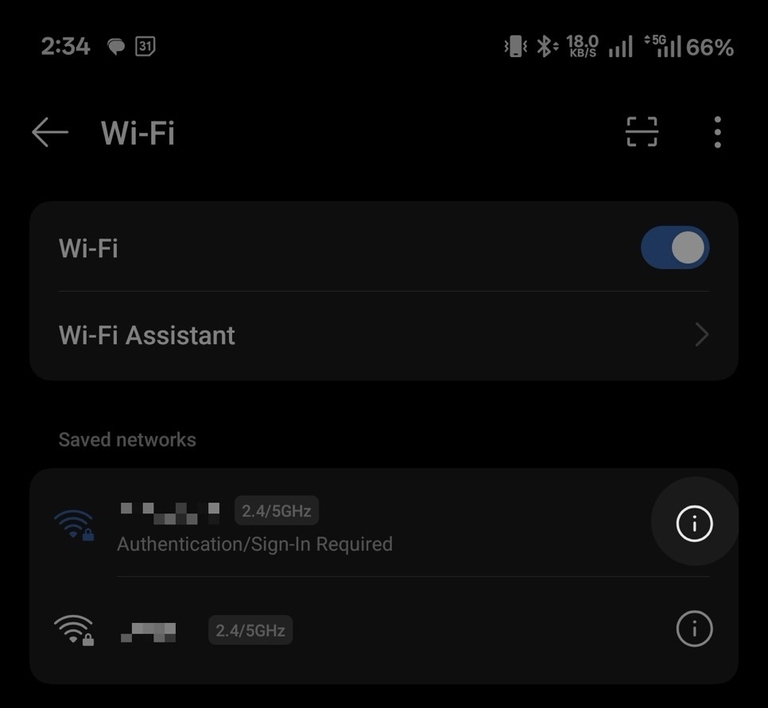
- On the next page, look for an icon with a QR code. It may be called Share as well.

- Authenticate using the smartphone passcode or biometric.
- You can now see the QR code that contains the SSID and password.
On the latest version of Android, you will also see a Quick Share button. It lets you share the Wi-Fi password with another device without scanning. It is convenient to have two built-in options for sharing the Wi-Fi QR code on Android
Create Wi-Fi QR Code on iPhone
iPhone also lets you create and share a Wi-Fi QR code without the need to install a third-party app. Instead, you can use the Shortcuts app to create a QR code. Here is how you can go about it. These steps will let you do the same thing on an iPad as well.
- Ensure that you have connected your iPhone to the Wi-Fi network whose credentials you would like to share using a QR code.
- Now, open the Shortcuts app on your iPhone and navigate to the Gallery tab.
- You now need to locate a sub-section called Shortcuts for Accessibility.
- Within that gallery, find a shortcut called QR Your Wi-Fi. This shortcut is designed to convert the Wi-Fi password into a QR code.
- Tap the + button to add the shortcut to your library.
- Now, you can go back to the All Shortcuts page and tap the QR Your Wi-Fi shortcut.
- The Shortcut will now ask for the name of your Wi-Fi network and the password. Enter those details, and you should now see a QR code.
You can now print the QR code or send it to someone else. Because this feature has been added to the iOS Shortcuts library, there is no need to install any third-party apps.
Keep in mind that third-party apps may offer you advanced features in this regard. For instance, you may be able to design customized QR codes that work better for branding.
Create Wi-Fi QR Code on Other Devices
Let’s say that you need better control over the QR code. In that case, you may want to try another platform to create Wi-Fi QR codes. You can access such tools from your Android smartphone or iPhone as well. You may want to consider these options if you want more than a ready-made QR code.
#1 Simple Wi-Fi QR Generator for All Devices: QiFi
QiFi is a completely free and easy-to-use website that lets you create Wi-Fi QR codes in an instant. You can open this website, enter the basic details, and save the QR code. However, this website does not offer much control. You get a standard QR code that contains the SSID, password, and the connection type.

#2 QR Code Generator
If you want to come up with a better-looking QR code, you can check out qr-code-generator.com. The site is designed to help you create an incredible variety of QR codes, and Wi-Fi codes are one of them. You have the option to change the frame, color, shape, etc.

A feature lets you add your logo to the QR code as well. So, if you are planning to use the Wi-Fi QR code space for branding purposes, a site like this should help you a lot.
You can easily find many similar options on the web. If you would like to customize things further, you may consider downloading third-party apps to your iPhone or Android smartphone as well.
Advanced Uses of Wi-Fi QR Codes
So far, you have seen how you can use Wi-Fi QR codes to give someone quick access to a Wi-Fi network. If you use this method, the intended person does not have to enter the password manually, either. As you’ve probably noticed, however, Wi-Fi QR codes have a lot of potential. We will now talk about a few advanced uses of Wi-Fi QR codes.
For Access Control and Security
Strategically placed Wi-Fi QR codes can help you manage multiple networks at home or business spaces. For example,
- You can set up different QR codes in different spaces to limit access to the network. When combined with strong passwords, this method can be efficient for access control.
- Some QR codes can be made to work only during designated periods, especially when using a third-party aggregator. It can help you enable time-based access to the network.
- Some setups can help you connect QR codes to MAC addresses as well. So, even when they have the QR code, an approved MAC address is required to connect.
Business Spaces and Convenience
If you want to use Wi-Fi QR codes in your business spaces, here are some examples.
- You can combine Wi-Fi-based device monitoring to enable attendance monitoring. That is, by making your employees scan a QR code, you’d be able to track attendance.
- If different teams/departments require different Internet speeds, you can solve this problem with the help of multiple connection QR codes.
- You can also integrate Wi-Fi QR codes and MDM (Mobile Device Management) to help new people onboard their devices.
We can also find the rise of dynamic QR codes that work with our changing needs. For instance, you would come across Wi-Fi QR codes that will reload the design at predetermined intervals. This way, recent access to the QR code becomes necessary for the connection.
Given how popular QR codes are and how easy it is to create them, these almost-global codes are great for many needs. You simply need to find some time and figure out the best way to implement these codes.
Wrapping Up
I hope this guide helped you understand the ideas behind Wi-Fi QR codes and access Wi-Fi using these easy-to-maintain codes. There is no understating these codes and the convenience they offer. Considering that QR codes are used for almost everything, from payments to eSIM, using them for easy Wi-Fi connection is a pretty reliable thing, too.
