
You have likely come across the term Wi-Fi Sharing at least once in these years, right? Many think that Wi-Fi Sharing is identical to Wi-Fi Hotspot, but it really is not. However, using Wi-Fi sharing correctly is quite beneficial and even helps you save money in the long run. In this guide, I will talk about everything you need to know about Wi-Fi sharing, starting with what it is.
What is Wi-Fi Sharing?
As I said, you might think Wi-Fi sharing is the same as the Wi-Fi hotspot feature you can find on iPhone and Android smartphones. However, the term may refer to the following things:
- Mobile Hotspot, also known as Wi-Fi Tethering: It lets you share your mobile data connection with other Wi-Fi-enabled devices.
- Wi-Fi Password Sharing: It lets you share Wi-Fi passwords using a QR code.
- Wi-Fi Sharing: Wi-Fi sharing lets you share an existing Wi-Fi connection with other devices.
We already have a detailed guide on how Mobile Hotspot (or Wi-Fi Tethering) works. Today, our focus is on Wi-Fi Sharing, which converts your smartphone or computer into a network relay that offers Wi-Fi access to other Wi-Fi-enabled devices.
When to Use Wi-Fi Sharing
Here are a few instances when Wi-Fi sharing can help you.
You may be in a hotel room that allows you to connect only one device to the high-speed Wi-Fi network. In this situation, you can enable Wi-Fi sharing on your computer and connect your other devices to that Wi-Fi network. You could also use QR code Wi-Fi access to make connecting faster and easier across multiple devices. This way, even though there is a device limit, all your devices will have an instant Wi-Fi connection.
Another typical instance when I use Wi-Fi sharing is when I don’t want to connect all my devices to a public Wi-Fi network. By enabling Wi-Fi sharing, I make sure that only one device is connected to the network, and all other devices are basically getting the data from that particular connected device.
There are also times when specific devices cannot get through the captive portal of a Wi-Fi network. For instance, if you have a Kindle, it’s going to be difficult. But if you want to connect your Kindle to a Wi-Fi connection, you can use Wi-Fi sharing on your laptop and easily connect the Kindle to that network.
If you want to go a step further, you can use a Wi-Fi sharing setup for a local file-sharing system as well.
How Does Wi-Fi Sharing Work?
I will now explain how Wi-Fi sharing works on most devices.
Let’s say that your laptop supports Wi-Fi sharing and it is currently connected to a Wi-Fi network. When you enable Wi-Fi sharing, the laptop will act as a virtual router and create a Wi-Fi network. Because this network is connected to the main Wi-Fi network, the secondary network will also have an Internet connection. At this point, other Wi-Fi-enabled devices can connect to the secondary Wi-Fi network and access the Internet.
On most devices, it works by creating a secondary Wi-Fi adapter (virtual).
If you prefer other terminology, you can think of Wi-Fi sharing as the process of converting a single wireless adapter into two logical adapters. One of these adapters will receive a signal from a Wi-Fi network, and the second adapter will share the connection to other devices.
How to Use Wi-Fi Sharing
Now that you know how Wi-Fi sharing works, I will tell you how to set up Wi-Fi sharing on common devices.
Compatibility
At the time of writing, not all smartphones offer the option for Wi-Fi sharing. I have found the feature on my Pixel, OnePlus, and high and mid-range Samsung smartphones. However, do not expect all Android phones to pack Wi-Fi sharing. However, this feature is unavailable on iPhones and iPads.
As far as computers are concerned, Windows PCs allow you to share a Wi-Fi connection. Macs cannot do it, as it does not allow the Internet Sharing source to be Wi-Fi. I cannot say for sure whether all Linux versions support Wi-Fi sharing, but some do.
Enable Wi-Fi Sharing on Smartphones
Use these steps to enable Wi-Fi Sharing on your Android smartphone. These steps can also tell you whether your device supports the feature.
- Make sure that your smartphone is connected to the Wi-Fi network
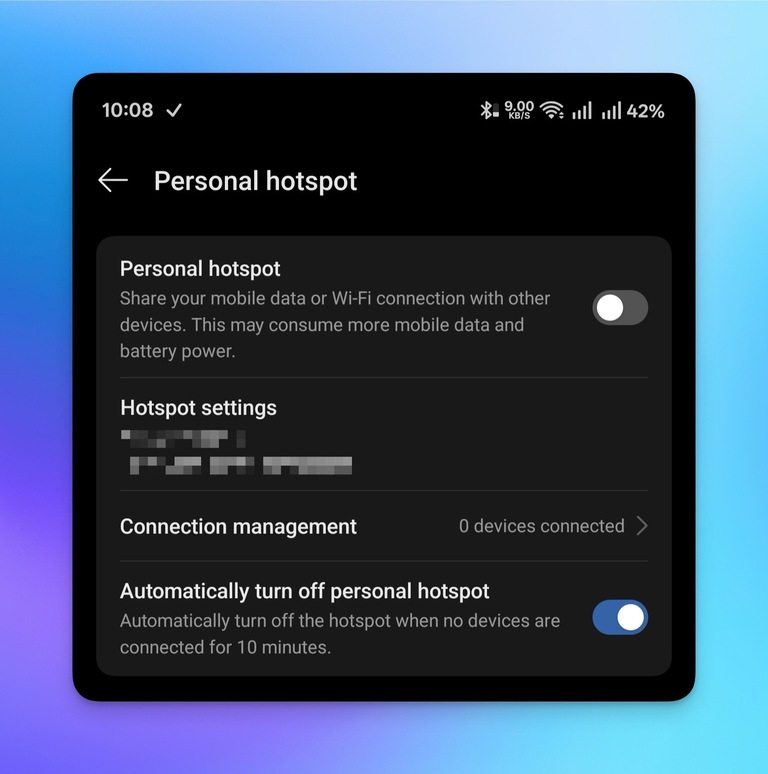
- Go ahead and enable Personal Hotspot from the Settings menu
- If your device supports Wi-Fi sharing, the hotspot will turn on.
Soon enough, you can see a new Wi-Fi network with the same name and password as the Personal Hotspot. You can now connect to this new Wi-Fi network to access the Internet.
Enable Wi-Fi Sharing on Windows PCs
Here’s how you can enable Wi-Fi sharing on a PC running Windows 11.
- Ensure that you are connected to the primary Wi-Fi network
- Open Settings and navigate to Network & Internet > Mobile Hotspot
- Choose Wi-Fi as the source of Internet connection
- Click the Edit button to change options like the Network name, password, and band.
- Use the toggle button at the top to turn on the mobile hotspot
Now, a new Wi-Fi network bearing the details you selected will become visible. You can connect your other devices to this network by entering the chosen password.
Pros and Cons of Wi-Fi Sharing
Here are some pros and cons of Wi-Fi sharing.
Pros
- You can utilize one device to connect multiple devices to a Wi-Fi network.
- Wi-Fi sharing is more privacy-friendly than connecting all your devices to public networks.
- It works great if a place limits the number of devices you can connect to its network.
- You can easily integrate features like VPN and other security measures
- Quite useful for families when on device-limited Internet plans.
Cons
- Some networks may block Wi-Fi sharing options
- Using Wi-Fi sharing can drain your smartphone’s battery life.
How is Wi-Fi Sharing Different from Wi-Fi Direct?
Wi-Fi sharing, as I said multiple times, is designed to share a Wi-Fi connection with other Wi-Fi devices. This option can help you save money or ensure Internet access to multiple devices, even if you can connect only one device to the main Wi-Fi network.
Wi-Fi Direct, on the other hand, lets two Wi-Fi-enabled devices communicate. More importantly, this setup does not require a Wi-Fi router. For instance, you can use Wi-Fi Direct to connect a smartphone to a Wi-Fi-enabled smart printer without needing a Wi-Fi router.
Some file-sharing apps and features also make use of Wi-Fi Direct to enable quick data transfer.
How is Wi-Fi Sharing Different from a Wi-Fi Hotspot?
Wi-Fi Hotspot is another way to extend a connection to other devices. In this case, however, your phone or tablet PC uses a mobile data connection via Wi-Fi. So, as long as you have an active mobile data connection, all connected devices will have Internet access as well.
In many ways, Wi-Fi sharing is similar to mobile hotspot or Wi-Fi tethering. In the case of a mobile hotspot, you create a Wi-Fi network and use that network to share your mobile data connection to other devices. In the case of Wi-Fi sharing, you use the data from an existing Wi-Fi network and make it available to other devices.
Like Wi-Fi sharing, Wi-Fi Hotspot does not require a Wi-Fi router, either. On the other hand, the function will convert your phone into a Wi-Fi router. Depending on the device, the Wi-Fi Hotspot function might let you change settings and manage connected devices.
By the way, here’s a quick table comparing Wi-Fi sharing, Wi-Fi Direct, and Wi-Fi Hotspot:
Feature | WiFi Sharing | WiFi Direct | WiFi Hotspot |
|---|---|---|---|
Needs router | Yes | No | No |
# Devices | Multiple | One or few | Multiple |
Use case | Hotels | File transfer | On-the-go internet |
Internet | Yes | Sometimes | Yes |
As you can see, these three options are different but definitely useful for individuals and families alike. But none of these can replace each other. So, when you choose devices, check whether the specific Wi-Fi feature is available.
How to Share Wi-Fi Password on Android and iOS
Another useful Wi-Fi-related feature available on Android and iOS devices is called Wi-Fi Password Sharing. As the name suggests, this feature lets you share the SSID and password of a Wi-Fi network quickly. Here’s how you can use the feature on Android and iOS devices.
On Android
- Open Settings and navigate to Wi-Fi
- Tap the Gear/Info button next to the Wi-Fi network you are connected to
- Look for a Share button with a QR code icon
- Verify your Identity using a password or biometric methods
- You can now use the QR code or Quick Share function to share the password with another device.

Keep in mind that the QR code with the password is universal. So, you can use an iPhone to scan the QR code and connect to the Wi-Fi network. This option is great if you have forgotten the password to a network. If you have a connected device, you can use the device login to find the password.
On iOS Devices
iOS, iPadOS, and macOS will automatically share Wi-Fi passwords with devices signed into the same iCloud account. You can bring such devices in the vicinity and follow the pop-up instructions to share the password.
However, if you want to share the Wi-Fi password with another device, you can use the QR code function on the Passwords app. Here is how you can go about it:
- Open the Passwords app on your iPhone or iPad
- Choose the Wi-Fi selection and tap on the network you want to share
- Now, tap Show Network QR Code to proceed
- Verify via Face ID, and you should see the QR code on the screen.
Wrapping Up
I am sure I have answered almost all your questions regarding Wi-Fi sharing. Although some alternatives, such as travel routers, exist, a smartphone with Wi-Fi sharing is a blessing indeed. I use this feature mostly when at airports and hotels. So, make sure you don’t let device limits bother you when staying at a hotel.
