
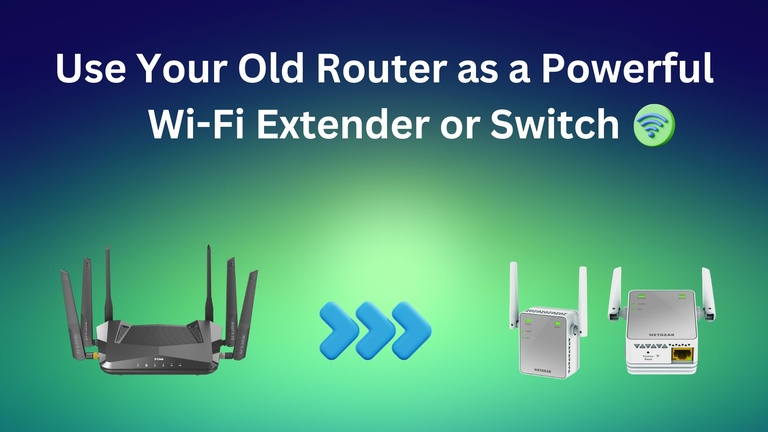
Router upgrades are always fun, but you end up with an old router. In most cases, this old router is relegated to a cardboard box, but it doesn’t have to be. Won’t it be awesome if this old router could extend your Wi-Fi network or work as a network switch? That’s definitely better than creating e-waste. In this guide, I shall show you how to use your old router as a powerful Wi-Fi extender or switch.
Benefits of Using an Old Router as a Wi-Fi Extender
Here are a few reasons to consider converting an old router into a Wi-Fi extender at home.
Eco-friendly
As I mentioned earlier, you prevent the router from becoming e-waste. When set up correctly, this extender can help you save the money you would otherwise spend on a dedicated Wi-Fi extender. You are also saving the environment in the long run since your router won’t end up in landfills.

Improved Connectivity
A router converted into an extender works as well as, if not better than, a dedicated Wi-Fi extender. So, you can use your old router to extend the network connectivity by a long shot. It will be a great way to eliminate Wi-Fi dead zones or to extend Wi-Fi access to the basement.
Flexibility
Using your old router as a Wi-Fi extender offers more flexibility than using a dedicated Wi-Fi extender. For instance, you get advanced control over NAT and Wi-Fi channels. These features will be beneficial when optimizing the secondary/extended network for improved performance/coverage.
Seamless Setup
Setting up your old router as a Wi-Fi extender is not rocket science, either. Depending on the router model and extension mode, the process can be completed in a few minutes. You can easily find everything required in your home as well.

Given that the process takes no more than 30 minutes, you have even more reasons to convert your old Wi-Fi router into a Wi-Fi extender/switch.
Requirements For Setup
Here are the components you need to use your old router as a powerful Wi-Fi extender. You can complete the setup with the following components if you want to set up a wireless extender.
- Your old router and power adaptor. The router must have a configuration option called Repeater or Extender. Many modern routers allow you to configure them as an AP or an extender.
- New router connected to power and the Internet
- The credentials for the new router’s network
However, if you want to create a wired extension, you must have another component:
Ethernet cable
In this setup, you can connect the old router to the new router via an Ethernet cable and configure the old router. Further, you would set up the old router as an Access Point.
Don’t worry; I will explain both options in detail so that you can choose the one that best suits your needs.
Configuration of the Old Router as a Wi-Fi Extender
As I mentioned, you can configure your old router to act as a Wi-Fi extender in two ways: wirelessly or wired. Both these options have slightly different requirements. Therefore, you should see what you have.
Method #1: Use the Old Router As A Wireless Repeater
You can use this method to convert your old router into a Wi-Fi extender/repeater wirelessly. It means you don’t need an Ethernet cable for the setup. Nor do you have to worry about advanced network settings. On the other hand, you must have a Wi-Fi router with Wi-Fi repeater functionality.
How It Works
This functionality enables a Wi-Fi router to switch to a different operation mode: Wi-Fi Repeater. When this mode is activated, various features, such as parental controls, NAT, and QoS, may not function. Instead, the router will work like a Wi-Fi extender you buy from the market. Instead, the device will retrieve Wi-Fi signals from your new router and rebroadcast them.
What You Need
Depending on the router model, you may have access to additional features. Therefore, as the first step, you should check whether your old router supports Repeater Mode. The feature may also be referred to as Extender Mode or Wireless Bridge mode. You can also check the specifications page of your old router to see if one of these terms is mentioned.
If this part is complete, you can proceed with setup.
The Setup
Once you have ensured that your old router supports the Repeater operation mode, you can follow the steps given below:
- Before proceeding, you must first perform a factory reset on your old router. This helps in a few ways. One, factory resetting the router will remove all previous configurations. You can set it up like you are opening it for the first time. Two, you can access the setup wizard, which is easier to configure.
- The easiest way to factory reset the router is to hold the Reset button for 10-15 seconds using a SIM ejector/safety pin. The status LEDs will start blinking and stabilize within a few minutes. At this point, you can confirm that the device has been reset.
- Now, you need to connect to the old router using a computer. I recommend using an Ethernet cable, as a wired connection is more reliable. However, if you prefer a wireless setup, you can connect to the default Wi-Fi network. You can find the details of this network on the product label.
- Once you have connected, open a web browser and enter the default IP address. A common address would be 192.168.1.1 or 192.168.0.1. If you are unsure, you can recheck the product label for confirmation. Enter this IP address in the URL bar and wait for the login screen to appear.
- When the screen appears, you can log in using the default credentials listed on the router label. You should be able to log in a minute. Some models may ask you to set a new login password for the Wi-Fi router.
- In a few seconds, you can see the Quick Setup option. You should choose Repeater Mode from the available options. It may also be called Extender Mode or Wireless Bridge Mode.
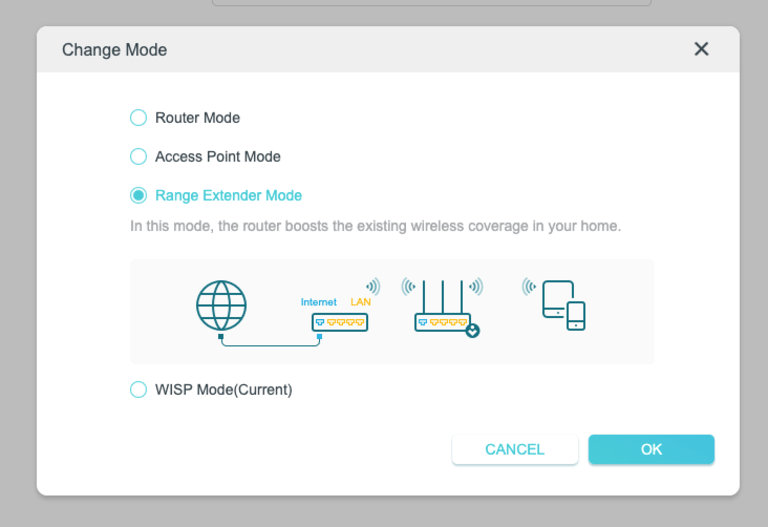
- After a reboot, the interface will appear, allowing you to search for available Wi-Fi networks in the area. Choose the Wi-Fi network of the new Wi-Fi router and enter the password.

- On the next page, the interface will let you set up the SSID and password of the extended network. Ensure you select a name that does not conflict with the existing Wi-Fi networks.
- Once you save the settings, you can reboot your old Wi-Fi router, and you are good to go.
Now that you have set up everything, you have to place the older router at a strategic location. It shouldn’t be far away from your new router. Instead, keep it close enough that it can receive a sufficient signal from the core router.
Method #2: Convert the Old Router into an Access Point
You can use this method to create a wired extension of your existing network. This extension will function as an Access Point, providing internet access. This method is more straightforward and offers incredible signal strength as you will be using Ethernet. It also means you need an Ethernet cable to get things done.
What You Need
As I mentioned, this setup is straightforward, and you only need an Ethernet cable. This method should work on any router available. It means you don’t have to worry about firmware support or extra features.
Setup
Here are the steps to configure your old router as an access point (AP):
- Like we did in the last step, you need to factory reset the old router. Once the reset process is done, you can connect your computer to the old router using an Ethernet cable.
- Go to the dashboard and select the option labeled ‘Access Point mode’.
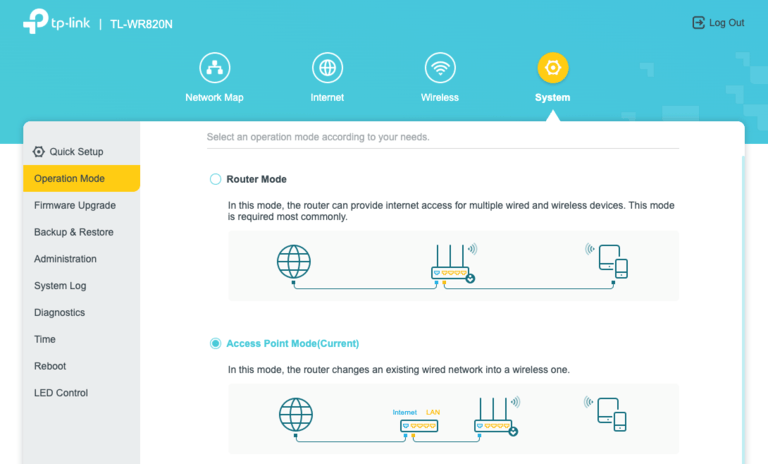
- Once you have made these changes, you can connect the two routers. Make sure you plug one end of the Ethernet cable into the LAN port of the new router and the other end into the WAN port of the old router.
- This configuration appears to indicate that the new router is the main network, and the old router is connected to it. Now, you can connect devices to the old router’s Wi-Fi network for Internet access.
Keep in mind that features like NAT or QoS may not function properly when using AP mode.
Turn Your Router Into an Ethernet Switch
If you want to take things a step further, consider converting your old router into an Ethernet switch. It is a great option when you want access to more Ethernet ports. Similar to how the extender function can replace a Wi-Fi extender, and the Switch function can replace a network switch.
- Make sure you have performed a factory reset on the router. You can log in to the router by setting up an Ethernet connection.
- Once you have logged into the router’s admin interface, you should navigate to Settings > LAN or Network Settings.
- When you see the LAN settings, you must first disable the DHCP server. This will stop your new router from assigning a dynamic IP address to the old router. Instead, you should type in a new IP address against the LAN IP address. Ensure that you select an IP address that your new router will not use.
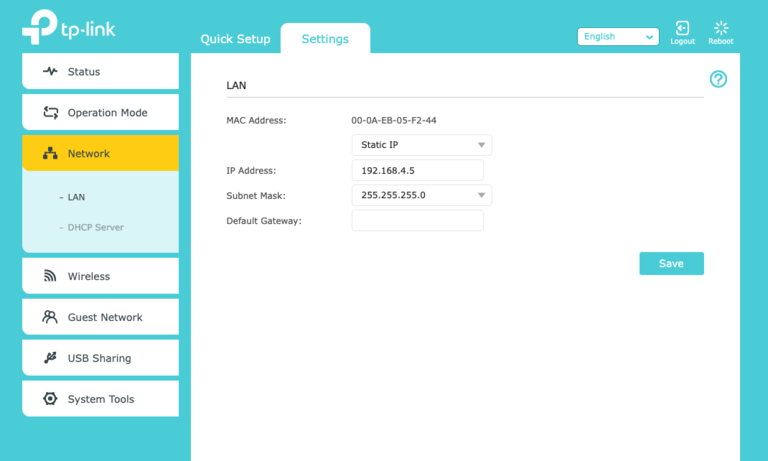
- You should now go to the DHCP server and disable the function. Doing so will prevent the old router from assigning a dynamic IP address to connected devices.
- Once these steps are completed, you can connect the two routers using an Ethernet cable. Ensure that the Ethernet cable is securely plugged into the LAN ports on both devices.
From this point, your old router will work as a network switch. All devices connected to the old router would also be part of the new router’s network.
Wrapping Up
I hope I covered everything about repurposing your old router. Regardless of the mode you choose, it means reducing landfill waste and enhancing your network. By the way, if your router doesn’t natively support the Extender/Repeater option, you can consider installing custom firmware, such as DD-WRT.
