

Like the routers from other ISPs, Frontier routers are also susceptible to certain issues. You can resolve most of these problems with simple steps, but some require resetting the Frontier router. If you’re new to Wi-Fi routers, getting everything on track can be challenging. Don’t worry, though. In this guide, I will cover the essential information you need to know about resetting your Frontier routers. I will begin with an overview of the reset process.
What is a Router Reset?
A router reset is the process of restoring the Wi-Fi router to its factory settings. In other words, a router reset will erase all the changes you have made to the Wi-Fi router as well as the network. Consequently, the Wi-Fi router will function as if it just came out of the factory.
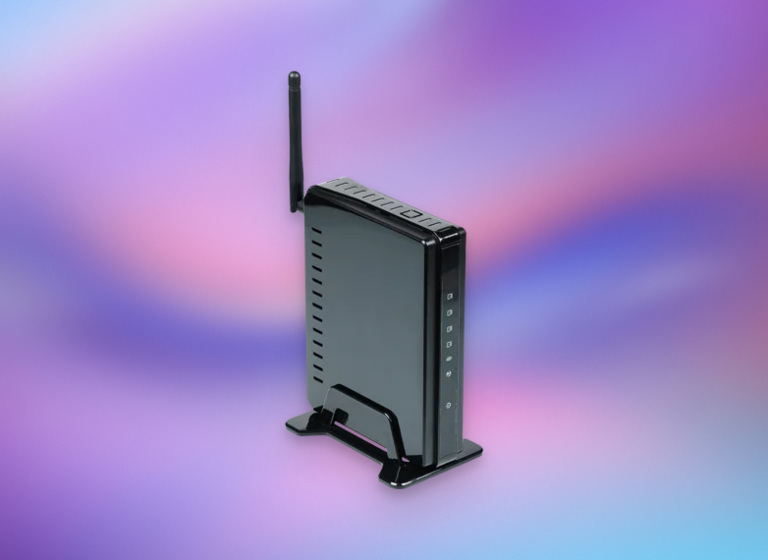
It is similar to how you would factory reset your smartphone before selling it to someone else or when the device becomes too slow. Like this process, several instances may require a router reset. Sometimes, it is a necessity, while at other times, it is just an additional step.
Why Reset Your Frontier Router?
Here are some reasons to reset your Frontier router.
- Resolve Connectivity Issues: Though not the initial step, a factory reset can address connectivity problems with your Frontier Wi-Fi. It can fix slow speeds, frequent disconnections, and more.
- Forgotten Password: Did you forget the password for the Frontier Wi-Fi network? You can restore the default SSID and password through a Frontier router reset.
- Hacked Router: Do you suspect that your Frontier router has been hacked? A complete factory reset will restore the factory settings and remove the threat actor from the device.
- Improved Performance: Because your router accumulates junk files over time, a factory reset once a year or so can improve the overall performance.
- Returning Frontier Hardware: Your Frontier Wi-Fi router may contain some sensitive information. It is thus a good idea to reset the device before you return it to Frontier.
You may also have other reasons to reset your Frontier router. However, for this reason, you may need to follow some additional steps.
What to Do Before Resetting the Frontier Router
I will suggest a few things you should do before resetting the Frontier router. To keep things clear, I will keep different categories.
For Forgotten Password, Hacked Router, and Connectivity Issues
When you reset a Frontier router, the default SSID and password are restored. So, you should have access to these credentials to begin setup. You can ensure this in two ways. One, look at the product label on the back of the router. Two, find the official product package that you got the router with. Keep this information handy, and you can complete the setup wizard in a few minutes.
For Improved Performance
If you are resetting your Frontier router for enhanced performance, you might try backing up the existing network configuration settings. I recommend this, especially if you have set up port forwarding rules and other customization features. This way, you can easily set up the network and import the features after a factory reset.
General Tips
Here are some points to keep in mind before you proceed with a factory reset.
- Make sure that factory reset is the final solution for your problems. Before you do it, you should try restarting the router and contacting the ISP.
- Even when you think you have a hardware-based issue, you should try updating the router firmware before attempting a factory reset.
- You should also try other troubleshooting methods, such as checking whether you have connected all the cables properly and whether the ISP is having an outage in the area.
If you think your Frontier router needs a reset after all these steps, you can go ahead and do so.
How To Reset Frontier Router
Here are two methods you can use to reset Frontier routers. You can choose one based on whether you have access to the router’s web interface.
Using a Reset Button
The Reset button is the easiest way to reset your Frontier router. You can use this method as long as you can access the router hardware. So, even if you are locked out of the Wi-Fi network (consequently, the router’s web interface), you can rely on the Reset button. The steps are:

- First, locate the Reset button on your Frontier router. You can spot this button on the router’s back in most cases.
- To be on the safe side, disconnect the Ethernet cable and other cables from the router. You just need power to do a factory reset.
- Now, press and hold the Reset button for about 10 seconds. You can release the button when the lights start flashing. If the router has a hidden Reset button, you may want to use a paperclip or SIM ejector.
- The reset process may take up to 10 minutes, depending on the device and its condition. Stay patient and make sure that the device has uninterrupted access to power.
Using a Web Interface
Let’s say that you still have access to the Wi-Fi network and the web interface. In that case, you can use the soft trigger option to reset the router. The steps are:
- Open a web browser on a device connected to the Frontier Wi-Fi network.
- Enter the default router IP address, which you can find on the product label or the package. In most cases, the IP address is something like 192.168.254.254.
- When the page appears, log in using the username and password. If you have not changed them, you can use the default username-password combination.

- Navigate to Settings > Maintenance > Reboot.
- Click Reset to proceed with a factory reset.
Using a WPS Button
On some routers that you get from Frontier, you can find a combined button for WPS and Reset. That is, it may not have a dedicated Reset button. In these cases, you can press and hold the WPS button for about 15 to 20 seconds to initiate the factory reset. Make sure you refer to the user manual.
When the reset process is complete, the lights on the Wi-Fi router will become stable. At this point, you can find the default SSID when scanning for Wi-Fi networks. You can connect your computer to the network and set up everything.
Set Up Frontier Router After Reset
Now that you have factory reset the Frontier router, you need to think about the post-reset setup. Here are some points to keep in mind.
- As I said, your router will turn on the default Wi-Fi network after the factory reset process. You need to connect to this network to set up everything else. Alternatively, you can use an Ethernet cable to connect your computer to the network.
- Open the admin interface by opening https://192.168.254.254 using a connected device. Here, you can log in using the default credentials.
- Once logged in, complete the Setup Wizard if available. This wizard lets you choose between multiple functioning modes for the router. Now, go to Network > Wireless and choose a new name for the SSID as well as the network password.
- You should update the firmware of the router to stay away from potential threats and vulnerabilities at the device level. After this, you can connect the cable from the modem to the WAN port of the Wi-Fi router.
At this point, your Frontier router will restart, and you should have Internet access through the Wi-Fi network that you have set up.
Conclusion
I hope this guide helped you reset the Frontier router through some easy steps. When used properly, the factory reset function on your Frontier router can save your device, data, and privacy. You can also ensure a smooth Internet and Wi-Fi experience, which is a plus.
