
ExpressVPN routers offer a lot more functionality compared to conventional routers, starting with quick and easy access to a network-wide VPN. However, getting used to the new interface and features might be a bit confusing for some. In this guide, I have prepared a quick and easy access guide on ExpressVPN router login. These steps will help you customize the router for a quick start by changing the Wi-Fi name and password.
What is ExpressVPN Router?
Depending on the context, an ExpressVPN Router could mean two things.
One, you may be referring to an ExpressVPN Aircove router that you can buy from ExpressVPN. This device works like any other Wi-Fi router, but you get integrated access to ExpressVPN and some other features. It can be more expensive than conventional routers from popular vendors, though.
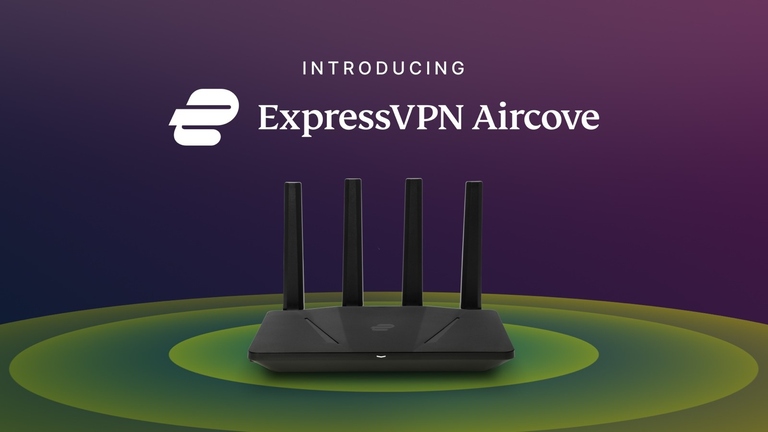
Two, you could be referring to a router running the ExpressVPN firmware. Some router models from makers like ASUS, NETGEAR, and Linksys allow you to flash the ExpressVPN firmware onto the system. Once such a router is successfully flashed, it will use this custom firmware and will be known as an ExpressVPN router.
The common factor is the ExpressVPN firmware. Both the Aircove router and other routers flashed with the ExpressVPN firmware will have the same UI and navigation options. Some features may not be available on some models.
So, if you have a router from either of these categories, you can use the following guides to set things up.
Log in To A Router Running ExpressVPN
The first step of modifying the ExpressVPN router is logging into the system. You can follow these steps to log in to any Wi-Fi router running the ExpressVPN firmware.
For this to work, your computer/smartphone must be connected to the ExpressVPN router. You can do it in two ways: Wi-Fi and Ethernet. While Wi-Fi is a convenient option, I recommend you stick to an Ethernet connection. This way, you can stay connected to the router even when you change the Wi-Fi name or password later. More importantly, wired Ethernet signals are more reliable than Wi-Fi signals.
After you ensure this stable connection, you can follow the steps given below.
- On the device connected to the ExpressVPN router, you need to open a web browser like Microsoft Edge or Google Chrome.
- Now, you can enter the default router IP address. It can be something like 192.168.1.1 or 192.168.0.1. Alternatively, you can try to open expressvpnrouter.com, and the router should lead you to the actual IP address.

- When the login page appears, it will ask you to enter the admin username and password. For almost all routers compatible with ExpressVPN, the credentials will be admin and admin or admin and password. However, if you want to double-check, you can always look at the router label.
- Once you enter these credentials, the router will complete the login process. In a few seconds, you’d be able to see the ExpressVPN dashboard.
Now, you can access the dashboard and modify different aspects of the router and connection. While doing this for the first time, you may want to change the default Wi-Fi name and password.
Change The ExpressVPN Wi-Fi Name And Password
Changing the default Wi-Fi name and password is an integral task during the setup. You can follow the steps given below to make further changes. You may want to do this if you reset the router or want to change the Wi-Fi SSID and password that you chose during the ExpressVPN router setup.
- Make sure that your computer is connected to the ExpressVPN router. You need to follow the same instructions I provided for the previous section.
- After this, you need to log in to the ExpressVPN router dashboard by entering the admin username and password.
- Once you enter the dashboard, use the left sidebar to navigate to Network Settings > Wi-Fi Settings.
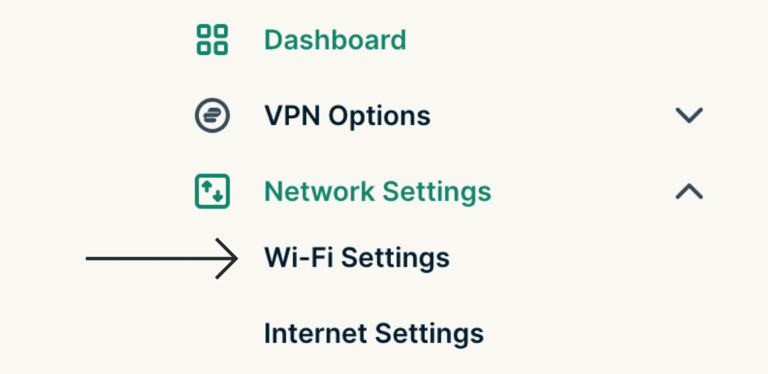
- On this page, you should be seeing the details of the current Wi-Fi network. Here, you get to choose the new SSID and password for the Wi-Fi network. After you have made these changes, you can click the Save button on the page.
Depending on the Wi-Fi router model you have, the device may restart before the new SSID and password become available. You can also choose not to share the network name (SSID) with others. This way, people won’t be able to find your network while scanning. They should know the SSID to connect to your network.
Make sure you follow some additional steps while choosing the SSID and password:
- Make sure you choose the WPA3 security for the network. This option is available on most routers with which the ExpressVPN router is compatible. You can enable this security protocol while setting up the SSID and password for the network.
- As you know, the Wi-Fi password is the access key for your Wi-Fi network. So, the password must be difficult to guess. Also, make sure you don’t use the default SSID and password for the network.
- As I said earlier, you have an option to hide the SSID. While it may be a little inconvenient, this step can boost your Wi-Fi network’s security by a long shot.
- Network segmentation is always a great option. So, if your ExpressVPN router offers features like a guest Wi-Fi network or IoT network, you should try those options instead of putting all your devices under a single network.
- You may also want to enable the Network Lock kill switch if you want continuous protection from the VPN connection.
Wrapping Up
I hope this guide helped you get the basics right about your ExpressVPN router. It does not matter whether you purchased an Aircove router or flashed the firmware on an existing model. The interface is easy to get used to, and you can modify the network and other aspects however you want. You can start your journey with these routers by setting up a strong password first.
