
Responding to the increasing number of security and privacy issues, more people want a VPN connection on more devices. The solution? Setting up a VPN on your router so that all of your devices stay protected. Things are somewhat easier when you have an ExpressVPN subscription, though. Here is the complete, step-by-step guide you need to set up ExpressVPN on your router. I will take you through all the major options you have.
What is a VPN Router?
The word VPN router could mean two things based on the context.
One, it could be a Wi-Fi router with VPN capabilities. That is, the router lets you set up a VPN for the entire network. Some models may have additional features, but OpenVPN is the default protocol for most routers in the market. Once you have configured a VPN on these routers, all the traffic handled by the router shall pass through the encrypted VPN connection. This method is better than setting up individual VPN apps on each device.
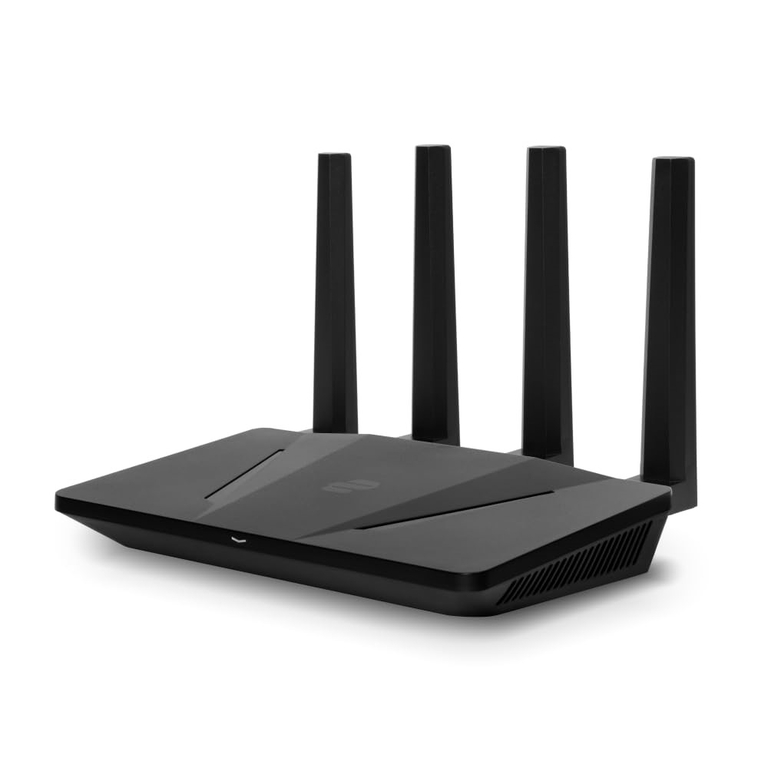
Two, we could be talking about Wi-Fi routers with a built-in VPN. For instance, we have devices like Aircove from ExpressVPN, which lets you connect to the network in a single click. You can also find other companies like FlashRouters.com, which can set up custom firmware based on the VPN service you need to access. I’ve also come across many Wi-Fi router models, from makers like ASUS and TP-Link, that have a VPN subscription built into the security suite.
Therefore, when you want to enable a VPN connection across the network, you get to choose between these options.
Why Should You Use ExpressVPN on a Router?
Here are some reasons you may want to use ExpressVPN on a router as opposed to installing it on individual devices.
- ExpressVPN is Great: ExpressVPN is one of the best VPN services you can get today. Despite being a lot more affordable than other options, you get access to fantastic features. This no-log VPN allows you to use the service on up to 14 simultaneous devices at a time.
- You Need Network-level Protection: Using ExpressVPN at the router level is more convenient than setting up the same VPN service on individual devices. It also allows you to enable protection for devices without native support for VPNs, such as smart TVs and other IoT devices.
- You Have More Devices: As I said, ExpressVPN plans allow up to 14 devices at the same time. It does not work when you have more than, say, 20 devices. By setting up ExpressVPN on a router, you can solve the problem because the router will be counted as a single device.
- Better Access: Using ExpressVPN on the router also lets you get the best out of encryption and geo-restricted content access. Since it becomes easy to select a suitable server for the network, all the devices on the network will have the corresponding IP address and the benefits.
- It functions as an Extra Layer: Setting up ExpressVPN this way works as a sure-shot protection layer for all users. This way, even if someone in your family/office does not pay attention to specifics, they will stay protected.
For what it’s worth, configuring ExpressVPN on a router is not rocket science. You can complete the process in just a few minutes. However, you must ensure compatibility before you proceed.
ExpressVPN Compatible Routers
You can find multiple Wi-Fi routers with varying levels of compatibility with ExpressVPN. While some of these models support ExpressVPN like it does any other VPN service, other routers offer dedicated options to set up and manage the system.
Here’s a quick table to give you an overview:
Routers Where You Can Install ExpressVPN Firmware
These are Wi-Fi routers that either ship with the custom ExpressVPN firmware or can be flashed with it.
| Brand | Router Models |
|---|---|
| ExpressVPN | Aircove AX1800 |
| Asus | RT-AC56U, RT-AC56R, RT-AC56S, RT-AC68U (up to v3), RT-AC87U, RT-AX86U, RT-AX68U, RT-AX88U (AX6000) |
| Linksys | EA6200, WRT1200AC, WRT1900AC (13J1, 13J2), WRT1900ACS (V2), WRT3200ACM, WRT32X |
| Netgear | R6300v2, R6400v2, Nighthawk R6700v3, Nighthawk R7000, Nighthawk R7000P |
| FlashRouters | Many models, with ExpressVPN firmware pre-installed |
| GL.iNET | Beryl-AX |
For instance, Aircove AX1800 is a Wi-Fi router made by ExpressVPN, and it runs the custom firmware. This router allows you to enjoy maximum protection and encryption features without any technical expertise. As long as you have an active ExpressVPN subscription, the router will continue protecting you as well. This Wi-Fi router is more expensive than others, though.
Then there are Wi-Fi routers that you can flash with the ExpressVPN firmware. ExpressVPN officially supports all the models listed in the table. You can set up the firmware just like you would upgrade the official firmware of these routers (more about this later). You can also try FlashRouters, a company that will install the ExpressVPN firmware on popular router models.
In addition to these, you can set up and use ExpressVPN on any Wi-Fi router that supports OpenVPN. I will cover the quick steps you need for this method as well.
How To Set Up ExpressVPN on a NETGEAR Router
Here is how you can install the ExpressVPN firmware on your NETGEAR router and enjoy one-click access to VPN services. Keep in mind that only some Wi-Fi routers from NETGEAR are compatible with the firmware. Those devices are:
- NETGEAR R6300v2
- NETGEAR R6400v2
- NETGEAR R6700v3
- NETGEAR Nighthawk R7000
- NETGEAR Nighthawk R7000P
If you have one of these devices, you can follow the steps given below to install the ExpressVPN firmware:
- Make sure that you have connected your computer to the Wi-Fi router using an Ethernet cable. This is the better method since the process involves multiple disconnections and reconnections.
- Now, open a web browser and download the ExpressVPN Firmware file from the official website. You will need to sign in to the account, choose Router from the menu, and select the model of your Wi-Fi router. The site will then download a CHK file to your computer.
- At this point, you should copy and paste the Activation code for your ExpressVPN connection. Doing so will help you set up the VPN connection even if you lose Internet access during the process.
- Now, you need to open the default router IP address of your NETGEAR router by entering an address like 192.168.1.1, 192.168.0.1, or routerlogin.net. You can now log in using the default credentials or the new credentials you have set up.
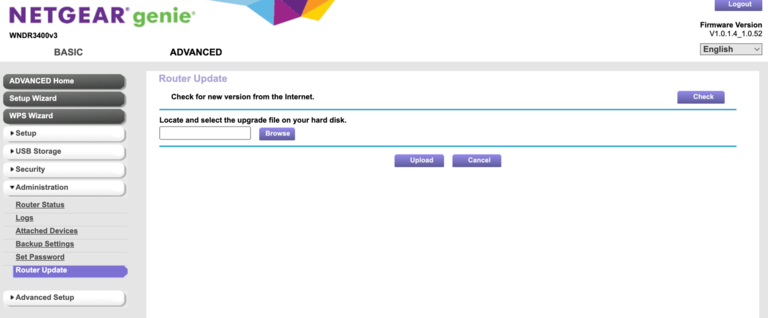
- Once you have logged in, navigate to Advanced > Administration > Router Update. This should open a new page where you can see essential information for the firmware upgrade. Typically, you would be using the page to update the NETGEAR router.
- Click the Browse button and choose the CHK firmware file you downloaded from the ExpressVPN website. The upload process may take up to a few minutes, and the page may show you a couple of warnings. Proceed with these warnings.
- Once the upload is complete, the device will reboot. When it restarts, the router will have the default Wi-Fi SSID and password. At this point, your NETGEAR router will be on the ExpressVPN firmware.
Voila! You have successfully installed the ExpressVPN firmware on your NETGEAR router. You can now log in to the NETGEAR router and complete the setup process. During this process, you can set up the ExpressVPN account by entering the activation code.
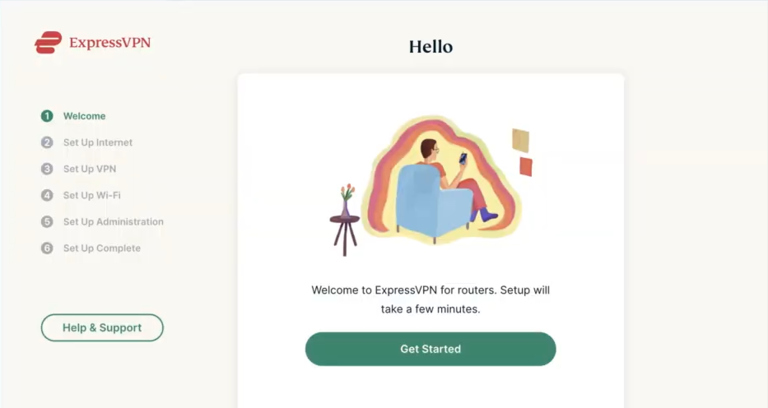
The following pages allow you to set up a new Wi-Fi SSID and password as well.
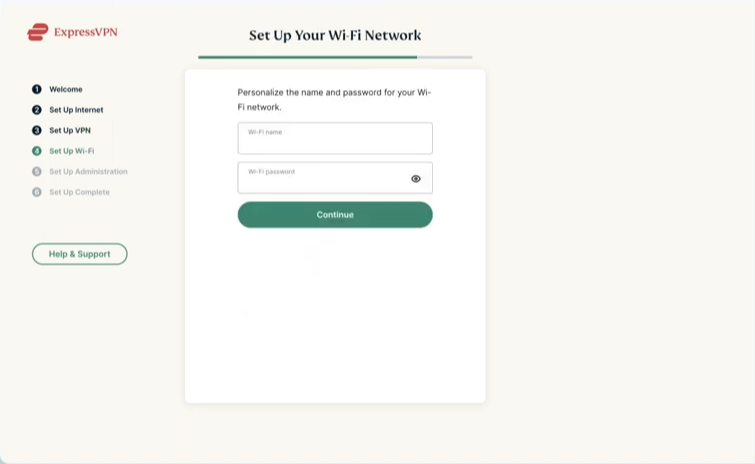
From this point, you can use the intuitive User Interface of the ExpressVPN firmware to manage every aspect of your NETGEAR router. By the way, you should know that you can use the firmware and the router without connecting to the ExpressVPN account.
How To Set Up ExpressVPN on a Linksys Router
The steps are slightly different when you have a Linksys router. For what it’s worth, Linksys routers are best known for their security and customizability. As a result, you can find more Linksys routers that allow you to set up the ExpressVPN firmware. The following models are on this list.
- Linksys EA6200
- Linksys WRT1200AC
- Linksys WRT1900AC 13J1
- Linksys WRT1900AC 13J2
- Linksys WRT1900ACS
- Linksys WRT1900ACS V2
- Linksys WRT3200ACM
- Linksys WRT32X
If you have any of these models at your disposal, you can follow the steps given below to set up ExpressVPN on your router.
- Follow the first three steps that we mentioned in the case of the NETGEAR router. However, you need to choose the correct model number of the Linksys router before you download the ISO image.
- Connect your computer to the Linksys Wi-Fi router using a LAN cable for the best results. Now, open a web browser and access the router’s default IP address. 192.168.1.1 is the standard option for most Linksys models.
- When the login screen appears, you need to enter the password. If you are using this page for the first time, you can enter admin as the password.
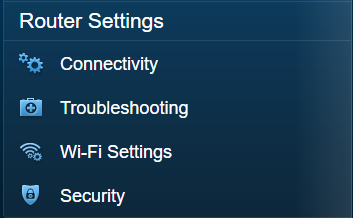
- Once you enter the dashboard, you need to navigate to Connectivity > Basic. You should see a section called Router Firmware Update on the right side. In the bottom part, you can find a Browse button as well.
- Click the Browse button and choose the ExpressVPN firmware file (ISO) you downloaded earlier. Now, wait for a few minutes as the Wi-Fi router processes the information.

- In a few minutes, the Linksys router will restart. When it turns back on, you can access the brand-new ExpressVPN firmware instead of the Linksys one.
The rest of the setup process is the same as that of NETGEAR routers, as the ExpressVPN firmware follows the same UI on all routers. So, you can use those steps to configure the router and set up the VPN account while you are at it.
Install ExpressVPN on an ASUS Router
When we move to ASUS routers, the number of supported devices decreases. But if you have one of the Wi-Fi routers listed below, you won’t have trouble installing the ExpressVPN firmware on it.
- RT-AC68U (including v3)
- RT-AC87U
- RT-AC56R
- RT-AC56S
- RT-AC56U
The following steps will help you install the ExpressVPN firmware on one of the devices mentioned above:
- As we did for NETGEAR and Linksys routers, go to the ExpressVPN site and download the firmware file (TRX). Similarly, ensure you have connected your computer to the ASUS router using an Ethernet cable.
- Now, open a web browser and enter 192.168.1.1 in the URL bar to open the default IP address. If everything is on point, you should see the login page in a second or two. Alternatively, you can open the page by entering router.asus.com.
- You can log in to the page by entering the default credentials for the router. It could be a combination of admin and admin. Alternatively, you should try the credentials printed on the router label or the product packaging.
- Once you have logged in to the dashboard, navigate to Administration > Firmware Upgrade.
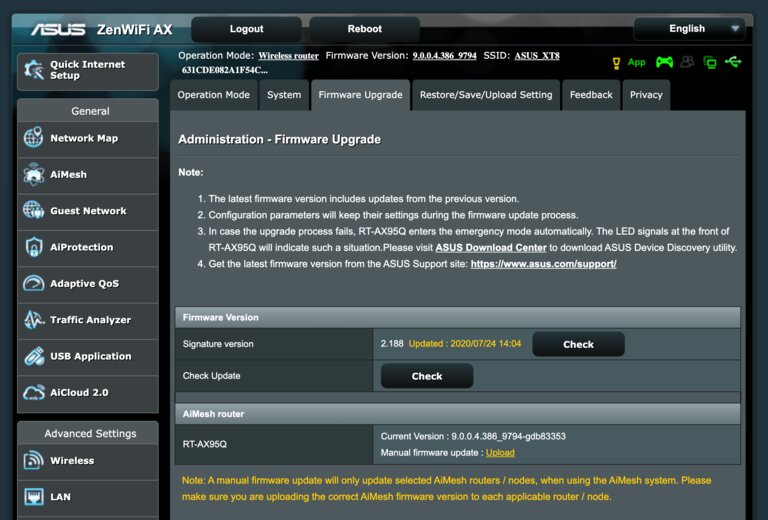
- You should see an Upload button next to a section called Manual Firmware Update. Click the button and select the TRX file you downloaded earlier. Now, you should let the router complete the setup for the file.
- Once the installation is complete, your ASUS Wi-Fi router will restart. It might take more than a few minutes to reboot, though. After the reboot, you can start the setup process for ExpressVPN.
You can follow the same steps mentioned in earlier sections to complete the initial setup using ExpressVPN. During this process, you can set up the new password, SSID, network security key, and the VPN itself.
Set Up OpenVPN on a Router with ExpressVPN
As you can see, not many routers are compatible with the ExpressVPN firmware. Not even a single router from makers like TP-Link and D-Link would work with the firmware. If not, you can still use ExpressVPN on routers if they support OpenVPN.
OpenVPN is a popular VPN protocol that you can use on many routers. If your Wi-Fi router supports VPN, it will most likely have support for OpenVPN as well. Now, I will tell you how you can configure OpenVPN on a router with ExpressVPN.
- You first need to download the OpenVPN configuration files from the ExpressVPN website. You can do this by visiting the ExpressVPN Setup page. Once you have signed in, you can select the server of your choice and download the configuration files. Keep in mind that not all server locations may be available via OpenVPN.
- Once you have done this, you can open the dashboard of your Wi-Fi router. You can do it by entering the default router IP address or something like router.asus.com (for ASUS routers).
- After logging in to the dashboard, click on VPN from the sidebar. The page will show you an empty list of VPN servers. To proceed with a connection, you must add a server profile.
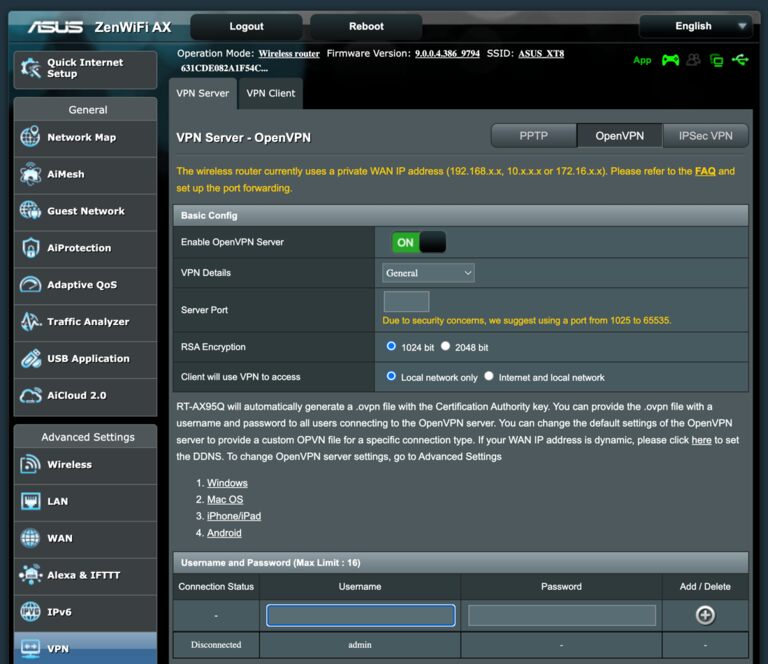
- Click on the Add Profile button and fill in the details such as description, username, password, and the .ovpn file you downloaded from the ExpressVPN website.
- Click OK to save the server settings. When you go back to the VPN page, you should see the server added to the list. You can recognize it by reading the description.
- Now, when it is time to activate the connection, you can click the Activate button to connect. You’d see a symbol when the connection is successful.
That’s it. You can follow these steps to create as many server profiles as you want. While a bit inconvenient, you can shift between server locations as you wish. Depending on the router model, you may find a quick connection option on the mobile application as well.
Managing Multiple Devices with ExpressVPN on a Router
When you install the ExpressVPN firmware on a compatible router, you get a few advantages. One of them is that you can manage multiple devices with ease. For starters, it means not all devices connected to the Wi-Fi network will use the VPN connection. Instead, the ExpressVPN firmware offers a few ways to manage your devices.
Device Groups
Device groups let you assign a group of devices to a specific category. For instance, you can create a group named Streaming and add the corresponding devices to the category. Then, based on the setting, all devices in the group will use the selected server. ExpressVPN may also recommend group ideas when you open the Device Management page.
Individual Devices
You can also set up VPN-based rules for individual devices connected to the network. Also, you can pick a device from the menu and change its name to begin with. You might have an option to change the IP address of the device.
Wrapping Up
I hope this guide has helped you understand the basics of setting up ExpressVPN on your router. As you can see, you have a few options to choose from. So, even if you don’t have a compatible router, you can use the VPN with the help of the OpenVPN protocol.
