
Starlink has been a blessing for those who can’t access widespread internet connection methods, such as broadband or DSL. With the proper hardware and an active plan, Starlink makes it easy to access the Internet from virtually anywhere on the planet. However, you may occasionally experience slow Internet issues with Starlink. In this guide, I will explain why your Starlink Internet speeds are slow, as well as how to fix the slow Internet issue.
Starlink and Expected Speeds
Before you determine whether Starlink has a problem, you must understand the expected speeds from the Starlink connection. As you know, satellite Internet connections are not as fast as fiber-based broadband or mmWave 5G connections. Though Starlink performs several times better than alternatives, you can’t always expect something miraculous.
Here’s what the typical speeds from a Starlink Internet connection look like:
According to Starlink, the satellite Internet connection offers an average download speed of 45 Mbps to 280 Mbps. On the other hand, upload speeds typically range from 10 Mbps to 30 Mbps. For what it’s worth, the Starlink connection generally offers an impressive latency of 25 to 60ms.
However, real-life metrics and user accounts tell us a different story. According to these resources, 100 Mbps is the median download speed you should expect from Starlink. Those living in the United States can expect a download speed of this magnitude and a 10Mbps upload speed on a typical day.
If your actual speeds are not even closer to these numbers, you have a problem that needs fixing. If so, you can continue reading.
Common Causes of Starlink Slow Internet
Here are some potential reasons you may be experiencing slow Internet speeds with your Starlink.
- Network Congestion: Starlink internet also uses shared resources. Therefore, whenever too many people use it simultaneously, you will definitely notice a slow internet speed.
- Obstructions to Signal: If there are obstructions between the Starlink dish and the satellite in the sky, you will notice a difference in terms of speed.
- Weather Affecting Signal: Since weather conditions, such as snow and rain, can impact the Starlink distress connection to the satellite, you will notice lower speeds when weather conditions are poor.
- Suboptimal Router Placement: The slow Internet speed from Starlink may be due to the placement of your router. If the router is far away from your devices, the download/upload speeds will suffer.
- Too Many Connected Devices: An overloaded Starlink router can slow down the Internet experience on individual devices. You may also have devices consuming a lot of data in the background.
- Misaligned Starlink Dish: You cannot expect the best speeds from your Starlink connection if the dish is misaligned.
- Data Cap or FUP: Your Starlink connection may also have a data cap or Fair Usage Policy. If you have reached this limit, the speeds will decrease.
- Firmware Issues: Some firmware issues with the Starlink dish/router may also cause the download or upload speeds to suffer.
- Network Outages: While extremely uncommon, issues with the Starlink network (satellites or base stations) can also cause slow browsing/download speeds.
- Faulty Hardware: Similar to how firmware issues cause problems, hardware issues with the dish or router can also be responsible for the slow speeds you experience with Starlink.
- Additional Interference: Finally, signal interference from other devices, such as your microwave, can cause a decrease in speed.
You cannot surely address all these issues! However, I can offer some potential solutions in the correct order.
How To Fix The Starlink Slow Internet Issue
Now, you can try these solutions in the same order to fix the Starlink slow Internet issue. Keep in mind that certain things are not under your control when it comes to the Starlink speed. For instance, if the weather outside is so bad, you cannot expect the typical speed from the connection.
#1 Restart Your Starlink Kit
This is something I recommend for every other issue that people come across while using their Starlink. If your Starlink internet connection is becoming increasingly slow, try restarting the Starlink kit first.
If possible, you can disconnect the power source and let it restart from scratch. This way, the Starlink kit will establish a fresh connection with the satellite, and you should likely resolve the speed issue.
#2 Check the App for Obstructions
Obstructions may still appear even after you have configured your Starlink dish to the best of your ability. It is convenient that you can use the Starlink app to see potential obstructions to your Starlink dish.

I suggest you try this and remove those obstructions. Alternatively, you can find another clear spot for your dish. You must ensure clear access to the sky to achieve the best speeds that Starlink promises.
#3 Realign the Dish using the App
Alignment of the dish also determines the speeds you get from Starlink. Sure, you may have aligned the dish the first time you set up Starlink, but it is not enough. Fortunately, the Starlink app can help you here:
Note that you need to worry about alignment only when using the Starlink Standard Kit, Starlink Enterprise Kit, and Starlink Mini Kit. Other versions can align their dishes automatically.
Typically, Starlink will notify you if the dish is misaligned for more than 5 degrees. However, a misalignment of less than 5 degrees can also affect the speed of your Starlink connection. Therefore, I recommend checking the Alignment tool in the Starlink app and selecting the optimal alignment for the receiver/dish.
This process may take a minute, but you can expect significantly improved performance.
#4 Reduce System Overload
If you have connected too many devices to your Starlink router, you can disconnect some of them to avoid system overload. It is also a good idea to check if any devices are consuming a lot of background data.
I also recommend turning on the Metered Connection mode for the Starlink network. This way, your PC will not use the connection for tasks like Windows Update.
#5 Update the Firmware
A firmware update of your Starlink router/dish system can solve temporary software-related issues. It often boosts the average speed of the connection as well.
In most cases, Starlink will automatically download and install the firmware whenever they are available. But if you want more control, you can check the Settings page on the Starlink app.
#6 Change the Router’s Location
You should try moving the Starlink router to a different location. I understand that routing the cable can be a hassle, but a more optimized location can offer better speeds. Ensure that all your devices have access to 5GHz signals to achieve the best Wi-Fi speeds from Starlink.
#7 Run Speed Tests on Other Routers
While uncommon, you may also be dealing with an underperforming Starlink router. In that case, you can check the speed on another router. However, you need to enable Bridge Mode on the Starlink system and connect the secondary router to the setup. It takes a bit of time, but it should boost the speed.

#8 Check All the Cables
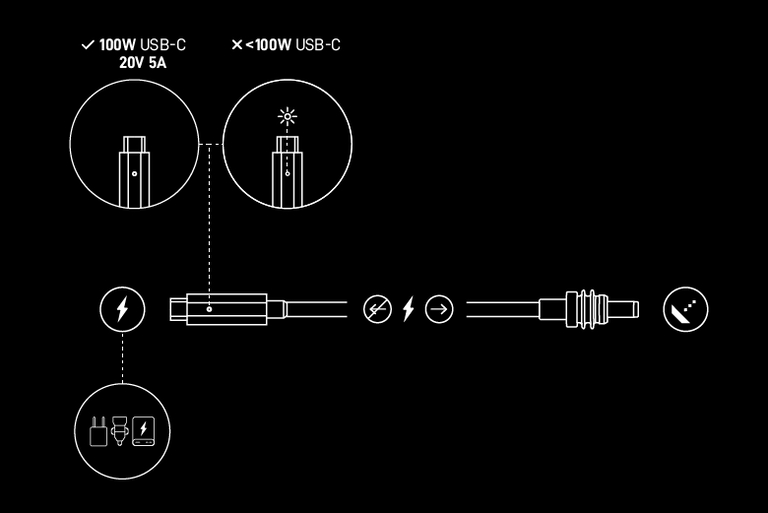
You must use the official Starlink cables for all connections. Third-party cables may work, but they can impact the speed. If you cannot access the official cables, I recommend purchasing another pair from Starlink.
#9 Check Your Account
Before proceeding to the next step, please verify that your Starlink account is functioning correctly. It could be a case of FUP or data cap. In some cases, Starlink may reduce the speed when using the connection for tasks such as peer-to-peer (P2P) sharing.
#10 Contact Starlink Support
If the steps above haven’t solved the Starlink slow Internet speed issue, you are better off contacting Starlink. You could have a problem with the Starlink hardware or the constellations in the area. Given that your kit is under warranty, a replacement would likely be the best solution.
Wrapping Up
I hope this guide helped you fix the slow Internet issue with your Starlink connection. Though you cannot address some issues that cause the slow Internet situation, most are solvable. Given that Starlink does not offer on-site support, you should try these steps before attempting things like replacement.
