
Wi-Fi extenders from NETGEAR are a convenient way to enhance the range of your Wi-Fi networks. They are also easy to manage once set up. Even when something goes wrong, you can perform a factory reset. While it may cause data loss, you regain access. In this guide, I will tell you how to reset a NETGEAR Wi-Fi extender. I will cover two methods so that you can choose the one that suits you.
Resetting a Netgear Extender
Let me first tell you a few reasons to reset your NETGEAR extender.
- Your NETGEAR Wi-Fi extender has trouble connecting to the Internet. If this problem persists after multiple restarts, it is recommended to perform a factory reset on the extender hardware.
- You notice frequent disconnections and signal drops. These issues may prevent you from accessing Wi-Fi using the said extender, warranting a factory reset.
- You may want to configure the extender from scratch to connect it to another Wi-Fi network. While some extenders allow you to change just the configuration, a clean start is always appealing.
If your situation relates to any of these factors, consider factory resetting the Wi-Fi extender. Moreover, if your extender powers on but does not provide Wi-Fi/Internet access, that alone is another reason to attempt a factory reset. However, keep in mind that:
- A factory reset will remove all data and configurations from your NETGEAR Wi-Fi extender. The device will forget the Wi-Fi networks that you have previously connected it to.
- If your Wi-Fi extender has a password-based login system, it will restore the default credentials. This means that custom passwords would no longer be effective.
- The factory reset process typically takes between 1 and 10 minutes. The Wi-Fi extender must remain connected to power throughout the process, as interruptions can cause the device to become unresponsive.
If you are okay with these changes, you can proceed with the factory reset process. On most devices, you’ve the option to choose from two methods.
#1 Using the Reset Button
Using the Reset button on the NETGEAR Wi-Fi extender is the most straightforward option to restore factory settings. This method does not require the login credentials or an active Wi-Fi network. Instead, you can use the technique as long as you have physical access to the extender. Here are the steps:
- Ensure the Wi-Fi extender is connected to a stable power source.
- Ideally, you should wait until the Power LED turns blue/green.
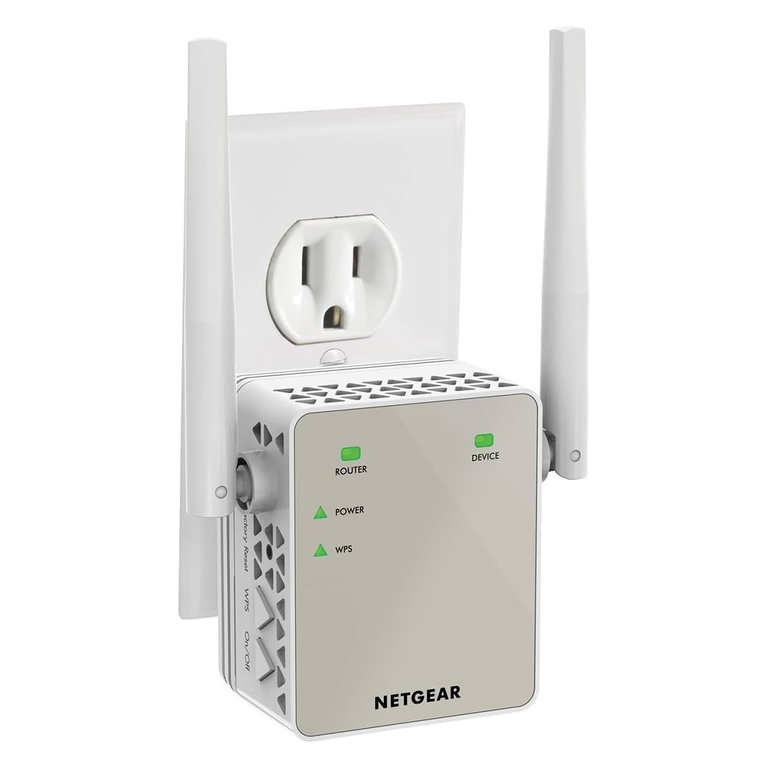
- Now, locate the Reset button on the extender. It could be on the bottom/side of the device. If the button is not raised, you may need a safety pin or a SIM ejector tool to access it.
- Press and hold the Reset button for 10-15 seconds until the lights start blinking.
- You can release the button when the blinking stops. In a few seconds, the Power LED will turn blue or green, indicating that the extender has been reset.
This method should help you reset the extender even when its Wi-Fi network is not working.
#2 Using the Web Browser Configuration Interface
If you would rather trigger the reset via a web interface, you can use these steps:
- First, locate the IP address of your NETGEAR Wi-Fi router. You can find this in the user manual or on the product label on the side.
- Now, connect the Wi-Fi extender to a power outlet and wait until it is powered on. The process might take up to a few seconds.
- Once the extender’s Wi-Fi is available, connect your device to the network. Alternatively, you can set up an Ethernet connection between the extender and your computer.
- Now, on your computer, open a web browser and enter the IP address.
- When the login page appears, enter the password. If you have not changed the credentials before, you can log in by entering password as the password.
- Once you reach the dashboard, you can navigate to Settings > Reset.
- Depending on the model, you may have an option to back up existing network settings. Once you’ve completed these steps, you can proceed with the Reset.
Like before, the reset process will take between 1 and 10 minutes. Once you see stable green/blue lights for the Power LED, you can start reconfiguring the NETGEAR Wi-Fi extender.
How To Reconfigure the NETGEAR Wi-Fi Extender
Now that you have reset the NETGEAR Wi-Fi extender, let’s talk about reconfiguration. Here’s how you can set up the extender from scratch.
Note: Your NETGEAR Wi-Fi extender is now in the factory state. Therefore, you should use the default Wi-Fi password and login credentials to access the device. You can find these details on the Wi-Fi extender itself or the user manual.
Now, you can follow these steps:
- Connect your Wi-Fi extender to a power source and wait until the Wi-Fi signal is active.
- Use your computer and connect to the default Wi-Fi network. The name would be NETGEAR_EXT. It may not have a password, or you can use ‘password’ (without quotes) as the password.
- Once you are connected, open a web browser and access mywifiext.com. When the page opens, select the option labeled ‘New Extender Setup’.
- Some models may ask you to set up an admin username and password for the router. It is better to keep these credentials different from the Wi-Fi network credentials.
- Follow on-screen instructions until you see a page that lets you choose one of the Wi-Fi networks in the vicinity. You can connect to this network by entering the password.
- Now, the extender may take a few minutes to establish a connection to the network. Right after, you can choose the SSID and password for the extended network.
- Save these options, and you have to wait until the lights are stable.
At this point, you should have the NETGEAR Wi-Fi extender working without any issues. You can access this web-based interface at any time to modify settings.
The Bottom Line
Were you able to reset and reconfigure your NETGEAR Wi-Fi extender using these methods? The process is straightforward and takes only a few minutes.
