
NETGEAR makes some of the most reliable Wi-Fi extenders one can get from the market. Most of the time, these nifty devices can help you expand Wi-Fi coverage with minimal hassle. However, there are times when the NETGEAR Wi-Fi extender does not work as expected. On the bright side, fixing these problems takes only a few minutes at the most. In this article, I will take you through these solutions.
Top Reasons Why the Netgear WiFi Extender Not Working
- Insufficient Power Supply: Like Wi-Fi routers, Wi-Fi extenders require a balanced power supply. So, issues with power delivery might be the reason for the faulty functionality.
- Faulty/Defective Hardware: Though unlikely, your NETGEAR Wi-Fi router may have some hardware-related issues. Some of these may be temporary, though.
- Poor Placement of Router: Your Wi-Fi extender must receive sufficient signal from the router in the first place. A poorly placed Wi-Fi router may prevent this.
- Wi-Fi Interference: If there are too many Wi-Fi networks in the vicinity, signal interference may also cause the extender to stop working.
- Issues with Initial Setup: Your NETGEAR Wi-Fi extender requires a rather elaborate setup process. If any issues occur with this setup, you may have connectivity issues.
- Outdated/Corrupted Firmware: An outdated firmware version can also cause problems with the Wi-Fi extender.
- Issues with Wi-Fi Router: In addition to poor placement, other software/hardware issues with the Wi-Fi router can also cause issues with the extender.
- Issues Detecting 5GHz: Some Wi-Fi extenders from NETGEAR face issues because they have trouble detecting the 5GHz network.
Connected to Extender But No Internet: What Does It Mean?
Sometimes, you may come across a scenario where your device is connected to the extender, but you won’t have Internet access. It is a common issue with a simpler explanation.
In these cases, the NETGEAR Wi-Fi extender has trouble connecting to the original Wi-Fi router. It could be caused by signal problems or a hardware issue the network is facing. You can solve this problem by restarting both the Wi-Fi extender and router. Because it will force both devices to restart, you can reconnect without issues.
How To Fix Netgear WiFi Extender Not Working
I already told you how to solve the connected but no Internet issue. However, you may face other problems, including the ones when you cannot find the extender network.
For those issues, you can check out the following solutions.
#1 Restart and Power Cycle the Wi-Fi Extender
The first step, as always, is restarting and power cycling the Wi-Fi extender and the Wi-Fi router. It will help you solve most of the temporary issues with the connection. You should first restart the router and wait until the connection is stable. Then, you can restart the Wi-Fi extender so that it can connect to the original Wi-Fi network without any fuss.
#2 Change the Extender Location
You have to remember that the Wi-Fi extender does not generate Wi-Fi signals. Instead, it receives the Wi-Fi signal from the original router and expands it through another network. So, you must keep the extender at a location that is closer to the original Wi-Fi.
Let’s say that you have kept the Wi-Fi router in the living room but want signal connectivity in three other rooms. So, you should ideally keep the extender in the closest room so that the device can access quality Wi-Fi signals from the primary router.
After you change the location of the extender, you must restart the Wi-Fi extender.
#3 Redo Initial Setup
If you find that the NETGEAR Wi-Fi extender is not working the first time, it may be due to a lack of a proper initial setup. In this case, you should reset the Wi-Fi extender and restart the initial setup process. You can use the following steps to complete the setup.
- Make sure that you have selected the Extender mode on the NETGEAR Wi-Fi extender.
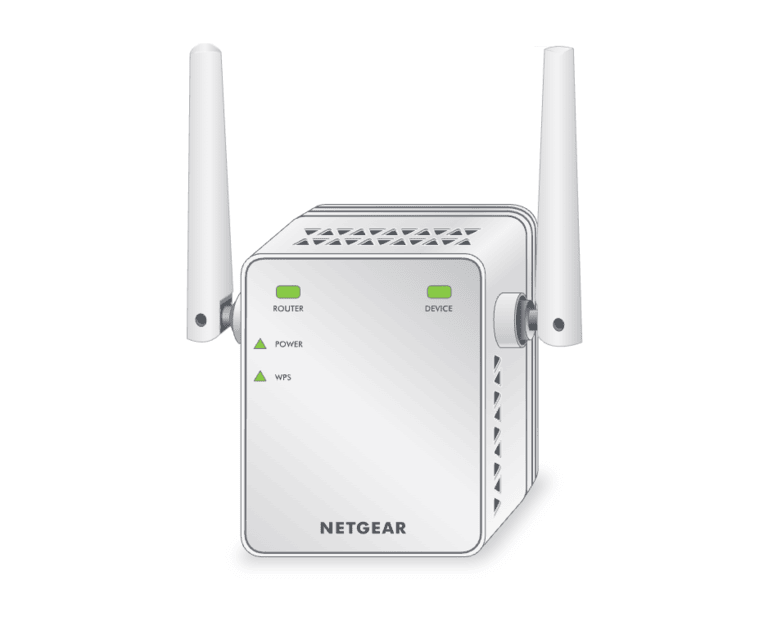
- Connect it to a power outlet and wait for the lights to show up. Depending on the model, you might see a solid green or blue light. It means the extender is working. On some models I have used, there was a power button as well.
- Now, open your computer and search for the extender Wi-Fi network. The default name would be something like NETGEAR_EXT. You can connect to the network without entering a password or using the password “password” itself.
- If your computer notifies you that the Internet connection is available, ignore it. Now, you can open a web browser and enter http://mywifiext.com.
- Follow the on-screen instructions to complete the initial selections, followed by assigning the new credentials.
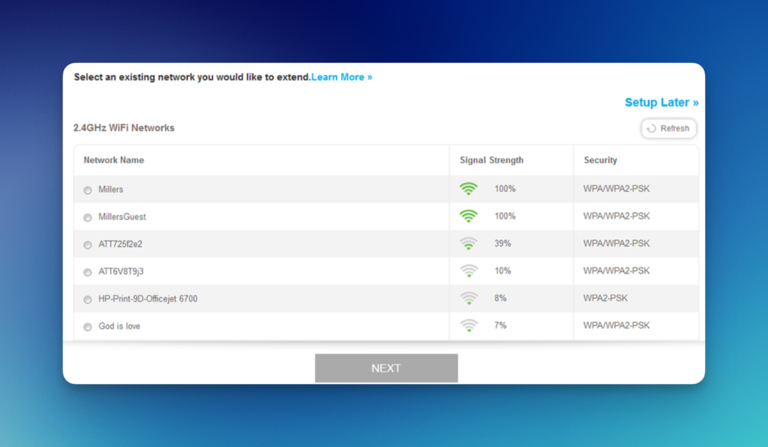
- On the next page, you can see an interface to select the Wi-Fi network. Pick the Wi-Fi network and enter the password.
- You will also be able to choose a unique SSID and password combination for the extender network.
When the setup is complete, you should be able to see a solid blue/green light on the Wi-Fi extender. These steps should solve connectivity issues.
By the way, if you have a Wi-Fi extender from the Nighthawk series, you can use the Nighthawk app for iOS and Android to set it up. The process is straightforward once you install the Nighthawk app. It will scan for available devices, and you can follow on-screen instructions to complete the initial setup.
You can also use the WPS button method to set up the NETGEAR Wi-Fi extender. It is a convenient option if you don’t want to deal with web-based interfaces and passwords. While this process is easy, make sure that you turn off WPS on the Wi-Fi router right after the setup. For those unaware, WPS offers subpar security.
#4 Check Power Options
As I said, inconsistent power delivery may also cause problems with the Wi-Fi extender. So, check whether the outlet is working as it should. It is a good idea to connect the Wi-Fi extender to another power outlet. If it does not solve the problem, you may want to see if there are issues with wiring.
#5 Update the Extender Firmware
You should also check whether a firmware issue is causing the problem. I suggest installing the latest version of the firmware to be on the safe side. If your NETGEAR router supports that option, you should be able to access the firmware update pane by logging in to https://mywifiext.com.
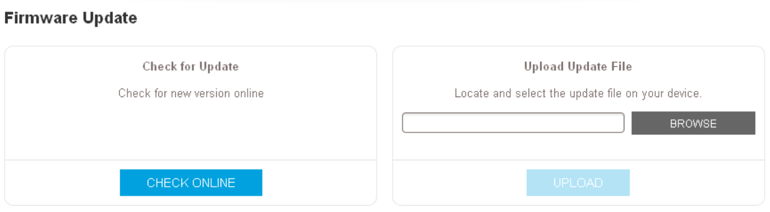
However, you should first go to the support homepage of NETGEAR and see if an updated version of firmware is available for the model.
#6 Reset the Wi-Fi Extender
If the solutions mentioned above do not solve the problem, you should consider resetting the extender. As is the case with Wi-Fi routers, resetting the Wi-Fi extender will delete all the network configurations. But you can have a clean start and set up the extended Wi-Fi network without any issues. The steps are as follows:
- Most Wi-Fi extender models from NETGEAR have a dedicated factory reset button. You can find the button close to the Ethernet port.
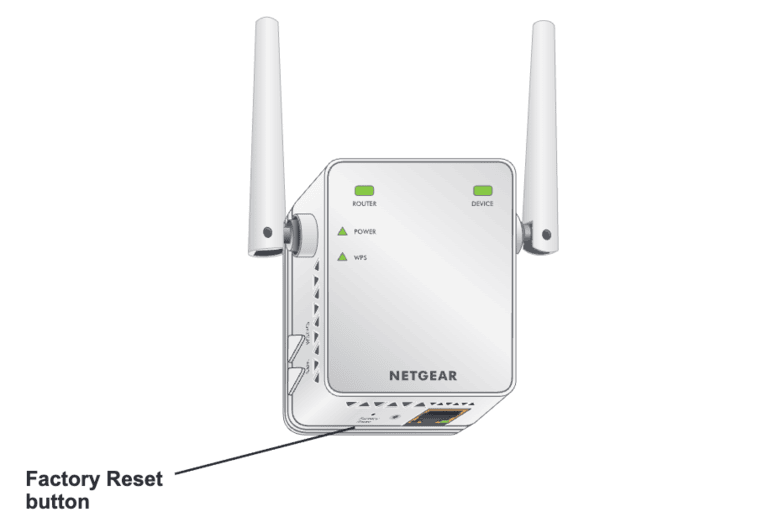
- Before you press the button, power on the extender and wait until you see solid green/blue lights. At this point, you can use a SIM ejector or paperclip to press and hold the Reset button.
- In a few seconds, the LED lights will start flashing. At this point, you can release the button. Wait for a few minutes for the device to complete the Reset process.
Once the Reset process is done, you should be able to see the static lights. At this point, you can get started with the initial setup.
#7 Upgrade the Extender
While all Wi-Fi extenders are handy, not all of them can extend the range to meet your needs. So if you think the performance of the extender is not enough, you may want to upgrade the device. I have also noticed that the actual speed of entry-level NETGEAR Wi-Fi extenders does not always match what is on the label. So, if you are expecting Gigabit-level speeds, you may want to upgrade to a better extender or a mesh Wi-Fi network.
#8 Use Ethernet
I don’t know if you know, but you can always connect your laptop or other devices to the Wi-Fi extender using an Ethernet cable. So, if you are ever in a situation where the Wi-Fi module doesn’t work, but you want to access the Internet, you might want to try this option.
This option is also great when you want to connect something like a Blu-ray player or a gaming console, which offers better performance with a wired connection.
#9 Contact NETGEAR
If you still haven’t solved the problem with your Wi-Fi extender, it is time to contact NETGEAR. Ideally, when you reset the device, it should solve most of the hardware and software-based issues that you can actually solve.
If your device is under warranty, you should probably get a replacement from Netgear, but other issues can also be sorted out easily.
Wrapping Up
I have talked about a few ways to solve the issues with the Netgear Wi-Fi extender.
But you should also see if you have enabled some other options if you are facing issues with the speed. For instance, many Netgear Wi-Fi extenders have an option to limit the Wi-Fi speed. If you have enabled some of those options, you will definitely have lower speeds.
Also, it’s a little impractical to expect the same speeds as you would get from the primary router. You should keep this in mind even when upgrading to a better Wi-Fi extender.
