

NETGEAR makes some of the most reliable modems and routers you can get for networking. However, these days, NETGEAR modems and routers ship with multiple status LEDs and light patterns. If you have not used networking equipment in the past, it can be a bit overwhelming. In this guide, you will find some insights on what the NETGEAR modem lights mean and how to act when a light starts appearing.
Different Status Light on NETGEAR Modem/Router
As you know, there exist hundreds of modems and routers from NETGEAR. Not all these modems ship with the same set of status lights or indicators. Since I cannot give you a model-wise list of such lights, here is an overview of all the lights you’d come across. Depending on the modem/router model, you can choose one and understand what it means.
Keep in mind that there are modem-specific lights on this list. You would probably not see these lights on a NETGEAR router.
Power
The Power status light indicates whether the modem/router is receiving power from the source. When there is active power, you should see a Green or Yellow solid light for this icon. You can find the Power LED on both modems and routers.
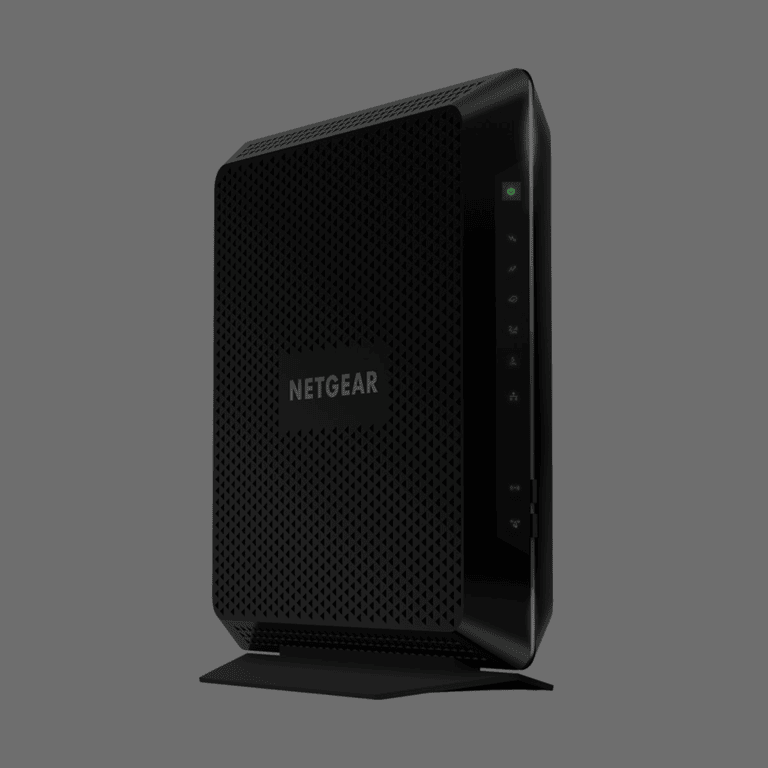
Internet
The Internet light is designed to tell you whether the modem/router is connected to the Internet. When you see a stable light on the Internet LED, it means everything is working fine. The Internet light can be found on both modems and routers alike.
Wi-Fi
The Wi-Fi status light on a NETGEAR router or modem is an indicator of whether the Wi-Fi network is active. When the light is on, you are likely to find a Wi-Fi network, and devices in the vicinity will be able to connect to the network.
Many routers and modems these days have multiple LED lights for different bands like 2.4GHz, 5GHz, and 6GHz.
Ethernet
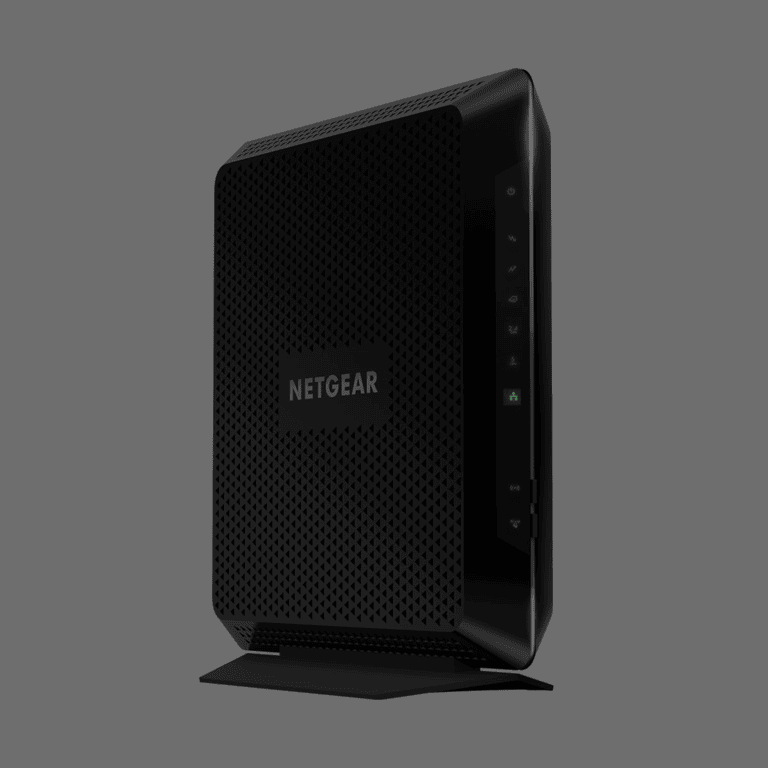
The Ethernet light on the NETGEAR router or modem indicates whether a device is connected using the Ethernet port of the router/modem. If a device is connected, the light will be on. However, the device must be actively using the connection.
USB
If your NETGEAR router or modem comes with a USB port, there may be a USB status light as well. This light will be on when you have connected a device using the USB port. So, if you want to check whether the media server that you are setting up via USB is working, this light is there to help you.
WPS
The WPS button on the NETGEAR router or modem is there to let you know the status of the Wi-Fi Protected Setup connection. The light will show different patterns depending on the status of the connection and how you want to proceed with actions like pairing.
Downstream
Some modems and routers from NETGEAR also have a downstream light that indicates the status of the downstream channel. That is, when the router or modem is receiving signals from the internet or another network, this light will be active.

Upstream
Like the downstream light, the upstream light on the Netgear router or modem is designed to let you know the status of the upstream channel. This means the light will be active when the router or modem uploads signals to the internet or another network.
Multi-Gig Port
If you have a compatible NETGEAR modem with multi-Gig connectivity, it may have a multi-Gig port light as well. This light will show the status and speed of the device connected through the multi-Gig port, which can handle over 1 Gbps of speed.
Tel Port Light
If you have a NETGEAR modem or router with support for telephony connectivity, it may have a Tel Port light as well. This light will tell you whether the telephony service is active. You can use the light to understand if there is an ongoing call as well.
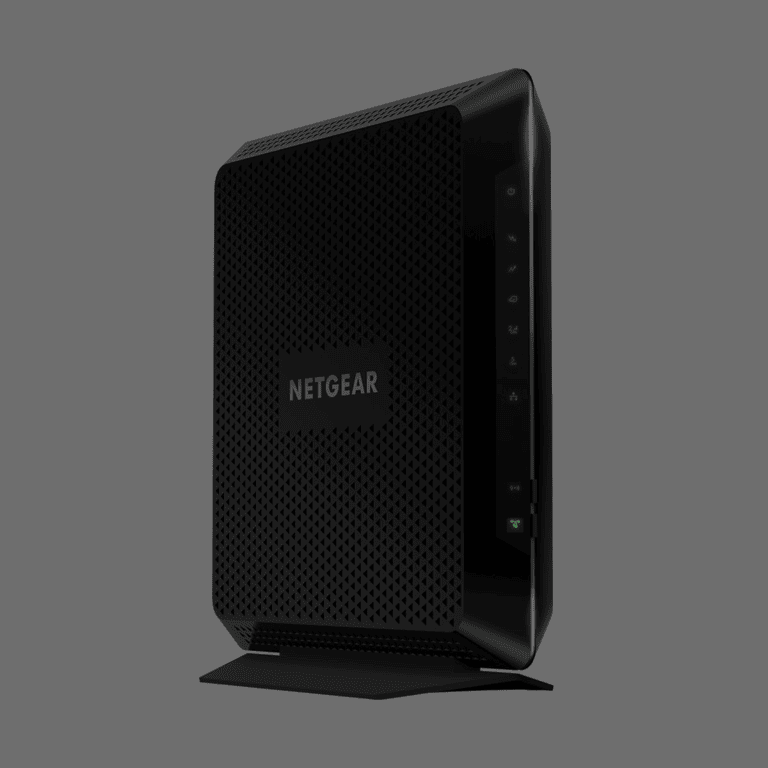
We have mentioned almost every status light you can find on NETGEAR modems and routers. However, keep in mind that not all routers will have the same set of lights. For instance, if the modem does not offer USB connectivity, do not expect a USB light.
Status Light Patterns and Colors
Now, we shall look at how different status light patterns and colors are shown on the different LEDs.
Power
Here are the different status lights you may see for the Power LED.
- Off: This means the modem/router is turned off and does not receive any power from the source.
- Solid White or Green: It means the modem/router is consistently receiving power and that the router is working.
- Solid Red: A solid red light on the power LED could indicate overheating issues. It may happen if your NETGEAR router has been overworked.
Some NETGEAR routers and modems may use the Power light to indicate issues such as firmware corruption, though. Make sure you refer to the model-specific user manual to know more.
Internet
Here is how the Internet status light will behave in different circumstances.
- Off: This means the modem or router is offline and not connected to the Internet.
- Blinking Green/White: It means the modem/router is attempting a connection to the ISP. You would see this status when you turn the modem back on.
- Solid Green: A stable green light on the Internet status LED means your modem/router has an active Internet connection.
- Rapid Green/White: Some NETGEAR modems and routers may also show a rapid green/white light when the Internet connection is active. The fast movement corresponds to data transfer.
Wi-Fi
The Wi-Fi status lights on your NETGEAR router/modem may show the following patterns.
- Off: It means the Wi-Fi network associated with the modem/router is turned off.
- Blinking Green/White: You will see a blinking light on the Wi-Fi LED when the modem starts the Wi-Fi service. It may take up to a few seconds every time you boot up the modem.
- Solid Green/White: A solid green/white light for the Wi-Fi icon means the modem/router has an active Wi-Fi network. Depending on the modem, you may see separate LEDs for 2.4GHz, 5GHz, and 6GHz networks.
Ethernet
The Ethernet LED status also has different styles depending on the state. Remember that a router or modem might have multiple Ethernet ports, and there will be corresponding LEDs for each of them.
- Off: This means the Ethernet port is not being used.
- Solid Green/White: A solid green/white light indicates an active Ethernet connection.
- Flashing Green/White: A rapidly flashing Ethernet status light also means an active connection. This particularly means data transfer via Ethernet.
- Amber: Some NETGEAR modems show an amber light when the connected Ethernet device has the top speed capped at 10/100 Mbps. It may also refer to the use of an older Ethernet cable standard, such as one less than Cat5e.
USB
If your NETGEAR router has a USB port, you may see the following styles.
- Off: At this point, you have not connected a USB device to the NETGEAR modem or router.
- Flashing Green/White: If your modem/router shows this status for a few seconds, it means it is trying a USB connection.
- Solid Green/White: You will see a solid light when there is a successful USB connection.
WPS
The WPS LED can let you know the progress with Wi-Fi Protected Setup.
- Off: It means nothing is happening with the WPS connection.
- Blinking White/Green: You will see a blinking white/green light when your router/modem is trying a WPS connection.
- Solid White/Green: This means the WPS connection is successful. Keep in mind that the light doesn’t stay on for long. It will disappear once the WPS setup wizard has done its job.
Downstream
The Downstream light has quite a few colors and patterns.
- Off: It means the downstream channel of the router/modem is not being used. Of course, the light will be off when the router/modem is turned off.
- Solid Amber: You should see an amber light when the NETGEAR router is using only one downstream channel. Don’t worry; this is common when you start up the modem/router.
- Blinking White/Green: You will see this status when the router is attempting to use more channels from the downstream category. During this scanning period, you may see the color shifting between amber and green/white.
- Solid White/Green: You should see a solid light when the modem/router is using multiple channels from the downstream category.
Upstream
The light for the Upstream channel also has similar patterns.
- Off: This refers to a lack of upstream activity.
- Solid Amber: The modem is using only one upstream channel.
- Blinking White/Green: The modem is attempting to find more upstream channels.
- Solid White/Green: The modem/router is using more than two upstream channels.
Multi-Gig Port
The multi-Gig port may show a wider variety of status symbols based on what is going on.
- Off: The multi-Gig port is not being used right now.
- Solid Blue: It means there is an active multi-Gig connection with a top speed of 2.5 Gbps.
- Solid White: It also means an active multi-Gig connection, but the speed will be capped at 1 Gbps.
- Solid Amber: You will see an amber light when the connection has the top speed capped at 100 Mbps.
- Blinking Blue: This means that the 2.5Gbps multi-Gig connection is active.
- Blinking White: This means that the 1Gbps multi-Gig connection is active.
- Blinking Amber: This means that the 100Mbps multi-Gig (port) connection is active.
Tel Port Light
Keep in mind that some NETGEAR routers and modems may have more than one Tel Port light, which will correspond to the two Telephone ports. Their patterns are as follows:
- Off: As always, this status means the Tel port is not being used right now.
- Solid Green/White: You see this light when the telephone service has been enabled on the modem and when a device is connected.
- Blinking Green/White: You see a blinking green/white light when there is an active call through one of the two Tel ports.
Wrapping Up
I have tried my best to explain how the different lights on your Netgear router or modem can indicate different things. Understanding these lights and the possible variations is actually helpful when you want to take good care of the device and the network itself.
Remember that there may be additional colors/patterns depending on the model of the router/modem. Given that modem-router combo devices continue to grow popular, you would also come across single-LED status options.
