
Starlink is one of the smoothest Internet setups we’ve come across recently. As long as you follow all those instructions, the Starlink system requires minimal maintenance. However, there are times when you have to factory reset your Starlink router. If you just started using it, it may be a bit confusing. Don’t worry; I have got you covered. In this guide, I have explained how to reset the Starlink router using some easy steps.
When Should You Factory Reset?
Before I tell you the steps to factory reset the Starlink router, let’s discuss some common reasons you might have to do a factory reset. Let’s start with simple concerns.
- Losing Credentials: You have a pretty strong reason to factory reset the Starlink router if you do not remember the credentials for the Wi-Fi network. When you do a factory reset, the device will restore the default Wi-Fi network named STARLINK.
- Disabling Bypass Mode: Bypass Mode of the Starlink router lets you use another Wi-Fi router instead of the built-in one. However, you need to factory reset the device and redo the setup when you want to disable Bypass Mode.
- Pairing Mesh Node: If you want to set up a mesh node for the Starlink router, you need to configure everything from the start. A factory reset will help you in this regard, as it will show you the Pair Mesh Node prompt when opening the Starlink app.
- Ownership Transfer: Like other devices, the Starlink router also requires a factory reset before you sell the device to someone else. This step ensures that none of your information/configuration setup remains on the device.
- Unresponsive Router: Gen 2 Starlink routers often tend to get unresponsive, especially if you have been using the device for an extended period. In these cases, you may need to reset the device to restore seamless Internet access.
- Better Compatibility: If you have plans to use a different dish with the Wi-Fi router, a factory reset is likely necessary. Because a factory reset forces a setup from scratch, you can configure the new dish in the best way possible.
You may also have other reasons for doing a factory reset. You can also do a factory reset to get a clean start.
Troubleshooting Common Issues Before Resetting
Every issue you face with the Starlink router does not warrant a reset. Some are temporary. So, I recommend the following fixes for some common problems.
Check for Potential Obstructions
Obstructions are the most common reason for connectivity issues with your Starlink system. So, before you factory reset, you should check whether such obstructions are affecting the performance. You can use the Starlink app to get an interactive map of obstructions. An overgrown tree branch or a building can cause it.

System Reboot
A complete system reboot can also solve many temporary issues with the Starlink router and dish. So, make sure you do multiple system reboots and wait for 20 minutes or so before thinking of a factory reset. If you can solve the problem through a system reboot, you won’t have to deal with data loss.
Firmware Update
Sometimes, performance and stability issues appear, and Starlink rolls out firmware updates. So, if you face issues with speed or signal, you should try updating the firmware before you think about a factory reset. You should do it, especially if you see a firmware update notification on the Starlink app.
Check Ethernet Connection
You should also confirm whether the problem is with the entire Starlink router or the Wi-Fi module. If you have a Gen 3 router, you can do it by connecting a device using an Ethernet cable. If you have a Gen 2 router, you may need a separate adapter for this, though.
Power Cycle Router
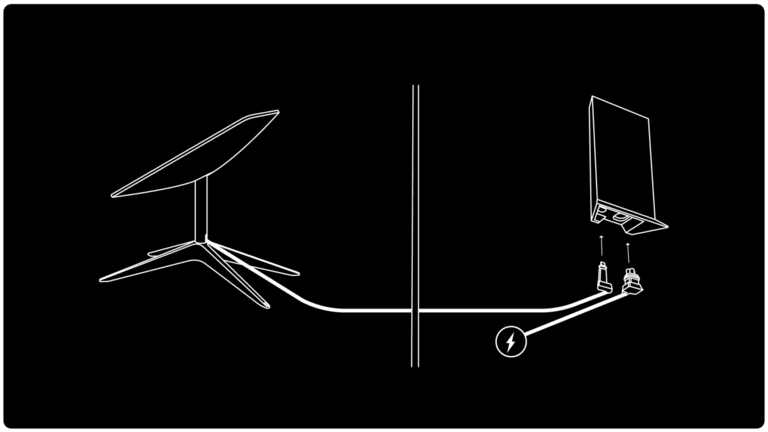
Power cycling your Starlink router can also help you get rid of common connectivity issues. You can do this by powering off the system, waiting for about a minute, and turning it back on. You can repeat the process a few times for the best results.
If connectivity problems persist even after these steps, your best shot is a factory reset.
Factory Reset Starlink Router
At this point, you know whether you actually need to factory reset the Starlink router, right? Well, here are the steps you need to follow. You need different steps for different Starlink routers, though.
Using the Starlink App
You can factory reset your Starlink router using the Starlink app. This process works with all generations of Starlink routers. The steps are simple:
- Make sure your smartphone is connected to the Starlink Wi-Fi network.
- Open the Starlink app and navigate to Settings.
- Choose the Router tab and go to Factory Rest.
- On the next screen, move the slider to initiate Factory Reset.
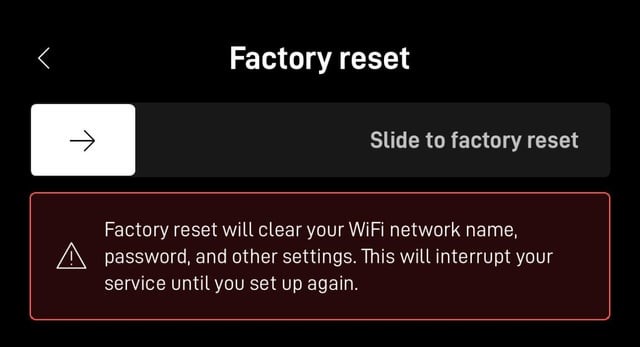
You can use this method if you are planning to sell your Starlink Kit to a third party. It is enough for pairing a mesh node or fixing an unresponsive router as well.
However, if you forgot the password for the Starlink Wi-Fi network, you can’t use the Starlink app. Moreover, you won’t find the factory reset option on the Starlink app if you turn on Bypass Mode. In these cases, you can follow the steps given below.
For Starlink Gen 3 Router
Because this router ships with a dedicated Hard Reset button, things are easy.
- Remove the LAN port cap from the back of the router. You will have already done it if you had turned on Bypass Mode.
- Use a SIM Ejector or paper clip to press and hold the Reset button, which you can find between the two LAN ports.
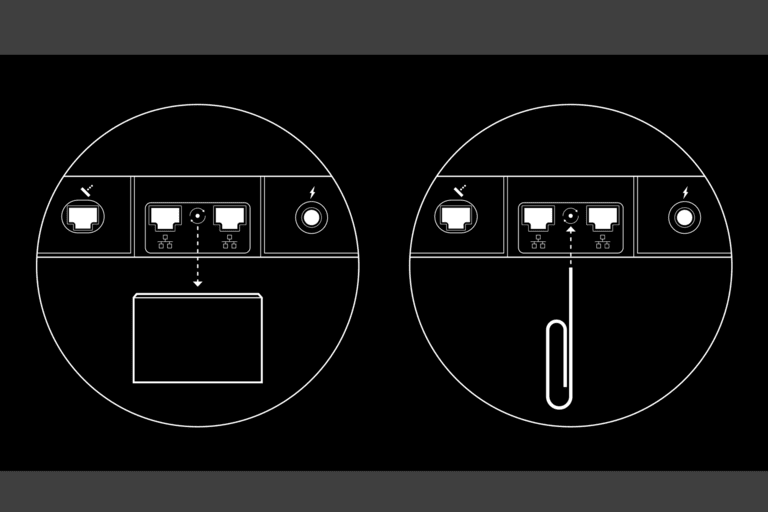
- You can release the button after five seconds, and the router status light on the front will be flashing white.
In a few minutes, you will have reset the router to factory settings. You can go forward with the configuration or keep it aside.
For Starlink Gen 2 Router
Unfortunately, the Gen 2 Router from Starlink does not have a dedicated Reset button. Instead, you need to rely on some complex steps:
- Power off and power on the Starlink router at least six times in a row.
- Make sure you leave the router turned off for at least 2 seconds every time.
- Within a few minutes, you can see an ambient light at the bottom of the router.
Once you see this illuminating bottom, you can proceed with the setup or leave the router aside for sale.
For Starlink Mini
Starlink Mini also has a dedicated Reset button at the back of the router. So, the steps are:
- Locate the Reset button on the router
- Press and hold the button for 3 seconds
- Release the button when the LED starts blinking
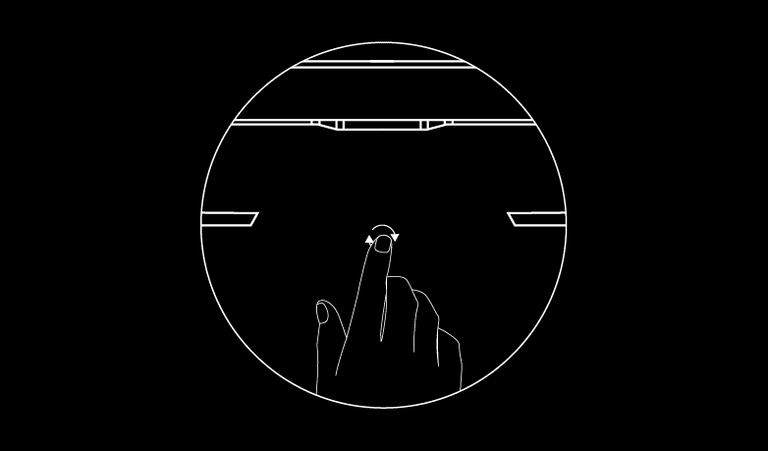
You can begin the setup in a few minutes.
By the way, you need some additional reset options if you want to sell Starlink Mesh devices along with the kit. In that case, you need to reset these mesh devices individually.
Wrapping Up
I have explained every possible step you need to factory reset your Starlink router. As you have seen, you’d need different steps for different router models. If the problems persist even after a factory reset, you may want to contact Starlink for a repair or warranty claim. Depending on where you are, you may have to ship the device to Starlink.
