
TP-Link makes some of the most popular Wi-Fi routers you can get on the market today. In most cases, you don’t have to spend a fortune either. However, simply connecting the Wi-Fi router does not ensure the best performance. In this guide, I will tell you how to configure a TP-Link router for optimal performance, security, and reliability. We shall start with some steps you should follow before beginning the configuration process.
Things To Do Before Configuring
The configuration process alone may take up to a few minutes. However, if you want everything to go well, you should arrange a few things beforehand. As you can guess, many of these tasks vary based on your ISP, router model, and your connection preferences. Even so, you will have some basic ideas to get started.
#1 Unbox and Arrange Equipment
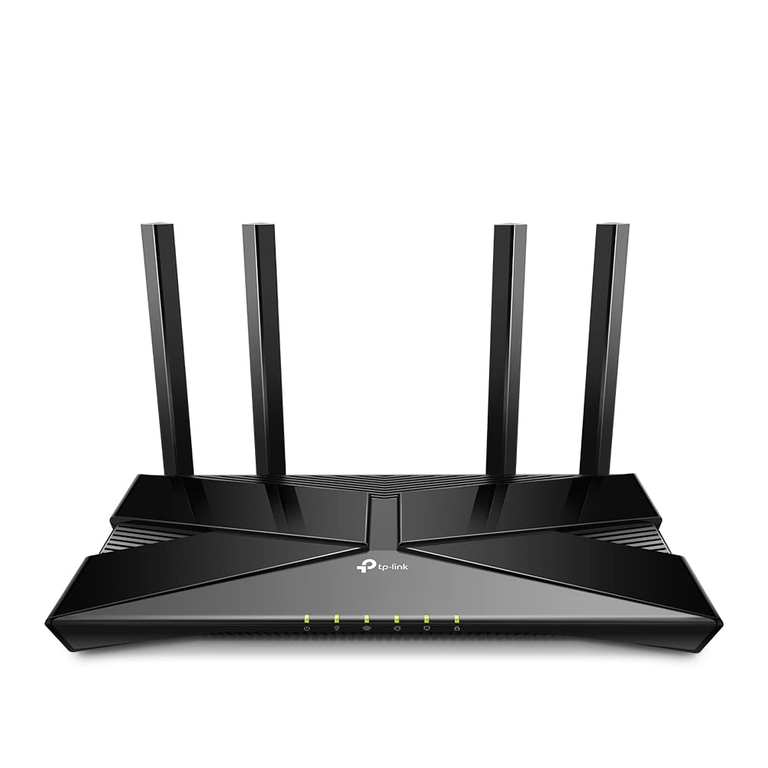
While the router is the most important thing you need for configuration, other equipment is also necessary. For instance, make sure you have the correct set of cables to connect to the ISP modem/gateway.
You must also have access to an Internet-enabled device to set up a TP-Link router for the first time. Though you can use your smartphone, I recommend having a PC at your disposal. Because a wired connection is stable, I recommend having an Ethernet cable and the necessary adapters as well. While you are at it, make sure you update a popular web browser on your PC to the latest version. Chrome/Mozilla would be great.
It is best to ensure that the Internet gateway device from your ISP is working fine.
#2 Get Details from Your ISP
Depending on the Internet technology and plan, you need the corresponding information from the ISP to set up the Wi-Fi router. You should check whether the following information is available:
- Type of Internet Connection: Dynamic IP/PPPoE/Static IP/L2TP/PPTP
- ISP Login Credentials: Username and Password
- Static IP Address or the VLAN ID (if required)
- Additional details like the MAC address, the host name, the MTU value, and the DNS server settings
You can find these details in the welcome letter/email from the ISP. If not, you can contact the ISP’s support channel to gather the data. The router may fetch these details automatically, but it is better to keep all this data handy.
#3 Placement of Router
Since you are setting up the Wi-Fi router for maximum coverage and a reliable signal, you should choose a suitable place to set it up. The primary idea here is to avoid barriers between your device and the router. That is, ensuring a line of sight will dramatically improve the performance of the router.
It is also a good idea to keep the router away from devices that could cause interference. I am talking about devices like microwaves, cordless phones, and other types of electronics. These are more likely to cause problems when you are using the 2.4 GHz network.
To ensure maximum performance of the device, you should keep it in a well-ventilated and elevated position as well. This way, you can prevent the device from getting damaged due to dust and other debris. You may also have to consider the wiring infrastructure while you are at it.
#4 Arrange Credentials
You should also get the following information from the router label or the product packaging:
- Default router IP address (something like 192.168.1.1)
- Login credentials for the router (username & password)
You need both of these details to log in to the TP-Link router and start the configuration process.
With these steps done, you can proceed with the configuration process. I recommend keeping the TP-Link router’s user manual handy during the process. If anything goes wrong, you can refer to the manual.
Configuring the Router Using
With most TP-Link routers, you get two/three options to set up the Wi-Fi router. You can choose between these options based on the level of control you need during the process.
We will be talking about two different options, which are Quick Setup and Basic Setup. Quick Setup, as you can see, is something that you can complete within a few minutes, but Basic Setup is pretty minimal. There is also an advanced setup option that many routers come up with, but we are not covering it in this guide.
Quick Setup
You can follow these steps to configure your TP-Link router using the Quick Setup mode.
- Make sure that you have powered on the TP-Link and connected all the cables to the modem as well as the computer that you are using to configure the connection.
- Open a web browser like Google Chrome or Microsoft Edge and enter http://tplinkwifi.net in the URL bar. If this address does not work, you can try again using the default IP address that you can find on the router label or product packaging.
- Depending on the model, you may either see a login page or the page will ask you to set a password for admin access.
- If it asks for the password, you can enter the details you got from the router label. Whenever you get the option to, choose a complex password that others cannot guess. This password will stop people from modifying the network even if they are connected to the Wi-Fi network.
- On the next page, you can see the setup wizard. From the tab at the top, choose Quick Setup.
- As the first step, choose your location and the time zone.
- Next, you need to choose the connection type. Most models have an Auto Detect feature, but you’d always have an option to choose between Dynamic IP, Static IP, PPPoE, L2TP, and PPTP.

- On the next page, you can fill in the connection details, such as the IP address, subnet mask, default gateway address, primary DNS, and secondary DNS. Click Next to proceed.

- When you see the Wireless Settings page, sit for a minute and think. You can set up the Wi-Fi settings for the 2.4GHz and 5GHz bands here. Make sure you choose an easy-to-understand Wi-Fi name but a difficult-to-guess Wi-Fi password.
- The following page will show you a summary of the settings you have selected. If everything seems correct, you can click Save to continue the process.

- Some TP-Link Wi-Fi router models may have an option to connect to the TP-Link Cloud Service. You’d be able to set it up on the next page.
When you hit Save, the router will restart and be back online in a minute or two. At this point, you need to connect to the new Wi-Fi SSIDs using the selected password. If you want to make further changes, you can log in to the router dashboard using the admin credentials.
Basic Setup
Basic Setup is excellent when you do not want to configure an Internet connection with the TP-Link router. You can follow these steps to set up a wireless network using the router:
- Follow the steps 1-4 that I recommended for setting up the router using Quick Setup.
- On the page, however, choose the Basic/Basic Setup tab from the menu.
- Navigate to Wireless from the sidebar menu to see the wireless settings
- By default, the 2.4GHz and 5GHz networks will be disabled, but you need to enable them by entering the network name (SSID) and password for both. Please follow the instructions I provided to choose a complex password.

- Click the Save button, and you are good to go.
Like it happened last time, the Wi-Fi router will restart. When it reboots, you should see the new Wi-Fi SSIDs. You can connect to these SSIDs and access the Wi-Fi network. You may need to enter additional information to set up Internet access, though.
Setting Up Parental Controls
Setting up parental controls has become a necessity in this day and age. I assumed you wanted to do it so that you could protect your kids from the darker side of the internet.
You can follow the steps below to configure parental controls on most TP-Link Wi-Fi routers.
- Like you did during the configuration process, log in to the Wi-Fi router dashboard by entering your login credentials.
- When you see the dashboard, navigate to the Basic tab and choose Parental Controls from the side.
- You need to create profiles to enable parental controls on a TP-Link router. Then, you assign devices to this profile so that they are limited. To create a profile, click the Add button at the top.
- You can give a name to the profile and add devices to the profile using the + button. By the way, you can add multiple devices to a single profile at once. When you are done, click Next to continue.
- In the first step, you can decide how content blocking works. For instance, you can block websites that contain a specific word.
- In the following step, you can set up Time Limits and Bedtime. Most TP-Link routers let you set up a different time limit for weekdays and weekends.
- Once you have provided these details, you can click the Save button to set up the profile.
You may have to restart the router for these settings to take effect. From that point, the selected devices will be added to the profile. By the way, the router lets you customize these profiles and restrictions as needed.
Configuring Port Forwarding
If you want to use your Wi-Fi network for gaming or setting up virtual servers, you need to set up a feature called port forwarding. This feature allows connections from outside (the Internet) to reach devices on your local area network.
Here are the steps you need to follow to configure port forwarding.
- Make sure that your computer is connected to the Wi-Fi network
- Log in to the router dashboard by entering the username and password
- On the menu, choose NAT Forwarding and navigate to Virtual Servers
- Click the Add button and enter details such as service type, external port, internal IP, internal port, and the protocol. Depending on the feature you want to set up, you need to choose a different service type as well.

- Once you are done, you can click the Save button to set up port forwarding.
You should restart the router and let it connect to the network to apply these settings. Keep in mind that you need a static external IP address for port forwarding to work. If the IP address keeps changing, the external entity cannot connect to your network, either.
So, if your current Internet plan does not have the static IP address option, you might want to talk to the ISP.
Wrapping Up
I believe this guide helped you configure your TP-Link router to its fullest capability. I have optimized all the steps in a way that you get maximum performance and security. However, if you want to keep everything in check, you may want to update passwords, firmware, and settings once in a while.
