
One convenient thing about Xfinity Internet connections is that you can use them right out of the box. That is, you’d get every piece of hardware you need, including the modem. However, there are times when you want to change the Xfinity modem with your own. In this guide, I will share everything you should know about making the change.
Why Replace Your Xfinity Modem?
Here are a few reasons I found convincing enough to make me replace my Xfinity modem. For reference, my experience with the Xfinity modem has been nothing short of decent. Still, here is why I decided to replace it with something better:

- Better Performance: Updating to a better modem with support for DOCSIS 3.0 or 3.1 is always a great way to improve performance. And I could not say no to the increased speed and stability. It has been great in terms of strengthening latency, too.
- Better Security & Privacy: A third-party modem also offers better control over the security/privacy of the network. So, if you think the Xfinity modem does not let you customize configurations as you wish, a separate modem will be the solution.
- Future-Proofing: It pays to stay ahead in the world of networking and security. From that point, using a better modem than the Xfinity-provided one is a meaningful decision. You would also get additional features while at it.
- Cost-Savings: Depending on the Xfinity plan, you may be paying as much as $15 per month for the modem. You can cut down this expense by getting your modem, which doesn’t cost a lot. In a year or so, the new modem should pay for itself.
Even if you think the cost savings are not a lot, the additional control you get from a third-party modem can make the investment viable.
When Should You Replace Your Xfinity Modem?
I mean, if you are moving to a third-party modem for any of the reasons I’ve covered above, you don’t have to wait for the right time. You can replace the existing modem with the new one at any point. However, you may be rather compelled to change the modem in the following cases:
- Connectivity issues are a common reason to replace your Xfinity modem with a third-party option. It may happen if you are using an old modem.
- If you are facing low download/upload speeds from Xfinity despite having a fast plan, it might be time for an upgrade.
- Overheating and overloading issues are also common reasons for replacing the Xfinity modem. Some Xfinity-provided modems may show these symptoms over time.
- Last but not least, other hardware issues also warrant the replacement of the Xfinity modem. While you are at it, you can get another modem.
If these reasons apply to you, you can proceed with finding a suitable Xfinity modem for the connection and setting it up.
How To Change Xfinity Modem with Your Own
I shall now take you through the process of changing the Xfinity modem with your own.
#1 Find A Compatible Modem
Before you begin the replacement process, you must find a modem that works with Xfinity. These days, the task is easy, as you can easily search for something like “best modems for Xfinity.” Xfinity may also offer you a list of compatible modems and whether they will work with your current Internet plan.
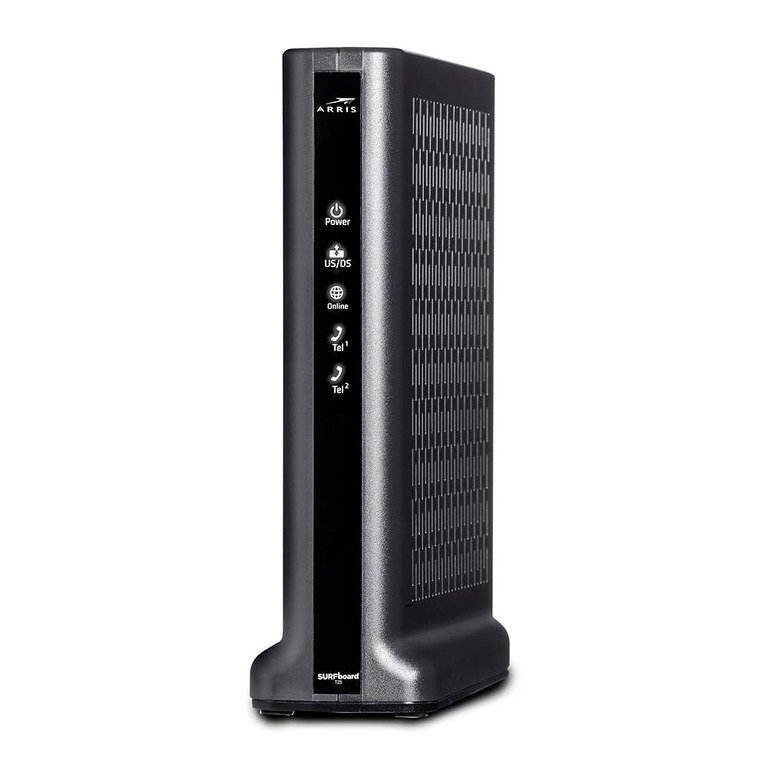
You may also want to see if modem-router combinations are available. These devices can function as the modem and the Wi-Fi router, reducing the number of pieces of equipment you actually need. Once you pick the right option, you can proceed with the replacement.
#2 Disconnect the Xfinity Modem
Now that you have the new modem at your disposal, you first have to disconnect the existing Xfinity modem.
You should first unplug the power cable to avoid potential issues and then proceed with removing Ethernet and coaxial cables. You should also remove any Ethernet connections you may have set up between your devices and the modem.
Make sure you keep all this equipment in an accessible location. As I said, you will have to return the modem and associated equipment to Xfinity. I will share more about that later.
#3 Connect the New Modem
It is now time to connect the new modem to the Xfinity setup at home. You need to do the following things to begin. Most modems will ship with the necessary cables for power and Ethernet connectivity.
- Unbox the new modem and arrange all the cables and adapters.
- Connect the Power adapter to a nearby outlet and connect the power cable as well.
- Now, connect the coaxial cable to the modem and wait for the signal to appear.
- Last but not least, the modem can be connected to a router/computer using an Ethernet cable.
When you turn on the power, you should see some lights on the new modem. Check whether the lights for Power and Signal are working. Keep in mind that the availability of status lights will depend on the modem you have purchased.
#4 Activate the Modem via Xfinity
When you see stable status lights on the modem, you can proceed with modem activation. This process will require the Xfinity app. The steps are as follows:
- Make sure you have installed the latest version of the Xfinity app for Android or iOS.
- After opening the application, you can log in using your Xfinity credentials.
- Once you have logged in, you can see a button called Activate xFi Gateway or Modem. Tap the button to proceed.
- Now, you should see a number of prompts on the screen. You need to follow these prompts until you see a page that asks for the modem’s MAC address.
- At that point, check the modem packaging or the label on the rear to discover the MAC address of the device. The MAC address is a unique address that will be used to identify the modem on the network.
- Enter the MAC address wherever required and proceed with the steps.
- Tap the Check Connection button whenever it becomes available.
- At this point, the Xfinity app may take anywhere between 5 and 20 minutes to complete the process of adding the modem to the router. During the process, Xfinity will configure the network as well.
- Once the process is complete, you should see a page with the message: You’re All Set.
The You’re All Set message from the Xfinity app means the modem has been added to the Xfinity network. It should also provide you with Internet access.
#5 Check Internet Access
At this point, you can check whether the modem offers Internet access. The Xfinity app should help you check the connection after the setup anyway. However, you may want to use a third-party app to check the actual speeds you get. Keep in mind that you can enjoy the maximum speed through Ethernet, not Wi-Fi.
#6 Return Xfinity Modem/Equipment
Now that you have set up a new modem for the Xfinity connection, it is time to return the Xfinity modem and related equipment. This step is important if you are planning to save money. If you keep the modem at your disposal, you will be charged the monthly rental fee no matter whether you use it. You can choose one of the three options:
- You can log in to the Xfinity website and download a pre-paid shipping label. This method is free, and you can get it shipped to your doorstep.
- You can walk into a UPS center nearby and let them know that you want to return the equipment.
- You can return the Xfinity modem and other equipment by booking an appointment at an Xfinity or Comcast store nearby.
No matter the method you choose, make sure you collect a receipt from the store after you have made the return.
Things to Consider Before You Replace
Here are a few things you should consider before and while you replace the Xfinity modem with yours.
- Compatibility: As I told you, compatibility is a crucial aspect to consider while choosing a modem. It is easy because manufacturers now explicitly state whether a model works with specific ISPs.
- Features: Your Xfinity modem may also be required to bridge connections like voice. So, if you want to continue using voice services, you must check whether the feature is available in the new model.
- Speed Concerns: Let’s say that you want the maximum upload speed from the current plan. You must check whether the modem supports these speeds.
- Wi-Fi Connectivity: You may also want to combine a modem and a router. Such a device would help you save space and resources.
Paying attention to these aspects will ensure that the new modem will work fine with the Xfinity connection and associated equipment.
How to Choose a Compatible Modem for Comcast Xfinity?
Here are some steps to help you choose a compatible modem for your Comcast Xfinity connection.
Check the Compatibility List
The first step is checking Xfinity’s list of compatible modems in the market. You can also find a page during the setup process where you can find all available models. The page also offers vital info like the wired speed for downloads and uploads, Wi-Fi status, and voice support. It is best if you can choose one of the many modems on this list.
Check with the Plan
The next step is checking whether the device can handle the speed that you require. In particular, you should check whether the modem’s maximum upload/download speeds are higher than what your Xfinity Internet plan offers. Keep in mind that you will not get the maximum speeds when using Wi-Fi. So, the wired speeds should always be the standard.
Check for Features
You should also see whether the features that you’re looking for, such as support for Xfinity voice, landline system, or VoIP, are available on the model. Because it’s a long-term investment, it is better to future-proof those requirements instead of worrying about additions later. I always recommend going for a modem with DOCSIS 3.1 as it takes care of this future-proofing by a long shot.
Avoid Older Models
Just because a modem is in the compatibility list doesn’t mean that you should use it. It is actually better to avoid outdated or problematic models that have caused problems in the past. If I remember correctly, the Intel Puma chipset on modems has not been a great option, and it is better to avoid DOCSIS 3.0 modems as well. Instead, you have to go for products from brands like Arris, Motorola, Netgear, etc.
Wrapping Up
I believe this guide helped you not only choose a suitable modem for your Xfinity connection but also set it up successfully. Given that you have picked a modem based on my suggestions, you will see some boost in terms of speed, performance, and control. While you are at it, you can save a couple of hundred dollars over a year or two as well.
