

CenturyLink offers a broader variety of telecommunication services across the US, and cable and fiber Internet are two popular options. While these two services are excellent, users often encounter the issue of slow Internet with CenturyLink, which can be pretty frustrating. I have experienced similar problems, and I have prepared a comprehensive guide to resolving the CenturyLink slow Internet problem. This guide should help you detect and fix factors that slow down your CenturyLink Internet plan.
Common Causes of Slow CenturyLink Internet
I will first explain the common reasons why your CenturyLink Internet connection is slow. I have encountered situations where a combination of these factors results in an Internet slowdown.
- Network Congestion: Network congestion occurs when too many devices simultaneously use your network, especially during peak usage periods. During this period, your CenturyLink connection will experience slower speeds. It is more commonly observed in cases of cable Internet.
- Local Network Issues: A slow Internet connection would also occur when there are network issues in the vicinity. When such problems arise, resources are rerouted, resulting in a bandwidth deficit. It will be presented to the user as a slow-speed Internet connection.
- Data Throttling: Although CenturyLink does not officially admit to it, the ISP is reportedly engaged in data throttling. This throttling may happen during peak usage hours or when you have exhausted an unspecified limit.

- Outdated Equipment: To achieve the speed promised by your CenturyLink plan, you need compatible and up-to-date equipment. Therefore, if you are using outdated hardware for your connection, you may experience slow browsing/download speeds.
- Overconsumption of Bandwidth: If you exceed the Fair Usage Policy, CenturyLink may reduce your speed. The ISP does this to prevent you from negatively impacting the Internet experience of others. It may also occur when you stream content excessively or engage in peer-to-peer (P2P) file sharing.
- Issues with Wi-Fi: The slow Internet speed on your devices could also be a Wi-Fi-related issue. Your modem/router may be receiving sufficient resources from the ISP, but the Wi-Fi module may cause the delay.
- Temporary Network Outage: If the slow Internet speed appears suddenly, you may be experiencing a temporary network outage as well. Even when the outage is located elsewhere, CenturyLink might reroute resources, causing a delay in how your requests are processed.
- External Factors: External factors, such as weather, can affect the speed you get from a CenturyLink connection, especially with cable Internet. We find this prominent in the case of coaxial cable-based Internet, which uses copper cables to transfer data.
In addition to these, various hardware/firmware issues can also cause the CenturyLink connection to become slow.
Fixes for Slow CenturyLink Speeds
I hope you now have a clear understanding of why your CenturyLink connection is experiencing slow speeds. Now, I will guide you through some practical solutions to resolve the issue and optimize the connection’s maximum Internet speed.
#1 Restart the Router and Modem
Trust me when I say this: most of the time, a slow Internet connection is due to a temporary issue. Therefore, as often happens with networking devices, a simple restart can resolve the issue. If your Internet setup has a modem and a router, you should restart both.
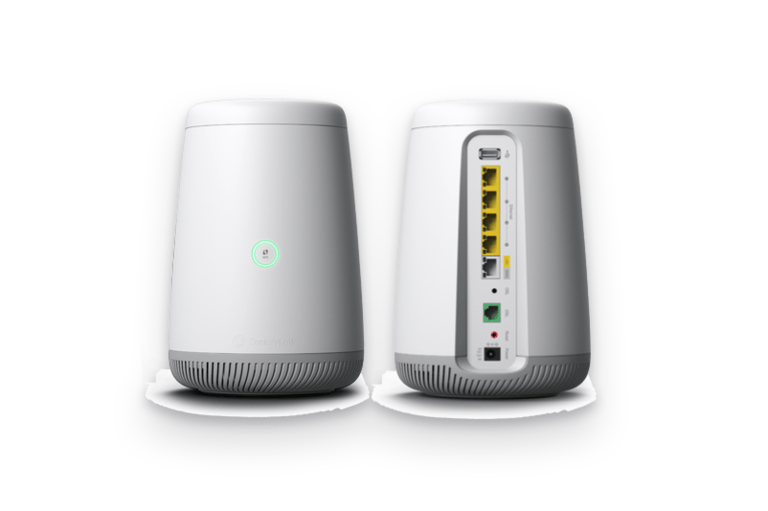
A soft restart works if you can trigger it through the CenturyLink mobile application or the router. However, if you need a complete restart, unplug the power source and then restart the device.
Once the router has reconnected to the CenturyLink network, you can check the speed; it should improve.
#2 Wait It Out (or Upgrade)
As I said earlier, several factors can affect the speed of your CenturyLink internet connection, particularly during peak usage hours. According to CenturyLink, the peak usage hours are from 7:00 p.m. to 11:00 p.m. If you are using a cable internet connection provided by your ISP, more people in your area are likely relying on this connection simultaneously. So in most cases, the idea is to wait it out.
This way, you can achieve better speeds once the peak usage times are over. You should also keep in mind that usage will fluctuate during the period. This waiting-out process is also helpful when the network is experiencing an unexpected outage. There may be a node failure or an issue with the ISP’s infrastructure.
Truth be told, there is nothing you can do when a network congestion is going on in your area. You cannot expect others to stand down during these hours, as most people rely on streaming, browsing, and downloading during this period. One option to consider is upgrading your connection to a less shared one.
I already mentioned that fiber-based connections are more stable than cable connections in this particular regard.
#3 Check Connected Devices
You should also check how many devices are connected to your network. Sure, fiber-based connections are designed to handle multiple devices, but they should not undermine your network. That is, you must avoid devices that consume a high amount of data. Here are some points to follow:
- Disconnect devices that don’t need an active Internet connection.
- Whenever possible, use the Metered Connection feature to avoid background data usage.
- Schedule tasks like updates and downloads for non-peak hour times.
You must also verify that no unauthorized devices are connected to the network. These devices can consume a significant amount of data. Often, malware attacks on a device can also piggyback traffic and downloads.
#4 Use Ethernet over Wi-Fi
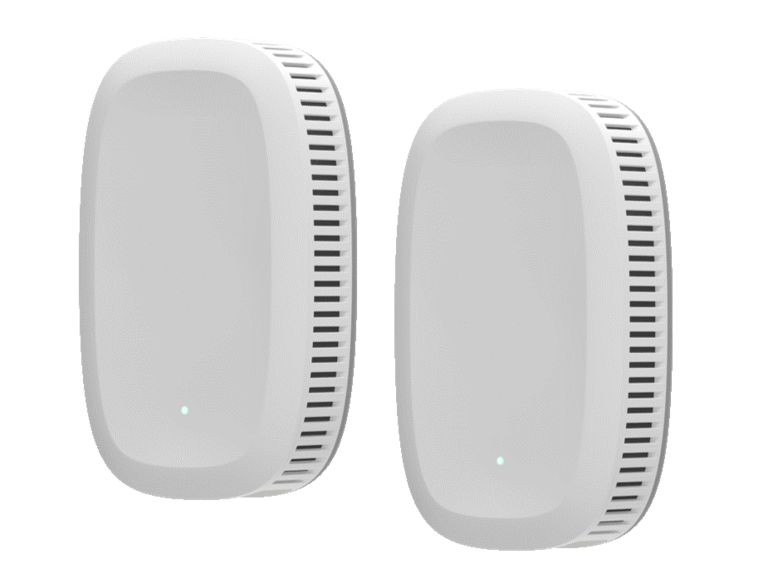
The slow speed may also be due to how you are accessing the Internet. Although Wi-Fi has come a long way, it still cannot compete with the speeds you get from Ethernet. If you are experiencing slow Wi-Fi speeds, try connecting directly to the modem/router using an Ethernet cable. If you are experiencing better speeds over Ethernet, you can assume the problem lies with the Wi-Fi. In that case, you can try upgrading your router for better signal strength.
#5 Track Outages in Your Area
Your CenturyLink connection may also be slow due to an ongoing outage. Interestingly, the outage doesn’t have to be in an area close by. The ISP may decide to cut down the load when systems are down. I suggest checking the CenturyLink website/app to stay informed about potential outages and waiting until they are resolved.
#6 Check for Interference
Signal interference from electronic devices could also be a reason for your slow Internet experience. This may occur if you have placed objects, such as a microwave oven or telephone, next to the router or modem.
You can solve this problem by shifting to the 5GHz band, which is less susceptible to signal interference. The band can also offer better speeds than the 2.4GHz one.
#7 Update Router Firmware
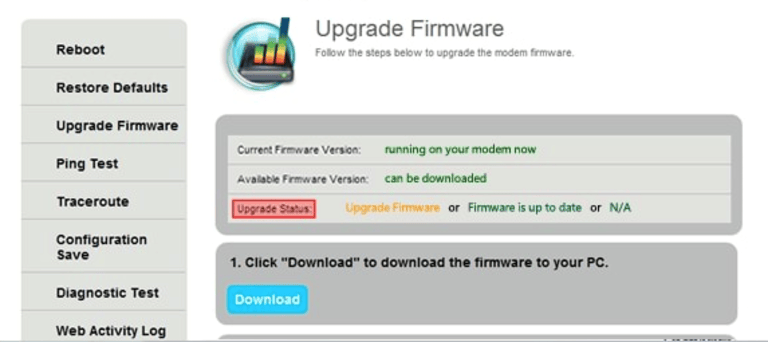
Before proceeding to the next step, ensure that the router’s firmware is up to date. A buggy firmware might prevent the router from showing its maximum performance. You can log in to the router, navigate to the Admin section, and update the firmware.
#8 Upgrade Equipment
If the steps so far haven’t solved the slow internet problem, consider upgrading your router and other network equipment. If you have leased the equipment from CenturyLink, it makes sense to contact the ISP and request an upgrade to better hardware. Otherwise, you can connect your router to the system by setting up Bridge Mode on the built-in router-modem combo.
#9 Reset the Router/Modem
If you haven’t been successful yet, consider resetting the router/modem. It also applies to the ISP-provided modem-router combo. A factory reset can resolve most hardware issues and ensure that all components are functioning correctly. You can follow these steps:
- Ensure that your CenturyLink modem/router is connected to power.
- Disconnect all cables except the power source.
- Locate the Reset button and hold it for 10-15 seconds.
- The status lights on the router should start blinking
Once the lights return to their static state, you can confirm that the router/modem has been fully reset.
#10 Contact CenturyLink
If you haven’t been able to solve the problem so far, you should contact CenturyLink. The problem may be due to a nearby node or other infrastructural components. You may also have a faulty router/modem as part of your setup. The ISP should be able to resolve the issue via repair or replacement.
How to Confirm CenturyLink Throttling
I already mentioned that CenturyLink is known for throttling data speeds. Throttling is the intentional act of restricting the speed or bandwidth during specific times or by targeting specific customers. An ISP should not do this, but CenturyLink would not admit to it, either.
As an end-user, however, you have several ways to confirm whether CenturyLink is throttling your speed. I have prepared a step-by-step solution here.
- Speedtest is your friend when it comes to confirming data throttling. If you feel the speeds are low at a specific time, you can conduct Internet speed tests at different periods. You can then use these results to demonstrate that CenturyLink occasionally slows down the connection.
- You should also use VPNs to show the difference in speed. Throttling does not work effectively when using a VPN. Therefore, if you get better speeds when using a VPN rather than without, you have a claim to be made.
- With this proof, you can contact CenturyLink support and make your case. Unless you have exceeded the Excessive Use Policy caps, CenturyLink should resolve the problem.
If you don’t get a solution from CenturyLink, you have two options. One option is to file a complaint with the Federal Communications Commission, which oversees how internet service providers offer services and addresses grievances. This could help you obtain a solution and even compensation. Another option is a more obvious one, drifting providers. You can look for a better ISP in your area and check whether the ISP has serious throttling problems. You will be able to upgrade without any issues.
Wrapping Up
I hope this guide helped you solve the problem of slow internet speeds from CenturyLink. The data throttling practice employed by CenturyLink is a nuisance, and there’s no easy way to circumvent it. If this throttling continues to affect your workflow, it is better to switch ISPs.
