
The firmware is as essential to your router as an Operating System is to your computer. In other words, you won’t be able to use Wi-Fi routers as you know them without firmware in the first place. So, just as you update your operating system for better security and features, you must update the firmware on your Wi-Fi router.
In this guide, I will share with you how to update the firmware on a NETGEAR router.
What Is a Router Firmware?
You can think of router firmware as the Operating System for your Wi-Fi router. As you know, your router’s task is network management and the propagation of radio signals that make Wi-Fi accessible across a home or office. However, the firmware decides how these actions take place and how the router configures most of the things, including Wi-Fi networks, performance, security, etc.
Among other tasks, it is also responsible for tasks like network traffic management and other features such as parental controls and VPNs. On most devices, the firmware will be stored on the ROM or the router’s flash memory. The firmware needs to start before you can use the Wi-Fi router as you usually would. Since the firmware plays an important role, it needs to be updated regularly.
Trusted Wi-Fi router makers are known for releasing regular firmware updates for their routers. Most of the updates contain bug fixes, security improvements, and additional features. Because Wi-Fi routers continue to become the hub for Internet connectivity for most homes, updating the firmware becomes more of a necessity.
Reason for Updating Your Netgear Router Firmware
Here are the top three reasons for updating your NETGEAR router firmware.
- Security: As I mentioned, NETGEAR releases regular firmware updates with bug fixes. These updates can protect your Wi-Fi router, the network, and connected devices from potential vulnerabilities. You get advanced privacy features as well.
- Performance: Manufacturers like NETGEAR also use firmware updates to improve the performance of their Wi-Fi routers. So, regular updates for your router can increase your chances of ensuring top speed from the router.
- Additional Features: NETGEAR may also add new features to the router through firmware updates. Given that software features can improve your network features, firmware updates can help you top up the overall Wi-Fi experience.
Best Practices for Firmware Updates
You should follow these practices if you want the best results from firmware updates.
- Your NETGEAR router should not turn off during the firmware update. So, ensure that you have set up an uninterrupted power supply for the same.
- You need a reliable network connection while searching for or uploading the firmware documents. So, I recommend using Ethernet instead of Wi-Fi.
- Things may go wrong, and it does not hurt to back up network settings. This way, you can set things up and you won’t lose any credentials.
Update Your Netgear Router Firmware
Depending on the NETGEAR router you own, you can choose up to three methods to update the Wi-Fi router firmware. I will cover all three options, and you can pick one that works for you.
Method #1 Automatic Update via Web Admin Panel
You can use this method to update the NETGEAR router firmware using the web admin panel. It is a reliable option, especially when you use an Ethernet connection. Also, make sure you are following the methods we have recommended above. In that case, you can follow these steps.
- Make sure that your computer is connected to the router’s network via Ethernet. While Wi-Fi might work, Ethernet offers better reliability.
- Once connected, open a web browser and log in to routerlogin.net. Alternatively, you can enter the default router IP address that you can find on the router product label or the box it came with. The typical address could be something like 192.168.1.1 or 192.168.0.1.
- When the page loads, you need to enter the login credentials for the router. The default credentials could be something like admin and password, but you may have changed them. Once you enter these default or new credentials, you can click Log In to proceed.
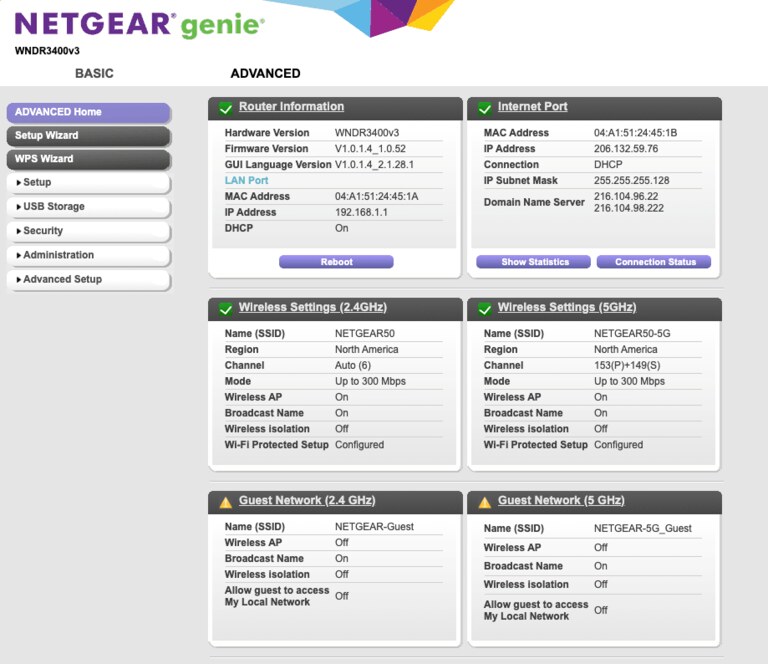
- After logging in, you should see the router dashboard with multiple menus. Now, you can navigate to Advanced > Administration, and you can choose Router Update from the sidebar menu.

- When the page opens up, you should see a Check button on the top-right side. This button will check whether a firmware update is available on NETGEAR servers.
- When the firmware update becomes available, you can press Yes to continue the installation. Please keep in mind that the process may take up to a few minutes.
Your Wi-Fi router will restart multiple times during the update process. Patience is key here, and make sure that your router has uninterrupted power during the period.
Method #2 Manual Firmware Update via Web Admin Panel
Sometimes, you may not want to install the latest available firmware on your router. For instance, you might not want a particular feature in the update. In these instances, you can try the manual method for updating the firmware. The steps are pretty straightforward:
- First, you must download the firmware that you want to install. You should find the installer file on your Wi-Fi router maker’s official website. Keep the file at an accessible location.
- Now, you can follow all the steps mentioned in Method #1, until Step 4.
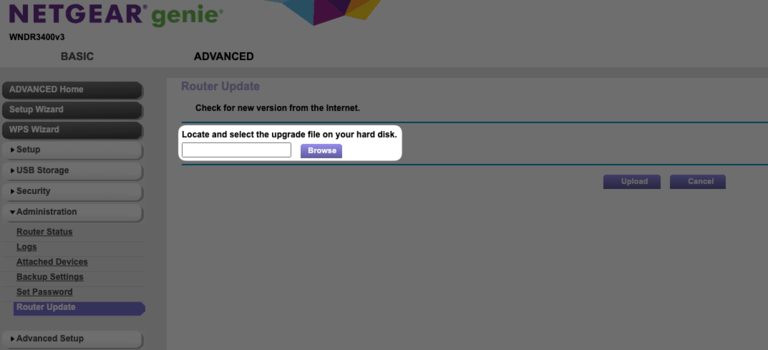
- Instead of clicking the Check button, use the Browse button and select the firmware file you had kept on your PC earlier.
- You can now come back and click the Upload button. The NETGEAR router may take a few minutes to process and verify the file.
- Click Yes when you are asked to confirm the task.
- Now, the firmware installation would begin, and the process would be completed in a few minutes.
Method #3 Automatic Update Using NETGEAR Nighthawk App
You can use this method if you want to get things done from your smartphone. However, you must have a Wi-Fi router that supports the NETGEAR Nighthawk app. The steps are:
- Make sure your smartphone is connected to the NETGEAR Wi-Fi router.
- Download and install the Nighthawk app on the device from the Google Play Store or App Store.
- Once you open the app, you can log in to the router using the admin credentials. You may have to set up a cloud account as well.

- Choose your router from the available options and go to Router Settings
- On the next page, tap Check for Updates.

- If a firmware is available, the Nighthawk app will show you the next instructions. You can follow the instructions to install the latest firmware.
Once again, the router may take a few minutes to complete the process.
Troubleshooting Common Issues
Update Fails or Gets Stuck
If the update fails or gets stuck, it may be due to a problematic Internet connection. It is a good idea to check if everything is right in the case of power and connectivity. After this step, you can retry the process, and the installation should go smoothly.
Router Doesn’t Reboot After Update
If the router does not reboot after the firmware update, you should try reconnecting the router to the power source. It may happen due to a problem with the power supply. If nothing works, you can always try factory resetting the router.
Wrapping Up
I hope this guide covers everything you should know about updating the firmware of your NETGEAR router. When you follow the right practices, the process doesn’t take more than a few minutes. You won’t have to worry about data loss, either.
