
Many don’t realize this, but Xfinity offers a dual-band Wi-Fi router with most of its Internet plans. This means that you will get two network SSIDs: one using the 2.4GHz band and the other using the 5GHz band. However, because of a feature called band steering or a missing configuration, you may not have access to these bands. In these cases, you will have to unlock dual-band control by separating the 2.4GHz and 5GHz networks.
Why Separate 2.4GHz and 5GHz On Xfinity?
Separating the 2.4GHz and 5GHz bands on Xfinity Wi-Fi routers is an optional task.
That is, your router would work and offer Wi-Fi access to many devices. However, when it happens, the router either has to steer the many devices between two bands on its own, or all devices could be connected to a single Wi-Fi network of a single band.

From a performance point of view, this setup is not ideal at all. If you separate the bands, you can have two networks: the 2.4GHz one and the 5GHz one. Here’s a quick table of differences between these two bands:
Feature | 2.4GHz WiFi | 5GHz WiFi |
|---|---|---|
Speed | Lower (up to 100–600 Mbps in real-world use) | Higher (up to 1,300 Mbps or more) |
Range | Longer range, better at penetrating walls | Shorter range, less effective through walls |
Interference | More prone (crowded band, many devices use it) | Less prone (fewer devices, less congestion) |
Best For | Large areas, devices far from router, basic browsing | High-speed tasks (HD streaming, gaming), close to router |
Device Compatibility | Supported by most devices, including older ones | Newer devices, some older devices may not support |
Power Consumption | Lower (better for battery-operated devices) | Higher |
Bandwidth/Channels | Fewer non-overlapping channels, more congestion | More channels, less congestion |
So, when you move to a more recommended setup of separated frequency bands, you get a few benefits.
Better Speed and Performance
Having two Wi-Fi bands—one optimized for range and the other for performance—offers you better control over how things work. Let’s say that you have a gaming PC or console that wants the best speed and latency. Instead of letting the Xfinity router do the steering, you can connect these devices to the 5GHz band, which offers all these.
Interference Management
When your Xfinity router has only a single 2.4GHz band, all Wi-Fi devices are connected to the single network. Over time, the 2.4GHz band can become quite congested. The band is more prone to interference from other devices like microwave ovens and telephones. By creating a secondary network that is less congested and more powerful, you can avoid many interference-based issues.
Compatibility Management
Splitting the network into 2.4GHz and 5GHz will help you with better management and compatibility. Some devices only work with the 2.4GHz band. So, when you have two SSIDs, you can better manage where devices are located. You can also manage aspects like battery consumption and channel needs by picking the channel yourself.
Preparing to Separate Your Wi-Fi Bands
If you want these benefits on the performance, speed, and optimization front, you can prepare to separate the Wi-Fi bands on the Xfinity router.
Before you begin the process of separating the Wi-Fi bands, you should understand how the current network is arranged. Primarily, you should check whether there is a single Wi-Fi network like Xfinity or something like Xfinity_2GHz.
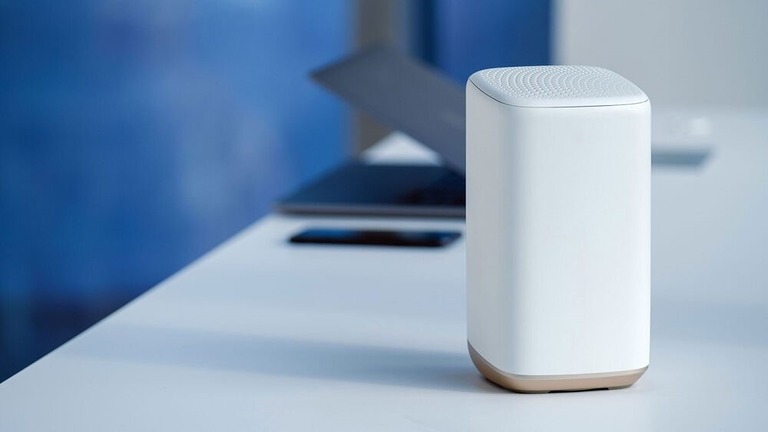
If the former, Xfinity might have enabled band steering, and the router chooses a suitable band for the device. If the latter, it means only the 2.4GHz band is open right now.
You should also check which devices you own are 2.4GHz-only. If there are such devices, you must continue to have the 2.4GHz band active alongside the 5GHz. Otherwise, these old, 2.4GHz-only devices will not have Wi-Fi access. In my opinion, you should keep the 2.4GHz band despite it being less secure and powerful.
You should also have an idea about the names you want to give each band. This way, you can avoid confusion and keep the Wi-Fi network running without conflicts. It is also a good idea to check your xFi Pods that you use for range expansion.
Separate 2.4 and 5GHz Bands
Now that you know what happens during band separation, we shall start with separating the 2.4GHz and 5GHz bands on an Xfinity Wi-Fi router.
#1 Using the Xfinity xFi App
If you already use the Xfinity xFi app to manage the Wi-Fi network, separating the 2.4GHz and 5GHz bands is easier. Here are the steps you need to follow.
- Make sure that your smartphone with the xFi app is connected to the Xfinity Wi-Fi network.
- Once you open the xFi app, navigate to Connect from the bottom menu.
- On the next page, tap on Wi-Fi Networks to proceed to Wi-Fi network management.
- When you see the My Network page, tap on the Pencil (Edit) icon you can see at the top-right side.
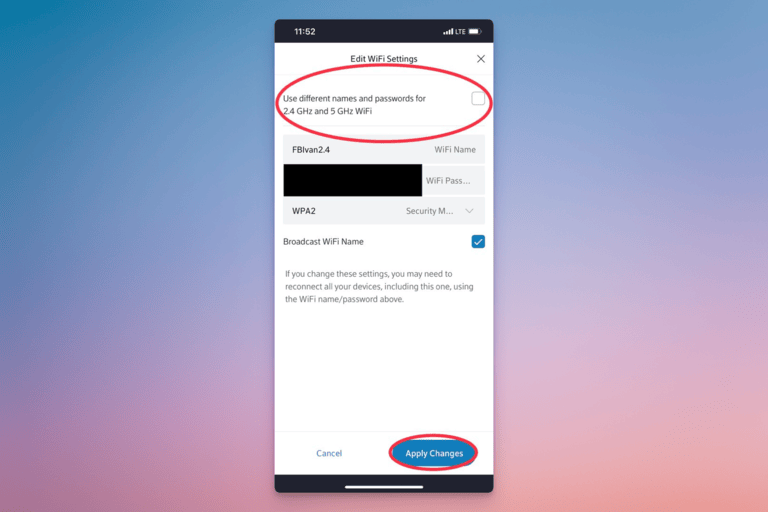
- Now, check the option to Use different names and passwords for 2.4GHz and 5GHz Wi-Fi.
- The Xfinity app will now show multiple columns for different Wi-Fi networks. You can easily enter the Wi-Fi SSID, password, security protocol, and select whether you want to broadcast the SSID.
- Now, you can tap Apply Changes at the bottom, and the Xfinity router should restart in a bit.
If the router does not restart, you can do a power cycle on your own. In a few seconds, you should see two Wi-Fi networks instead of one.
#2 Using the Router Admin Panel
If you still have not set up the Xfinity xFi app, you can use the router admin panel to separate the two bands. It is easier if you would like to use your computer for this process. The steps are:
- Make sure your computer/smartphone is connected to the Xfinity Wi-Fi network.
- Open a web browser and enter the default router IP address of the Xfinity router. The default address for most Xfinity routers is 10.0.0.1.
- When the login interface appears, sign in using the credentials. The default username and password will be admin and admin.
- Once you log in to the router dashboard, you can navigate to Gateway > Connection > Wi-Fi.
- Now, check the page for an option to Enable Separate SSIDs for 2.4GHz and 5GHz Wi-Fi.
- Now, like we did on the Xfinity app, you can enter the SSID, password, and other settings for the two available bands.
- Once you have filled in the details, you can hit Save to set up all these preferences.
This process should also be followed by a thorough restart. After that, you should be able to see and connect to multiple Wi-Fi networks from a single router.
Wrapping Up
I believe this guide helped you unlock dual-band control for your Xfinity router. As I said, you get to control all the bands without letting the router take care of device management. Compared to the benefits, you do not have to spend much time setting things up, either.
