Unless you have been living under a rock, you know it’s unsafe to use the same/weak password for multiple accounts. However, keeping track of all your unique passwords can be challenging at times; this is where a password manager comes in. Unsurprisingly, many of us use browsers to save passwords; however, this may not be the safest option available. Here are some dos and don’ts of saving passwords in your browser.
Understanding Browser Password Managers
Browser password managers are a convenient way to store passwords. Most of their ease stems from the fact that they are well-integrated with the browser. You open a webpage, create an account, and the browser will store the password for you. You don’t have to install extensions. Moreover, browser password managers can also assist with auto-fill.

These days, most browsers ship with a built-in password manager, and many offer advanced features, such as multi-platform sync and complex password generators. When you use the password manager on Chrome, you can also benefit from the Password Checkup feature, which essentially checks whether your passwords have been leaked.
When you consider these points, storing passwords in your browser may seem like a reasonable approach. It definitely is better than using the same weak password for every other account on the web. However, it’s not like you lack better options, such as dedicated password managers. When we compare browser-based password managers to dedicated ones, the façade of convenience begins to lose its allure.
Risk of Storing Passwords in Browsers
Here are the significant risks of storing passwords in web browsers:
They are not dedicated or secure solutions
On most browsers, password management is added as an extension feature. These utilities are not built with the same level of security as core features. When your browser is subjected to an attack, this management utility will be the first one to crack, thus exposing your passwords to the threat actor. So, while they are way better than random passwords, you can’t count on these managers when it comes to sensitive credentials.
Lack of security layers
You should also consider where your browser will store the password. Most browsers tend to store these passwords in the same folder as other browser-related files. The problem? Anyone accessing your computer can also access this list of passwords. In most cases, you can decrypt these files using the PC’s password as well.
Similarly, if your browser is open, anyone can access the passwords by entering the main password. It also means that an attack targeting your computer can compromise all the passwords you have stored using a web browser, such as Google Chrome or Microsoft Edge.
No Master Passwords
If you have learned about a dedicated password manager, you must be familiar with master passwords. This password ensures that you need multiple authentication options to access your data. You don’t get such multi-layer protection from browser-based password managers.

For instance, when you store passwords in Chrome, they are synchronized to the cloud. However, it also means anyone with access to your Google account can access all your passwords. You may face these issues on almost all browser-based password manager systems.
In addition to these, you also face problems when it comes to sharing and access control. For instance, these browsers do not actually let you securely share your password with someone. The level of integration can be pretty minimal at times. You would face another set of issues when attempting to move to a different suite or password manager.
I am sure these factors matter to individuals and businesses alike. Imagine a scenario where an employee’s oversight leads to the compromise of your digital security. Nobody wants that. The solution can be pretty straightforward. You need to upgrade to a dedicated password manager. Here are a few steps to take before.
How to Export Your Browser Passwords
Let’s say that you have decided to upgrade to a dedicated password manager utility. First, you need to retain all the passwords stored in your web browser, such as Chrome. For this, you will need to export your browser passwords to a format that can be imported into the new password manager later. Here’s how you can do it. The ease of performing this task will also show you how vulnerable your saved passwords are.
Here’s a tutorial for exporting your browser passwords from Google Chrome:
- Open Google Chrome and navigate to the three-dot menu > Settings.
- Go to Autofill and passwords and choose Google Password Manager.
- On the next page, go to Settings from the sidebar.
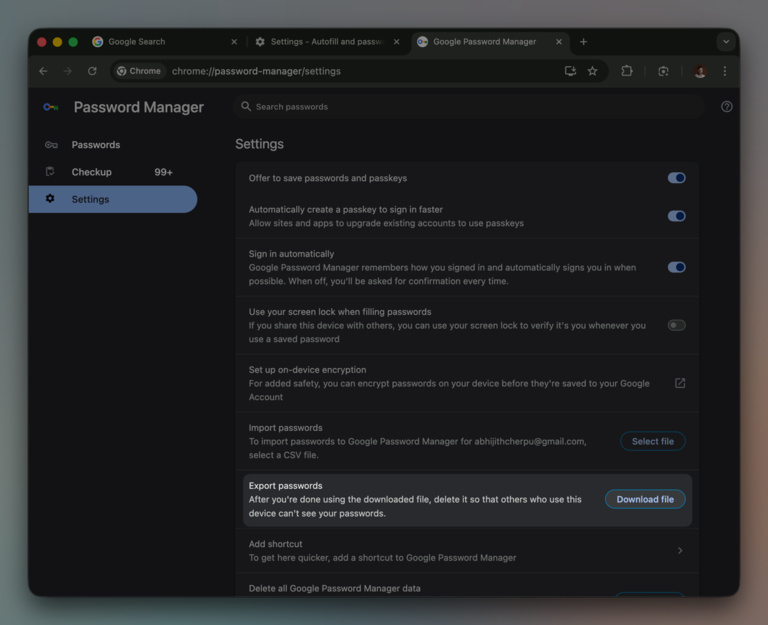
- Next, click “Export Passwords,” and the page will download a CSV file after you confirm the PC passcode or complete biometric authentication.
That’s it. Now, you have a plain-text list of all websites and passwords. You can use this CSV file to upload all your passwords to a dedicated password manager, such as Bitwarden or LastPass. Please ensure that you shred this CSV file after use.
Delete Your Browser’s Saved Passwords
To keep your passwords secure from browser attacks, remove the saved passwords from your browser. This way, even when your browser is compromised, the attacker would not get a complete list of your passwords.
Here is how you can do it on Chrome. The steps should also work on other Chromium-based browsers.
- Open your Google Chrome browser and navigate to the Passwords and Autofill section.
- Navigate to Google Password Manager and open Settings from the sidebar
- On this page, look for the “Delete data” button.
- When asked, confirm your action and proceed.
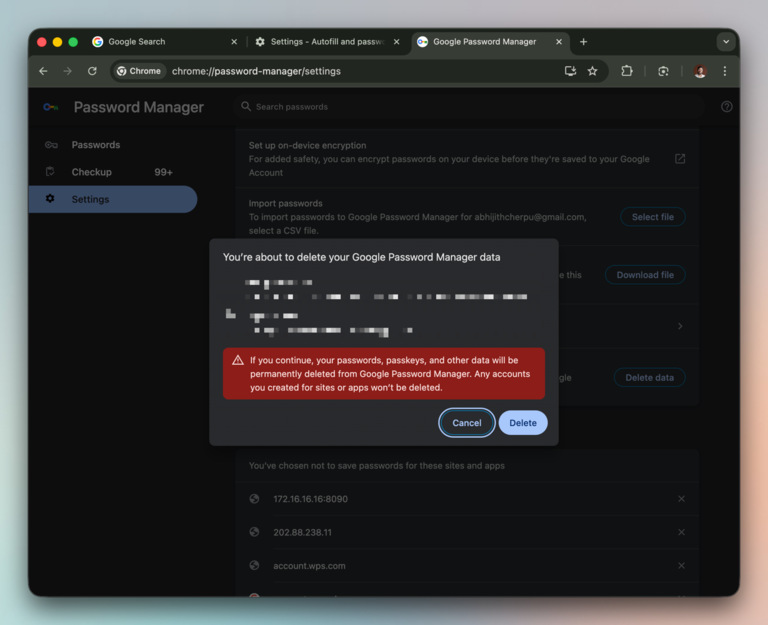
In a few seconds, the browser will delete all saved passwords. In this case, passwords will also be deleted from Google’s cloud storage. Other syncing functions should also behave similarly.
At this point, you can confidently move to a dedicated password manager. Rest assured, attackers would not be able to access your passwords even if they attack your computer and/or browser.
Best Practices for Protecting Your Passwords
You can follow the steps below to ensure that your passwords are protected from threats:
Complex, Unique Passwords
The first step is to avoid using simple and common passwords. Instead, opt for complex ones when possible. If you’re unable to come up with a password on your own, you can use a password generator. These days, a lot of websites require you to have complex passwords. Even if they don’t, you must make it a habit to create new passwords for every account you create. This way, even if one account is compromised, you are safe.
Stick to a Dedicated Password Manager
As you have seen above, built-in password managers in web browsers don’t really meet your security needs. Often, these password managers can put your credentials at risk. Therefore, ensure that you use a dedicated password manager. You can choose between free and paid options in the market, and most of these tools offer multi-platform sync and availability.
Enable MFA Whenever Possible
You can do your best to come up with complex passwords, but data breaches can cause trouble many times. A sensible option is to enable two-factor or multi-factor authentication. These systems require an additional authentication method (such as a one-time password) before you can log in. You can also enable the passcode option if your account/devices support it.
With these security practices, you can keep your passwords safe and secure. The single action of choosing a dedicated password manager can bring about a noticeable difference in your online privacy and security.
Wrapping Up
I’m sure you have a better understanding of saving passwords in your browser. I have gone through the dos and don’ts, but the right way to protect your passwords is about choosing the right option to manage them. It would currently mean avoiding browser-based password managers.