Google Chrome may have its caveats, but it’s the most popular web browser in the world for a reason. For a noticeable majority, Chrome is a smoother and more reliable way to browse the web. But it doesn’t have to end there. This Google browser packs many cool features that can boost your productivity. Here are 9 cool Google Chrome features that you must use if you want something beyond typical web browsing.
Chrome Profiles
Chrome user profiles are a valuable feature for individuals who juggle multiple roles or use devices with multiple users. This feature allows you to have multiple profiles that you can switch between. For instance, you can have a Life profile for personal browsing and a Work profile where you have signed into work-related accounts. We also love that Chrome allows you to use a profile without signing in to a Google account.
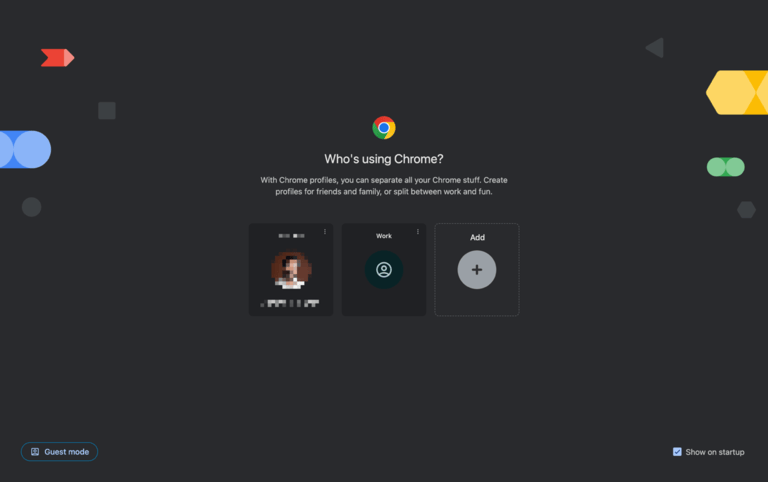
Creating a new user profile is similar to having a cloned version of Chrome. You can start afresh and keep all your information separate. For instance, you don’t have to mix work and life-related bookmarks anymore. It is also handy when you want to manage multiple Google accounts. This way, you don’t have to sign out and sign in every time you want to check your work mail.
Google Chrome makes it incredibly easy to manage these profiles. You can edit or remove them using a built-in dashboard. I should also mention the Guest Profile feature, which you can use when allowing someone to use your computer. This option works better than Incognito because Incognito windows retain access to details from your main account, such as saved passwords.
Overall, whether you need multiple user profiles or want to manage various aspects of your life, you should try Chrome user profiles.
Password Checkup
Password checkup is a feature that everyone must try—and I mean everyone.
This Google Chrome feature works best if you use the Google Password Manager. It uses encrypted methods to verify whether your passwords have been compromised online. This way, if you are using a compromised password, Google Chrome can notify you so that you can change it.
You can access this feature by going to the three-dot menu > Settings > Privacy and Security> Safety Check. Here, you can see a link to the Password Checkup section. Alternatively, you can open the Password Manager utility on Chrome and navigate to Checkup. Either way, Google Chrome will scan the web in a few seconds.
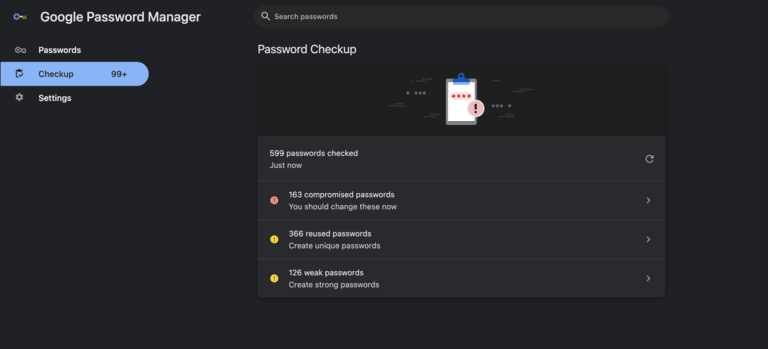
After the scan, the browser will highlight three categories: Compromised Passwords, Reused Passwords, and Weak Passwords. You can address each of them, but I recommend changing all these passwords. This works best when things are integrated with your Google Password Manager.
It is also convenient that the password manager will update the credentials as you change them. So, the next time you open the website, you can log in using the new credentials. Overall, this security-centric feature is a must-use when it comes to Google Chrome.
Print to PDF
Print to PDF is another feature worth checking out in Google Chrome. Everyone knows that you can print a webpage that you are currently viewing. This is pretty handy when you need a physical copy, but it also uses paper. If you want to keep an accessible copy of a webpage, consider using the Print to PDF option.
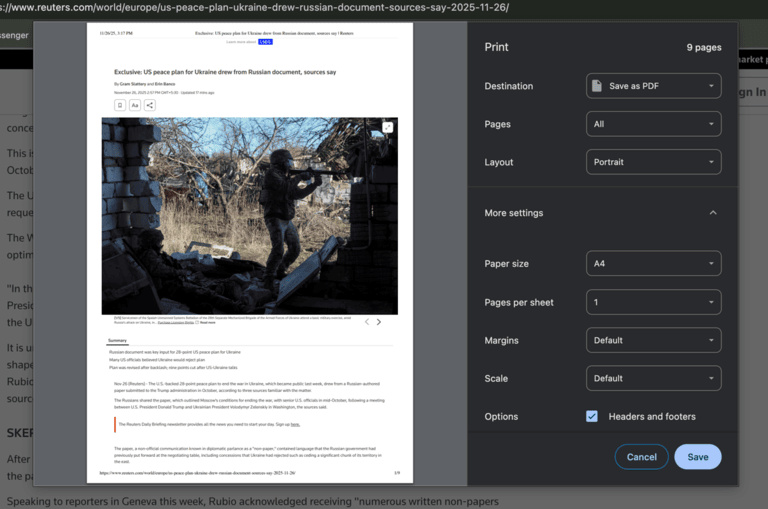
Imagine you are reading a news article and want to save it for later reference. You can use the Control + P or Command + P combination to bring up the Print interface. However, instead of choosing a physical printer, select the option titled “Save as PDF.” The interface also allows you to decide on factors such as page size, layout, scaling, and margins. Once you have selected these, hit Print, and Chrome will save a PDF.
I use this feature frequently. Link aggregation platforms like Pocket are great, but PDFs are sometimes more convenient. For instance, if I want to work on a project from a place without an Internet connection, having PDF versions of important web references makes sense. This feature is also useful when a webpage does not have a print button.
For what it’s worth, most web browsers have this option.
Casting & Apps
Google Chrome also offers built-in options for casting your tabs and saving webpages as applications. Both are great to have when you need an integrated browsing experience.
Casting is a convenient option when you have a Cast-enabled smart TV, speaker, or screen. For instance, I use this option to cast audio/video from a webpage to my Google Home smart speaker. Even when a website does not have a dedicated player interface, the casting option works flawlessly. This feature is better than a mirroring situation because there is no direct connection between your computer and the device.
You should also check out the option to save websites as apps. Let’s say that you want to keep YouTube open at all times. Instead of pinning the tab, you can create an application that you can open from the desktop. It is easy with Google Chrome; you can go to the three-dot menu > Cast, Save & Share, and then choose “Install Page as App” from the options.
You can then give this app a name, and Chrome will handle the rest. The next time, you can search for the app and open it just like you would any other app.
As you can imagine, both of these features can help you save a significant amount of time and energy while ensuring a smooth Internet experience.
Tab Groups
Tab groups are another feature you should try if you frequently deal with multiple tabs. Trust me, this Google Chrome feature helps me keep my ADHD at bay. Here’s how it can help you, too.
Let’s say that you are multitasking and have a dozen tabs open. After a point, it becomes difficult to know which tabs belong to which category, right? Here’s where tab groups come into play. You can create different tab groups and add tabs to each of them. Chrome lets you identify tab groups by color or name. This feature works elegantly when you have too many tabs to tackle.

You can add and remove these groups as you wish. The best part? Google Chrome syncs all the tab groups across all signed-in devices. So, when you move from one device to another, you won’t face any disruptions to your workflow.
Several sources suggest that Google plans to integrate Gemini’s AI into Chrome, allowing for the automatic creation of tab groups. That will be an impressive addition, I believe.
Google Lens
A lot of us use Google Lens on our Android smartphones. Yet, not many people know that it is also available on Google Chrome. Here’s how you can use Google Lens on Google Chrome for an advanced AI experience.
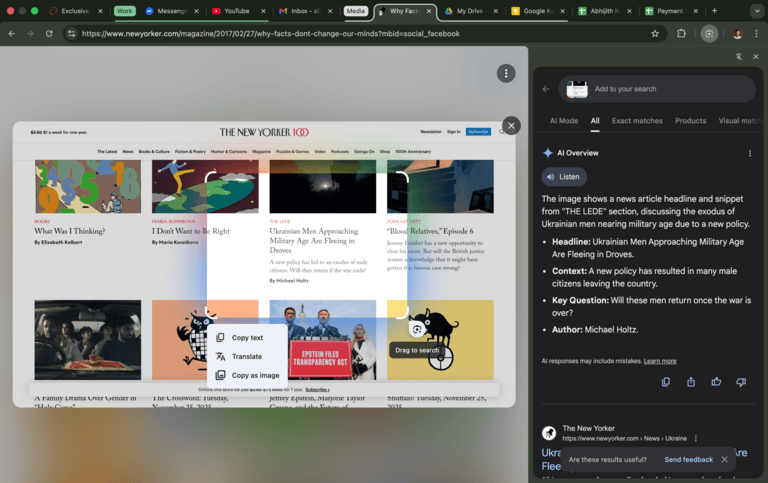
Let’s say that you encountered a photograph/image that you cannot quite place. You can right-click on the image and choose Search with Google Lens. As you can see, Google Chrome will open Lens using a sidebar, and you can spot the results through this sidebar. Like on mobile devices, the desktop version of Chrome also provides spot-on information about the picture in question.
Whether for work or fun, Google Lens integration in Chrome is a feature you should try occasionally. You can also use this feature to translate on-screen content or copy text from images. This is a pretty awesome feature if you ask me.
Share a Web Page
You can always copy the URL to share a webpage with someone, right? Google Chrome makes it easier to share a webpage, especially if you use multiple devices. Another addition to the ecosystem experience, this feature also enhances your Chrome usage.
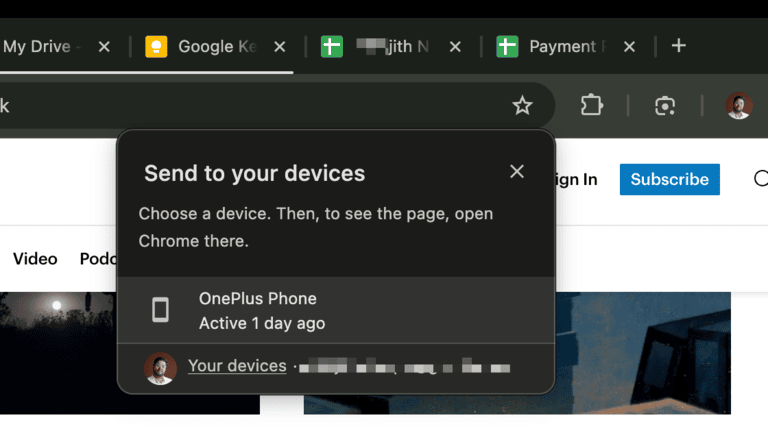
The Send to Devices option is great when you want to open something on your mobile phone. Let’s say that you found a restaurant on Google Maps and want to navigate to that place via your phone. This Send to Phone button lets you direct the link. However, your smartphone/other device should also be signed into the same Google account.
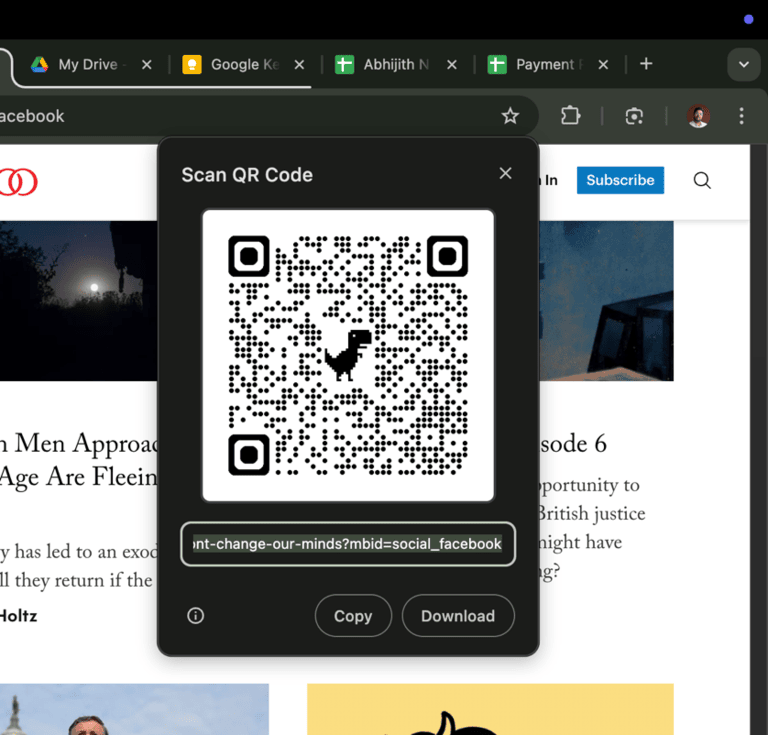
The second option is even cooler. Chrome allows you to create a QR code that can be scanned using any device with QR code scanning capabilities. When a device does, it is led straight to the webpage URL. You can do this by returning to the same menu and selecting the QR code option.
Both options work well, and you can save a significant amount of time.
Cross-Device Sync
The cross-device sync option on Google Chrome is also something you should try. Chances are, you already have this running, as it happens when you sign in to your Google account. However, you have considerable control over what is synced and what is not.
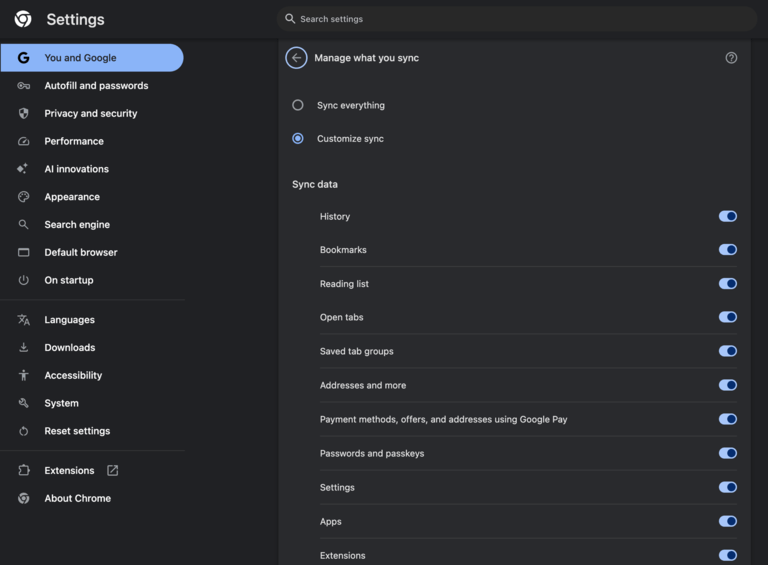
You can go to Settings > You and Google > Sync and Google services > and enable Sync. You also get to control what is synced. If you only want to sync specific items (such as passwords or bookmarks), you can further customize these settings.
Once enabled, you can access all the information from Chrome browsers on other devices. It is a nifty option for convenient browsing even when you cannot afford a walled ecosystem like Apple’s.
Force All Websites To Go Dark
While this is not a mainstream feature, an experimental flag in Google Chrome allows you to force all websites to use dark mode. This function works even when the website has not enabled dark mode. Though there may be some caveats, you can benefit from this additional layer of dark mode at times.
Here’s how you can enable this.
You have to type chrome://flags in the address bar. You should now be seeing a list of entries. It is better to search for an entry called Auto Dark Mode for Web Contents. You can enable this feature and restart Chrome for the best results. When you open, you can have a by-default Dark Mode experience.
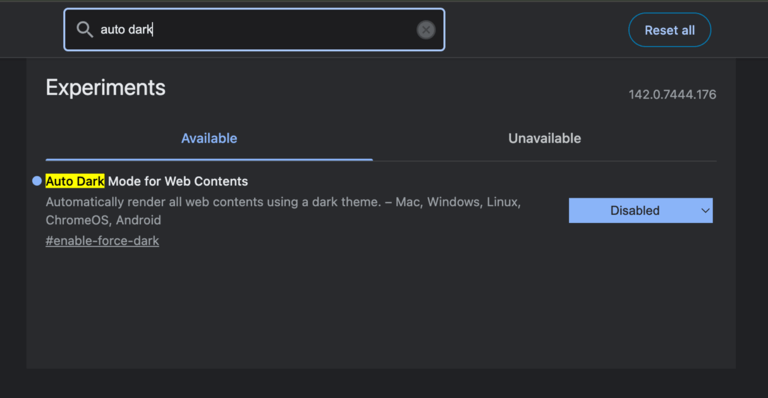
Please note that this feature is experimental. It also means you may encounter some glitches from time to time. Nevertheless, if you are looking for a true Dark Mode experience, you must use this option.
Mute Tabs
Last, you should check the option to mute individual tabs. Normally, when you want to focus, you may press the Mute button on your computer, right? But what if you just want to filter out an individual tab? Well, you can use the Mute tab function.
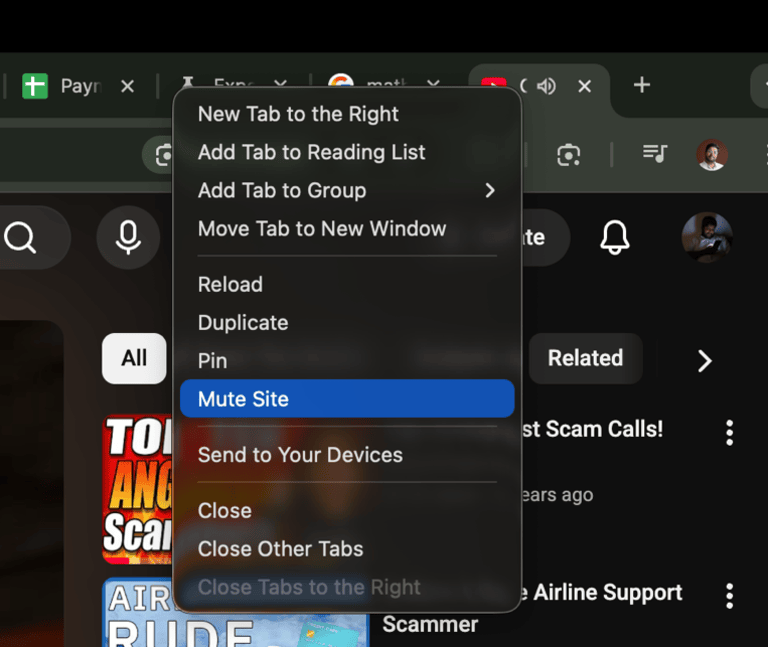
Using this feature is pretty straightforward. You can right-click on a tab and select ‘Mute Site’. Chrome will now mute all audio from the specific site. You can mute as many tabs as you want.
I’m sure this feature will come in handy at least once.
Wrapping Up
Big or small, all these features can improve the browsing experience you get from Google Chrome. I use most of these features frequently, and they are a reason I often return to Chrome.