
If you are facing issues with your Cox Internet connection, one solution is to factory reset the Cox modem or router. When used properly, this single step can help you solve a variety of issues and give your Wi-Fi network a fresh start.
In this guide, I will share the easiest steps to reset the Cox modem or router. I shall also share some tips on setting up the Cox router after resetting it.
When to Reset My Cox Modem/Router
As I said, factory resetting your Cox modem/router is indeed a powerful feature. It can help you solve some issues with the Cox router/modem system and improve some aspects of privacy and performance. Here are some reasons to reset your Cox modem/router.
Forgotten Password
If you forgot the password of the Cox router/modem, resetting the device will restore the default username and password. Using these credentials, you can connect to the network and change the password later.
Connectivity Issues
You can solve a variety of connectivity issues when you reset your Cox router or modem. This step is useful when other troubleshooting methods do not work.
Improve Performance
If you are getting slow speed and performance from the Cox router, you may try to reset it. Doing so removes temporary files and junk data from the router’s memory, speeding up the connection.
Returning Equipment
When returning equipment to Cox, you must ensure that your data does not remain on the router. You can get the router to a clean slate using the factory reset method.
Reset Configuration
Sometimes, you may want to restore the Cox router to a normal state after configuring advanced things like port forwarding. A complete reset is the easiest option because your Cox modem/router will work as if new.
Reset Cox Modem/Router
Now, we shall proceed with the steps to reset your Cox modem/router. Keep in mind that factory resetting a Cox router or modem is an irreversible process. There is no way to recover the configurations that you will delete when you reset the device. However, if you really want to retain the configuration files, there may be an option to do so. You need to use the third method.
Now, without further ado, I will take you through the three methods to reset the Cox modem/router.
#1 Using a Physical Reset Button
Using the physical reset button is the easiest way to reset your COX modem or router. You can use this method even when you do not have access to the Wi-Fi network or the login panel. This means it is a great option when you have forgotten the Wi-Fi password or login password for your COX router or modem. The steps you need to follow are as follows.
- Make sure that your Cox router is connected to a stable source of power. I recommend using a UPS if you have one available.
- Look at the back panel of the Cox Panoramic Wi-Fi Router and find the Reset button. It may not be a raised button on some models. It means you need to use a SIM ejector or paper clip to access it.
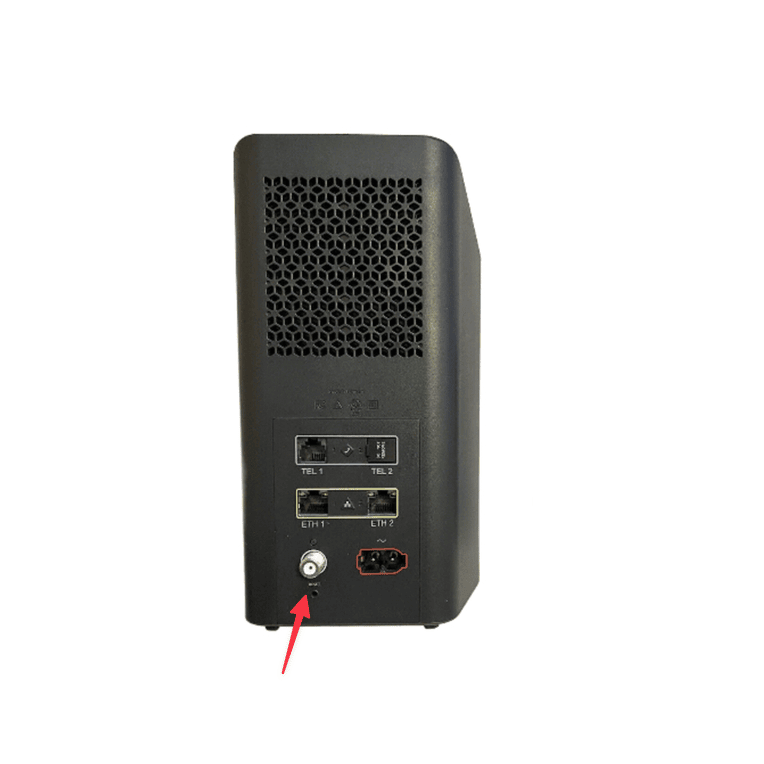
- Now, press and hold the Reset button for up to 15 minutes. You can release the button when the status lights on the Panoramic Wi-Fi Router start blinking.
- In a second or two, the router will initiate the Reset process. Depending on the router model and the data you have stored, the process may take anywhere between 5 minutes and 15 minutes.
- Patience is your friend here. Also, keep in mind that your Internet connection will be unavailable during the rest of the process.
Because this method uses a universal Reset button, the steps will help you reset any Cox router or modem. After the status lights go back to a stable state, you can start the setup.
#2 Using The Cox Mobile App
Let’s say that you do not want this hardware-based method to reset the Cox router or modem. If you still have access to the network and the dashboard and want to reset the router for increased performance and security, you can do the reset process using the Cox mobile app itself.
The Cox panoramic Wi-Fi app can help you schedule the process. It will also assist you throughout the steps, including the post-reset setup. As you can guess, this method will not work when you are locked out of your Cox Wi-Fi network. The steps are as follows.
- Make sure that you have downloaded and installed the Cox app on your Android smartphone/iPhone.
- Now, your device must be connected to the Cox Wi-Fi network.
- When you open the app, log in to the Cox account using the given credentials.
- Navigate to My Services and choose Internet.
- When your service details show up, you can scroll down and tap on the Reset Modem button.
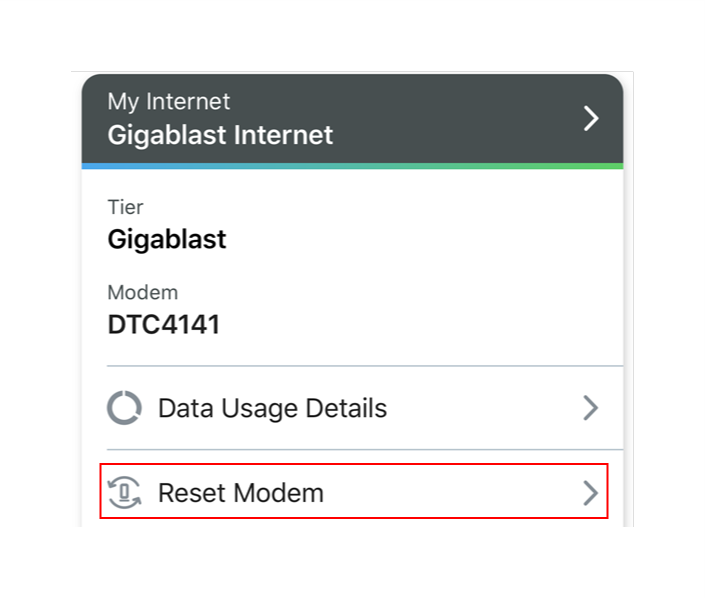
- On the next screen, tap on Begin Reset, and the process will start.
As you can see on the app screen, the reset process will take up to 10 minutes. You will have an interruption for services, but this step can help you solve most connectivity issues with the Cox Wi-Fi network.
#3 Using The Web Interface
Like other routers, the Cox Panoramic Wi-Fi Router also has a fully-fledged web interface. You can use this dashboard to access your Cox modem router and reset the device through the web interface. Keep in mind that you need to be connected to the Wi-Fi network to use this option. You also need the login credentials for the router. The steps are as follows:
- Make sure that your device has a stable connection to the Cox Wi-Fi router. I recommend using an Ethernet cable if possible.
- Now, open a web browser like Google Chrome or Safari and enter the default IP address of the Cox router.
- For most Cox Wi-Fi router models, the IP address would be 192.168.0.1 or 192.168.1.1. Alternatively, you can check the router product panel to know the exact IP address.
- When the login page appears, you need to enter the router’s username and password. If you do not know these, you can check the router label/package to know the default credentials.
- After you have logged in, navigate to Settings > System > Reset.
- Proceed by clicking Reset, and the process may take up to 10 minutes.
You need to stay patient and proceed with the Cox router setup after the reset process is complete.
Set Up Cox Router After Reset
No matter which method you use, a setup process is necessary after the reset is done. Here are the steps you can use.
- When the router restarts, you can connect to the network in two ways. First, you can connect to the default Wi-Fi SSID using the given password. Alternatively, you can connect using Ethernet.
- Now, open a web browser and launch the web dashboard by entering the default IP address. It could be 192.168.0.1 or 192.168.1.1.
- Now, log in using the default username and password for the router. You can find these credentials on the router label or package.
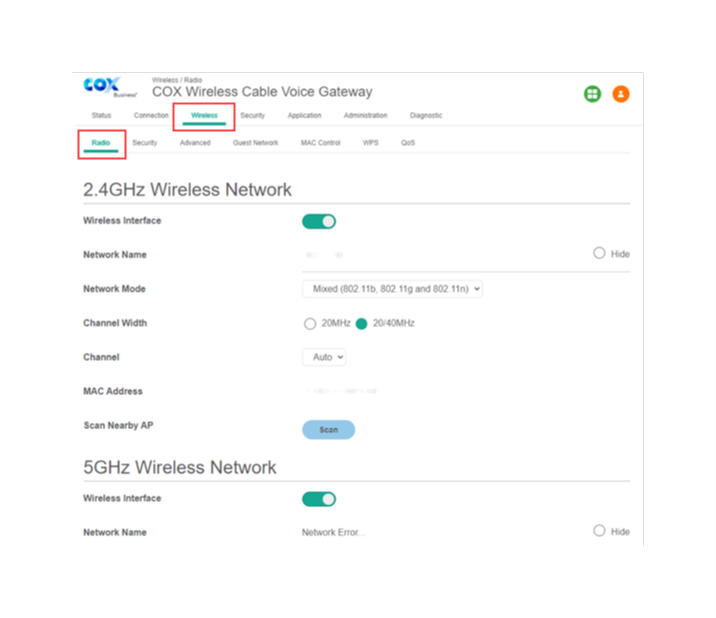
- Now, follow the on-screen instructions to set up the Wi-Fi network, including the SSID and password for the Cox network.
- The Cox router will restart once you confirm these details. At this point, you can reconnect all your devices to the new SSID using the selected password.
At this point, the network is back online. You can use the web-based interface or the Cox app to configure all other details.
Wrapping Up
I hope this guide helped you reset the Cox modem/router and restore the necessary settings for a clean start. Some things, such as the location of the Reset button, may change with some models. However, the core steps will remain the same.
