
ASUS makes some really popular Wi-Fi routers within multiple segments. Most of them are easy to use and manage as well. Given how many features are packed into these routers, you would want to access them by logging in to the ASUS routers. In this guide, I will share with you the default logins and passwords you need to log into ASUS routers. I shall also discuss things like resetting the password and SSID.
Default logins for ASUS Router
The default login is the factory-set credentials for accessing the Wi-Fi router dashboard. When you set up a Wi-Fi router for the first time, you need to enter these credentials to log into the router. After this point, you can set up new credentials and use them.
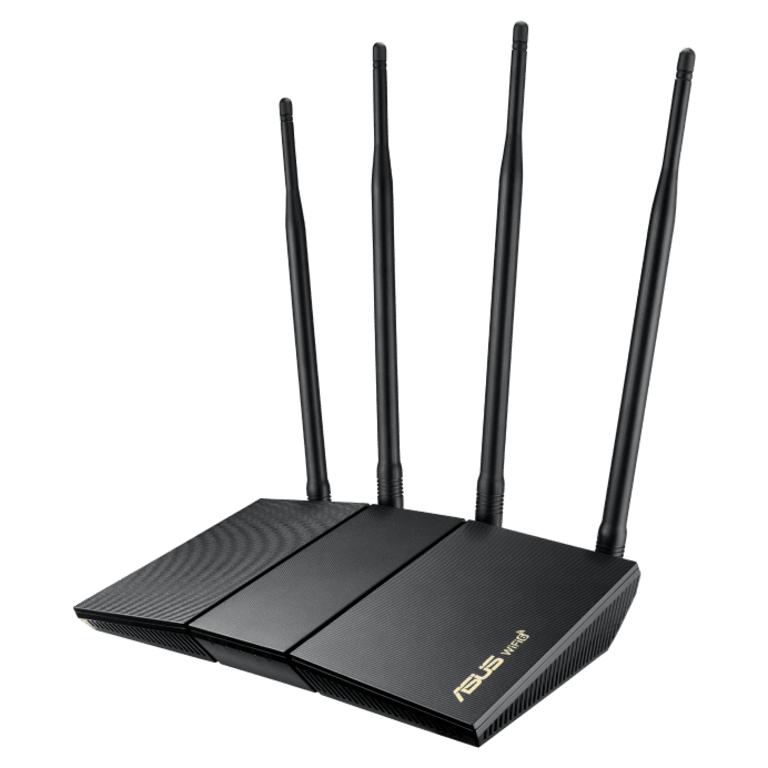
Here is how you can find the default logins for ASUS routers.
Default Login and Password for ASUS-RT-AC3200
RT-AC3200 is one of the more popular Wi-Fi routers from ASUS. Logging into an ASUS RT-AC3200 is an easy task because it uses one of the most common administrator username-password combinations: admin and admin. That is, when you see the login page for the ASUS RT-AC3200, you can enter admin as the username and admin as the password. The page should take you to the ASUS router dashboard.
By the way, accessing the admin panel is also easy. You can either enter http://192.168.1.1 or simply type http://router.asus.com on a computer connected to the Wi-Fi network. However, when you want to modify system-level settings, you should use an Ethernet connection. This connection would be much more stable than Wi-Fi.
Default Login and Password for Other ASUS Routers
Though it is not recommended practice anymore, many ASUS routers still use admin and admin as the default username and password. So, it makes sense to try this combination on all ASUS routers you come across. If you want to be on the safe side, however, you may consider checking the router’s product label. These labels contain essential information such as the default router IP address, Wi-Fi password, admin credentials, etc.
Now that you know the default login for ASUS routers, you can complete a few tasks.
Change ASUS Router WiFi SSID
When you set up your ASUS router for the first time, it may have the default Wi-Fi SSID. This Wi-Fi name is made up of the product serial number and some other details. So, if you want better convenience, you need to change these details. Here is how you can go about it.
- Connect your computer to the Wi-Fi router using an Ethernet cable for better stability.
- Open a web browser and type http://192.168.1.1 in the URL bar.
- When the login page shows up, enter the credentials—admin and admin—in the respective sections.
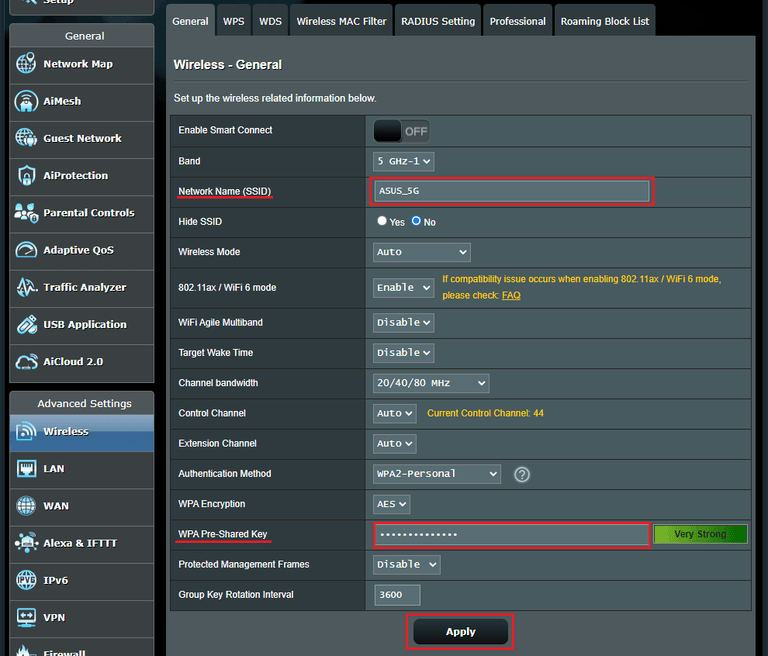
- Once you open the dashboard, navigate to Network > Wi-Fi.
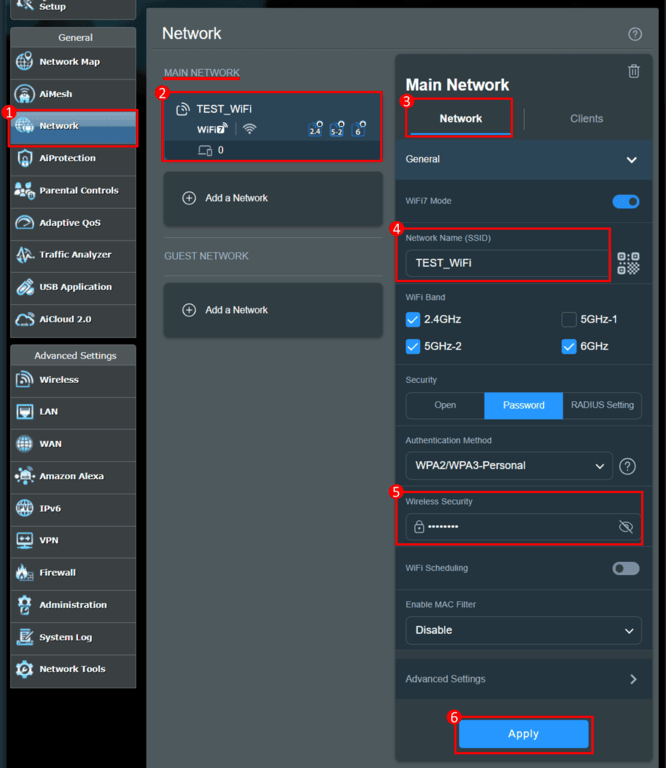
- Depending on the router’s specifications, you may see one or two tabs: for 2.4GHz and 5GHz bands.
- You should see the existing Wi-Fi name against the entry Network Name (SSID). You can now enter the new SSID you want to activate.
- If you want, make further changes to the page, such as the network password, channel, band, etc.
- After you are done, click the Save button.
Because the SSID is connected to the network itself, your router may reboot at this point. When it turns back on, you need to reconnect your devices to the new network (SSID) by entering the selected password.
Voila! You have successfully changed the SSID of the ASUS Wi-Fi router. It should be easier to track now.
Resetting the Password of ASUS Router
The first thing you should do after setting up your ASUS router is to change the admin password. Continuing to use the admin-admin credentials can expose your router to various threats. So, you should choose a non-guessable password for the admin account. However, in the event you forget the custom password, you will have to reset the password of your ASUS router. The process is easier than you imagine.
Note: Since you don’t know the current password, you cannot log into the router. Therefore, you cannot do a soft-triggered reset. Instead, you have to rely on a hard reset. The hard reset will also cause all the existing configurations to go away. It means you will have to set up your ASUS router from scratch.
Here are the steps you need to follow:
- Disconnect the WAN and LAN cables from your ASUS router. You should also remove USB drives that you may have connected to your router.
- Now, make sure that your router is connected to an uninterrupted power source. You don’t want the router to lose power during the reset process. It may lead to bricking.
- Once this is done, you have to locate the Reset button on your ASUS router. Depending on the router model, the button could be protruded or hidden. In the second case, you may need a SIM ejector or a safety pin to access the button.
- Press and hold the Reset button for a few seconds (at least 15 seconds), and you should see all the status lights flashing. It means the reset process has started.
- Depending on the model, the reset process may take anywhere between a few seconds and minutes. Once the process is complete, the status lights will become stable.
At this point, you can configure the ASUS router. Once again, I suggest using an Ethernet cable to connect to the router and complete the process. This time, however, make sure you keep the credentials somewhere safe and accessible.
Troubleshoot Common Issues
Here are some common issues you may come across and their solutions.
- The Wi-Fi may disconnect during the login process, especially if the router isn’t connected to the Internet at the point. However, you can solve this problem by sticking to Ethernet.
- You may also come across invalid username/password errors while attempting to log in. In these cases, you may want to check if someone has changed the admin password before. If so, you might have to reset the router.
- It is also a good idea to use a new browser for these changes. Existing browser cache may stop the router from loading all the interfaces correctly.
Wrapping Up
I hope this guide offered helpful insights into logging into an ASUS router. While the process is easy for the most part, errors are not uncommon. So, our troubleshooting guides and potential suggestions will definitely be of help!
