
Anyone with a basic understanding of networking can tell you that Ethernet is faster than Wi-Fi. In fact, tech enthusiasts make it a point to remind you of this every chance they get. However, there are times when you may find that Ethernet is slower than your Wi-Fi. In this guide, I outline the potential reasons for this situation and guide how to resolve it.
Reasons and Solutions for Ethernet Slower than Wi-Fi
As you probably understand, Ethernet should be faster than Wi-Fi, at least theoretically. In most cases, this theory translates well into practice. However, for this to work, you should have a set of compatible hardware and software. Any issue with either aspect can cause your Ethernet connection to be slower than Wi-Fi at times. Don’t worry; here are potential reasons and solutions.
#1 Your Device Has Old Ethernet Tech
For context, Wi-Fi continues to improve with every iteration. Wi-Fi 7, for instance, can offer speeds as high as 46 Gbps (theoretical) and practical speeds of around 6 to 15 Gbps. On the other hand, Gigabit Ethernet is capped at 1 gigabit per second (Gbps).
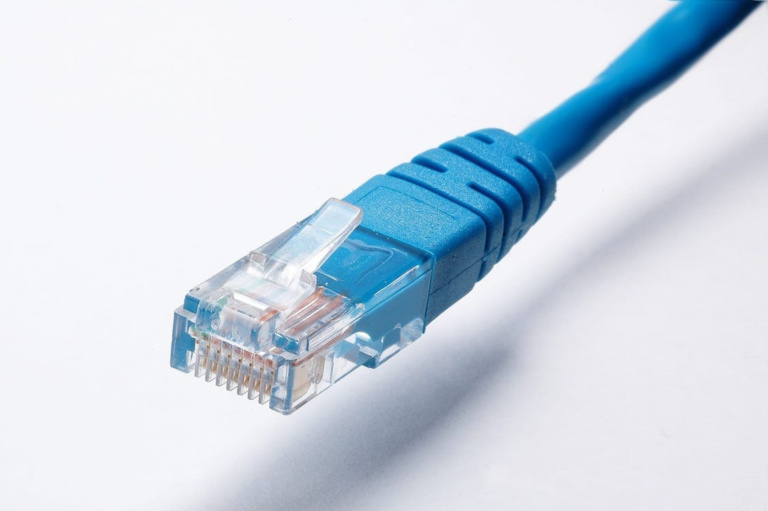
It should be clear that a computer equipped with one of these Gigabit Ethernet ports will be slower than a Wi-Fi 7 connection. However, I should add that such a combination is quite rare. Therefore, you should check the version of Ethernet that your PC/Mac has.
Solution:
To achieve the best speeds possible, consider upgrading your Ethernet technology. Depending on the device, you may need to either obtain a PCIe network card or use an Ethernet adaptor via USB 3.0. The PCIe card is great for Windows PC, whereas adapters are the better choice for Macs.
#2 Outdated Network Interface Cards
Your Ethernet could also be slower because the Network Interface Card on your Windows PC is outdated. I have come across devices that ship with an outdated NIC, even when other aspects of hardware are great. In this case, the maximum speed of your Ethernet will be capped at 10 Mbps or 100 Mbps.
Wi-Fi speeds these days can easily surpass this. It also means that you are likely underutilizing the Internet speed and bandwidth provided by your ISP. Anyway, you can easily fix this problem.
Solution:
On desktop devices, you can replace the default NIC with a PCIe network card. While doing so, you can also improve the overall speed and future-proof the network. Once you have completed the installation, ensure that you turn off the default NIC in the BIOS settings.
On laptops, you must rely on USB-based adapters. They are easy to set up and are pretty affordable. You can find adapters with speeds of 1 Gbps and 10 Gbps to suit your requirements.
#3 Router & Switch Port Problems
In some cases, you may find that Ethernet is slower, even with advanced equipment. This may happen when the Ethernet ports on the router or the network switch are faulty. We could be talking about a misaligned or improperly wired port. These ports may either prevent the connection or significantly reduce the speed.

Solution:
You should confirm whether the ports on your network router/switch are in good condition. Some network equipment may have LED status lights indicating the speed/connection status of the Ethernet link. Such lights can indicate if there is an issue with the ports.
If you encounter an issue, you can either fix the individual port or the entire system. If fixing the individual port does not solve the problem, you may be dealing with an internal wiring issue.
#4 Faulty Network Configuration Settings
For Ethernet to function properly, you also need the correct network configuration settings. Speedy Ethernet connections are a balanced combo of hardware and software. Therefore, if you have used a faulty network configuration, it may prevent Ethernet connections from accessing the full speed.
For instance, you may have configured the router to prioritize Wi-Fi connections over Ethernet ones. When you enable this option, the router allocates most of its processing power to the wireless connection and prioritizes Ethernet. You can easily change this option and re-prioritize Ethernet.
Another issue may be related to MTU size or the network protocol. You have to optimize the MTU for the Ethernet connection to ensure maximum speed. You may also want to check how you have configured settings such as TCP/IP and IPv4/IPv6. While uncommon, misconfiguring them can cause slower speeds.
Solution:
Here are some steps:
- You can manually change the QoS settings or reset everything. Both will bring Ethernet up the priority list.
- You can contact your ISP and ask for the correct configuration options for TCP/IP and IPv4/IPv6.
- Determine the optimal MTU settings for your network needs and adjust them accordingly.
#5 Signal Interference and Distance
You may be experiencing slower speeds over Ethernet due to signal interference or distance. Let me explain:
Ethernet cannot offer the same speeds across different distances. As it happens, the speeds you receive will vary depending on the length of the cable. For instance, Cat5e cables will reduce speed if the distance exceeds 100 meters. Similarly, Cat6 cables have a maximum distance limit of 55 meters. If the Ethernet cables are longer than these, you will encounter speed limitations, resulting in slower Ethernet speeds compared to Wi-Fi.
Another issue is signal interference that other electronic equipment might cause. For context, most Ethernet cables ship with additional shielding capacities. These layers can protect the signal from interference, but it is not perfect. Therefore, if you have sensitive equipment such as microwave ovens and power lines nearby, it may result in poor Ethernet speeds. You may also encounter issues such as packet loss and interruptions.
Solutions:
Here’s how you can address these issues:
- Check whether the length of the Ethernet cable exceeds the maximum speed limit. In that case, you may need a way to amplify signals in between.
- You should keep the Ethernet cable away from other equipment just in case. I recommend this option even when you have a shielded cable.
#6 Old Ethernet Cable
Choosing the right Ethernet cable is also essential to ensure maximum speeds over Ethernet. For instance, it is a bad idea to continue using the decade-old Ethernet cable with a modern router. In those cases, even if the router and device support 10-Gig Ethernet, you will get poorer speeds.
Solution:
First, check the maximum speed your network can support. Based on this number, you need to select the best Ethernet cable for your specific purpose. If you are unsure, consider using the latest-generation Ethernet cable. If anything, you will be future-proofing the network. This way, even if you upgrade network equipment on the way, you will be safe.
#7 Malware Issues/Threats
Sometimes, slower speeds on Ethernet may be due to something else in the works. A common issue is the presence of malware on your computer. That is, if your PC is infected with malware, it may consume a significant amount of data in the background. As a user, you would feel the speeds are slower. In case you’re wondering, this happens more often than you think.
Solution:
You can simply run an anti-malware scan on your computer. Alternatively, you should check whether apps or processes are consuming an unusual amount of data. You may want to remove both from your computer before making hardware-related changes.
Wrapping Up
I hope this guide helped you resolve the unusual case of your Ethernet connection being slower than your Wi-Fi connection. As you have seen, a wider variety of factors could cause the problem. However, you can resolve this issue by ensuring the correct set of hardware and software components.
