

It might be a little difficult to admit, but we are all afraid of Wi-Fi dead zones. Unluckily, traditional Wi-Fi routers are limited when it comes to offering Wi-Fi access throughout your home, especially to the basement or a second-floor bedroom. Panoramic Wi-Fi from Cox claims to be a solution to this problem, and you may be considering this option if you are a Cox customer. Here is a complete guide to Cox Panoramic Wi-Fi.
What is Cox Panoramic Wi-Fi?
Cox Panoramic Wi-Fi is the brand name of a new modem-router combo device from Cox. This single device can work as a modem as well as a router. It means you can connect the Coax/Fiber cable to the Panoramic Wi-Fi device and enjoy a stable Wi-Fi connection.

Like other routers, Cox Panoramic Wi-Fi also packs many hardware ports, including Ethernet ports for wired connectivity. However, compared to a conventional Wi-Fi router, Cox Panoramic Wi-Fi can work with Cox Panoramic Wi-Fi pods, which extend the Wi-Fi coverage by creating a mesh network. It thus becomes an easy way to make Wi-Fi available across larger spaces, eliminating Wi-Fi dead zones while at it.
In short, Cox Panoramic Wi-Fi claims to change the way you deal with Wi-Fi signals throughout your house. However, it packs a number of unique features as well.
Features of Cox Panoramic Wi-Fi
Here are some of the core features I love about Cox Panoramic Wi-Fi:
Power of Mesh Network
As I said, Cox Panoramic Wi-Fi lets you create a reliable mesh Wi-Fi network with the help of Cox Wi-Fi Pods. Compared to a conventional router, a mesh Wi-Fi network offers features like seamless roaming and better coverage throughout your space. You should consider this feature if you have Wi-Fi dead spots.
Advanced Control
Compared to other routers from Cox and other makers, Cox Panoramic Wi-Fi offers better control over the Wi-Fi network. For one, you can manage the network using the web-based portal or the Panoramic Wi-Fi app. You can also use advanced features like creating user profiles and speed tests.
Better Security
Because the Cox Panoramic Wi-Fi device packs new technologies, it protects your network using encryption and other authentication options. It is a reason to consider the router if you have a lot of smart devices at home. The last thing you want is someone accessing your router via a vulnerability.
Convenience of Single Device
As I said earlier, the Cox Panoramic Wi-Fi is a single device that functions as a modem as well as a router. So, you can have one device instead of two, which is more convenient and space-friendly. It might be appealing to those who have a small space for keeping network equipment.
Guest Network Option
Offering Wi-Fi access to your guests becomes a more secure option with Guest Networks. Fortunately, Cox Panoramic Wi-Fi has a built-in option for Guest Wi-Fi networks. You can set up this feature to allow guests to access the Internet without exposing other home devices.
Band Steering
As you may guess, the Cox Panoramic Wi-Fi Gateway is a dual-band or triple-band router, which supports both the 2.4GHz and 5GHz bands. However, Band Steering lets the router choose the best band based on the device, range, etc. It means not having to choose between two different networks while connecting.
In short, the Cox Panoramic Wi-Fi Gateway does a better job than the typical routers you used to get from Cox and other ISPs. Given that Cox offers some high-speed Internet plans for its service, you can benefit from the many features of the Wi-Fi gateway.
How to Get a Cox Panoramic Wi-Fi Gateway
Here is what you should know about getting a Cox Panoramic Wi-Fi Gateway.
Types of Cox Panoramic Wi-Fi Gateway:
You can choose between three different Cox Panoramic Wi-Fi gateways. While all of them offer the DOCSIS 3.1 Cable Protocol, you may find some differences in terms of performance and coverage.
- PW6, the first iteration, is a Wi-Fi 5 gateway. It has a maximum throughput of 2.5 Gbps and offers a dual-band setup. You get two Ethernet ports and two telephone ports, and it works with Wi-Fi battery backup systems.
- PW7, the second iteration, is a Wi-Fi 6 gateway. It also offers a throughput of 2.5 Gbps, but you get four Ethernet ports and two telephone ports. It also provides support for Wi-Fi battery backup and works great with Panoramic Wi-Fi Pods.
- PW8, the latest option, is a Wi-Fi 6E gateway. Unlike the first two options, the PW8 is a triple-band Wi-Fi router. You get the same number of ports as PW7 and support for battery backup. However, it can offer better coverage and versatile performance from this gateway.
You must keep in mind that all core features like whole-home coverage, free upgrade, panoramic Wi-Fi app, and advanced security are built into each device.
Rent for Cox Panoramic Wi-Fi Gateway
Unluckily, Cox does not sell the Panoramic Wi-Fi Gateway. I don’t think it would make sense, either, since it is supposed to work with only the Cox network. Instead, users can rent the Panoramic Wi-Fi gateway as long as they have an active Internet connection.
According to some sources, the Panoramic Wi-Fi gateway will set you back $13 a month. However, the official site of Cox says the gateway is now built into almost every Internet plan and that you don’t have to pay for two years.
We checked, and even the cheapest plan from Cox Internet comes with the Panoramic Wi-Fi equipment.
Steps for Getting a Cox Panoramic Wi-Fi Gateway
Here is how you can get your hands on a Cox Panoramic Wi-Fi Gateway:
- If you are getting a new Cox connection, the Panoramic Wi-Fi Gateway will be added to the package by default. However, you can find the option to include the gateway if it is not enabled by default.
- If you already have a Cox connection, you can use the Upgrade Equipment option to replace an old router with the Panoramic Wi-Fi Gateway. You may have to pay extra or upgrade the plan, though.
Once you have placed the order, the gateway will reach you. You can either go for a Self-Install option, where you get all the cables and the device itself. Keep in mind that Wi-Fi pods are not included in the pack. You need to purchase them individually. You can also get a professional installation, but this may cost a bit extra.
Installing the Panoramic Wi-Fi Gateway: Self-Install
I should mention that the self-installation process is pretty simple. For one, you get all the instructions from the user manual that is included in the self-install kit. More importantly, the Cox team will make sure that all the cables are available at your place before the thing arrives.
So it just means you have to connect the coaxial cable to the device and follow the instructions as per the user manual. And the power-on device process will take only up to 10 minutes, and you should be able to log into the default Wi-Fi network within that time.
The self-installation method is also faster since you can get the gateway shipped to your address within just a few days. I recommend this option if you already have a Cox connection.
Set up Panoramic Wi-Fi Gateway
Given below are some simple steps to set up the Panoramic Wi-Fi Gateway:
- You should first download the Cox Panoramic Wi-Fi app from the Google Play or Apple App Store. As the first step, you should log in using the Cox account.
- Now, unbox the gateway packaging and keep the power cord and coax cable handy. Make sure you connect the power cord to a nearby outlet and plug the coax cable into the nearby coaxial outlet.
- Once the gateway powers on, you should be able to find an active Wi-Fi network. You can see the credentials for the Wi-Fi network in the user manual or the Self-Install kit you received. Enter those details and connect to the network.
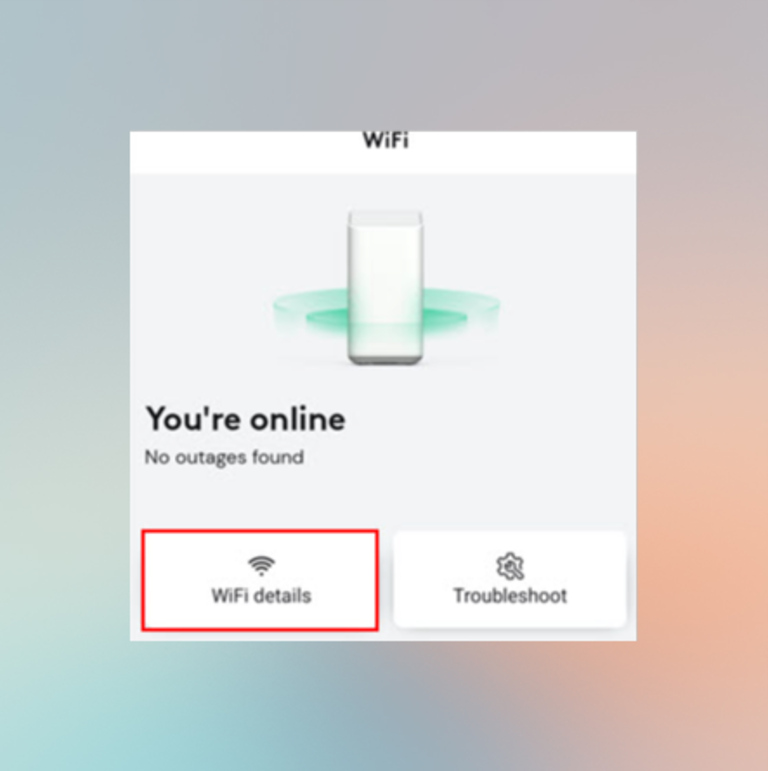
- If everything works fine, you should see an Online message when you open the Cox Panoramic Wi-Fi app. This means the gateway has been registered to the Cox network, and you will have Internet access to all connected devices.
- You can now head to the Wi-Fi Details page > Edit Wi-Fi Settings, which lets you choose a new name and password for the network. It may be time to choose between dual networks or band steering. If you turn on band steering, you will see only one network instead of two.
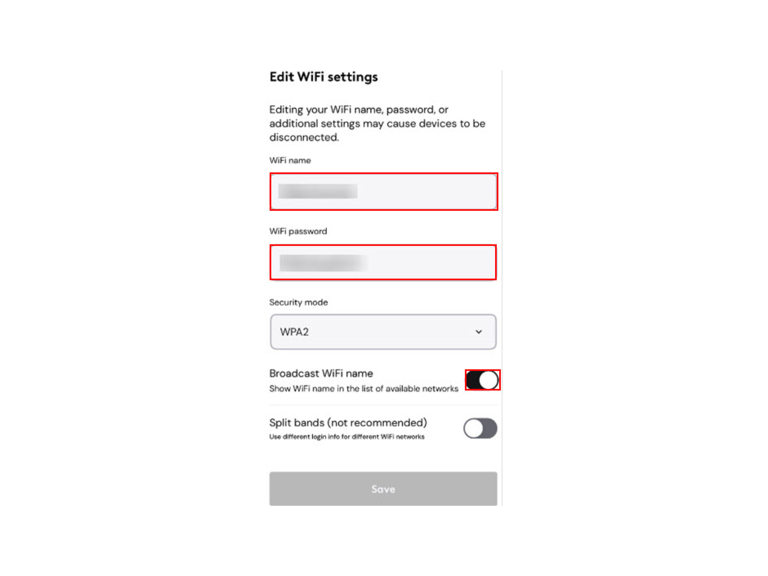
- You can also choose the Security mode and decide whether you should broadcast the Wi-Fi name.
- After you have made these changes, tap on Save to continue with the new settings.
Your gateway might restart at this point, but the new SSID and password will be active in a few minutes. You can now use these credentials to connect more devices to the Cox Panoramic Wi-Fi Gateway.
Cox Panoramic Wi-Fi App
We just used the Cox Panoramic Wi-Fi app to set up the Panoramic Wi-Fi gateway for the first time. However, it can help you with the following aspects as well.
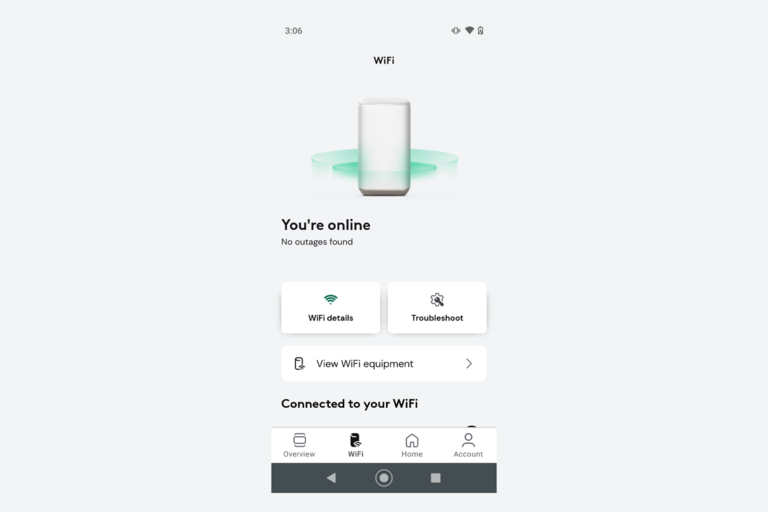
- Change Network Settings: The Wi-Fi app lets you change Wi-Fi credentials and settings, such as band steering.
- Device Profiles: You can easily give nicknames to connected devices and assign profiles to them. You will find these options convenient while managing network behavior.
- Parental Controls: You can use the app to set up and manage parental control options. You can make this process simpler by adding your kids’ devices to specific profiles.
- Security: The Cox Panoramic Wi-Fi app becomes your central hub for security as well. You can use it to protect connected devices.
- Pods Management: When you ultimately connect Cox Pods for extended range, you can manage all of them via the Cox app.
The app also has one of the best UI designs we have come across on Wi-Fi management apps.
Cox Panoramic Wi-Fi Service Plans
Here are the different Panoramic Wi-Fi service plans from Cox:
Plan Name | Max Download | Max Upload | Monthly Price |
|---|---|---|---|
Fast | 300 Mbps | 10 Mbps | $50.00 |
Go Even Faster | 500 Mbps | 10 Mbps | $80.00 |
Go Super Fast Gig | 1,000 Mbps | 35 Mbps | $110.00 |
Go Beyond Fast 2Gig | 2,000 Mbps | 100 Mbps | $150.00 |
StraightUp Internet | 100 Mbps | 3 Mbps | $50.00 |
You can pick any of these plans to get your hands on Cox Panoramic Wi-Fi features, starting with the gateway. Some affordable plans may require extra payment for the gateway, though.
Wrapping Up
I hope this guide helped you clear all your doubts about Cox Panoramic Wi-Fi and the gateway. Ever since I upgraded to this gateway, the Wi-Fi experience at my house has been better. However, you need to invest more in Cox Panoramic Wi-Fi Pods for the best results.
