
The default modem-router you get from Cox is almost effortless to use and manage. Compared to other Wi-Fi routers we have used, Cox modem-routers have straightforward indicators as well. However, things aren’t great when you see a blinking white light on the Cox modem. It isn’t rocket science to fix the same, though. In this guide, I will share the ways to fix the Cox modem router blinking white in a few simple steps.
Cox Modem Router Lights & Meanings
Before I tell you about the reasons for the blinking white light and potential solutions, we must first look at what these lights mean. Here’s a quick table that can help you understand.
| Light Color & State | Meaning |
|---|---|
| Solid White | Modem is online and fully operational |
| Blinking White | Modem is powering on or establishing a connection |
| Solid Orange/Amber | Modem is booting up or starting |
| Flashing Orange/Amber | Modem is establishing a downstream connection |
| Flashing Green | Modem is establishing an upstream connection |
| Flashing Blue | Modem is in WPS mode (ready to connect new devices) |
| Solid Blue | WPS mode active (some models) |
| Solid Green | Successful connection with reduced bandwidth or software update in progress (model-specific) |
| Blinking/Flashing Orange & Green | Firmware update in progress |
| Solid Red | Modem is offline or has lost connection |
| Light Off | Modem is turned off or not receiving power |
As you can see, the white light in general deals with the power and connection status of the Wi-Fi router. It is also clear that a blinking white light could mean a few things.
Essentially, it means your Cox router hasn’t successfully connected to the Cox network and thus the Internet. As you can guess, it is a serious issue that can disrupt your Wi-Fi experience. The problem? So many factors may cause the router light to show this behavior.
Causes for Cox Modem Blinking White
We now know that you see a blinking white light because of connectivity issues. Now, I will share with you a few specific reasons for the behavior.
- Connection Issues: Your Cox modem will be showing this white blinking light because of connectivity issues such as signal outage, ongoing maintenance, and hardware issues with the coaxial/fiber optic cable.
- Power Issues: Issues with power delivery can also prevent the Cox modem-router from connecting to the Cox network properly. I have come across issues where unstable wattage from the power brick causes the white light to start blinking.
- Lack of Setup or Provisioning: An incomplete setup process or the lack of provisioning is another common reason for the Cox modem blinking white. For those who are unaware, provisioning is the basic task of making the modem a part of the Cox network infrastructure.
- MoCA Configuration: If you use the Multimedia over Coax Alliance (MoCA) with the Cox modem router, an improperly configured system can cause the blinking white light. It may happen when you have deactivated MoCA as well.
- Firmware Issues: Sometimes, firmware updates and related issues can cause the white blinking light on the Cox modem/router. Sure, there is a dedicated light status for firmware status, but a blinking white light may appear, nevertheless.
Now that you know the potential reasons for the blinking white light, we shall move to solutions.
How to Fix Cox Modem Router Blinking White
I have arranged the solutions in the order of their commonness. We will cover broader solutions first before moving to specific ones.
#1 Restart the Modem/Router
As always, the first solution is restarting the Cox modem-router combo. Patience is key here, though. Make sure you give the Cox modem/router a few minutes to restart and attempt a connection. During this period, you will see the blinking white light, but it should go away in some time.
If a temporary connectivity issue is the reason behind the white blinking light, a thorough restart of the router/modem should solve the problem. If you want to go a step further, you should consider power-cycling the router.
#2 Check for Network Outage
The blinking white light could occur due to a network outage at Cox’s side. Even when everything is correct at your end, a network outage may prevent your router from accessing the Internet. So, you should check if such an outage is going on.
I recommend two methods to check if there is a network outage. First, you can use the Cox app to see if you have received a notification. Alternatively, you can rely on sites like DownDetector to confirm whether Cox is having an outage.
#3 Recheck Cables and Power
You should also suspect power and signal cables while solving the blinking white light issue. You must check whether you have properly connected the LAN/WAN and power cables to the router. If you have a separate modem and router, check the cables between these two devices as well.
#4 Complete Activation & Provisioning
Now that you have confirmed the basics, it is time to fix the most common issue causing the Cox modem-router to blink white. It happens when the modem has not been properly added to the Cox network. The fix here is simple, though.
To complete the activation process,
- Make sure that your computer is connected to the Cox modem router.
- Open a web browser and navigate to 192.168.1.1 or 192.168.0.1.
- Log in to the admin panel using the credentials (the default login option could be admin and password).
- Follow the on-screen instructions to complete the activation process.
If you cannot complete the activation process, you may have to contact Cox support.
#5 Check and Fix the MoCA Filter
As I said earlier, the MoCA function on the Cox router may cause connectivity issues. So, if you are using the function, you need to enable the filter. The steps are:
- Open the Cox router admin panel on a web browser using a connected device.
- Navigate to the part of the web panel with a section called MoCA. On most models, you can navigate to Connections > MoCA.

- Now, make sure that the MoCA filter is enabled on the device.
The router may restart to apply these changes. In a few seconds, the blinking white light must have gone away.
#6 Check for Hardware Issues
If the blinking white light persists even now, you should check for potential hardware issues that may affect the Cox modem router. In particular, check whether you have kept the Cox modem in a ventilated space. It is also important not to overload the router-modem by connecting too many devices to the Wi-Fi network.
#7 Reset the Cox Modem
Before you try the last solution, I recommend resetting the Cox modem once. A complete factory reset will ensure that all modules of the router are working correctly. Though there is an option to reset the router via the admin panel, I recommend using the hard reset method.
To reset the Cox modem, you can start by disconnecting all the data cables. The only thing your Cox modem is a power supply. After this, you can press and hold the Reset button on the back of the router. Some models may require a safety pin to access the button, though.
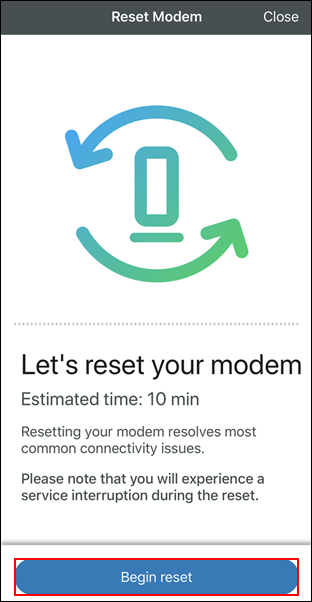
In a few seconds, the lights on the Cox modem will start blinking before turning stable. At this point, your router will be factory reset.
#8 Contact Cox Support
If you are still having no luck getting rid of the blinking white issue, you should contact Cox support. They are likely to visit your place and schedule a checkup for the device and other connections. You might also get a router replacement from the company.
The Bottom Line
I hope this guide helped you understand the reasons behind a blinking white light on your Cox modem and solve the issue once and for all. While the steps may vary, you can solve most of these issues using a factory reset, which does the job most of the time. But if you can solve the problem through a restart, that is better, right?
