
D-Link makes some really great Wi-Fi routers that don’t cost a lot. More importantly, you don’t need to be a networking expert to manage these devices. Let’s say that you want to modify the network settings for a D-Link Wi-Fi router. It is as easy as accessing the router login page.
In this guide, I will tell you how you can log in to the D-Link Router and solve potential issues along the way.
Default Logins for D-Link Router
Before I tell you the steps to access the D-Link router login page, let’s talk about some prerequisites.
- To begin with, you should have a device connected to the router’s network. You can use Wi-Fi or an Ethernet cable to do it.
- You should also know the default IP address of the D-Link router. This is the address you need to type in order to access the login page for the router dashboard.
However, the most important thing is the login credentials for the D-Link router. It might be different based on whether you have dealt with the dashboard before. If you are accessing the D-Link router dashboard for the first time, you can use the default logins for D-Link routers. However, you will need to enter the new username and password if you have already changed it.

There are a few ways to know the default logins for D-Link routers. Keep in mind that the default credentials may change according to the series and model number. You can find the username and password on the router label or the packaging. Both places will mention the default IP address of the router and the login info you need to enter.
However, if you cannot find these credentials on your own, you can try the following default logins for some D-Link Wi-Fi routers. You should actually try multiple combinations until you find something that works.
Model | Username | Password |
|---|---|---|
Most models | admin | (none) |
Some older models | admin | admin |
Some APs | user | (none) |
However, I recommend looking for the router product label or the packaging to be on the safe side. Anyway, once you have the credentials at your disposal, you can proceed to log in to the D-Link Wi-Fi router.
How to Log in to a D-Link Router
I will now tell you the steps to log in to a D-Link router. Keep in mind that the steps might slightly vary based on the router series and model.
Step #1
First, you need to connect to the D-Link router’s network. Although Wi-Fi works in this regard, I recommend using Ethernet for a couple of reasons. One, Ethernet connections are more stable than Wi-Fi ones. Two, the Ethernet connection will be active even if you make changes to the Wi-Fi network configuration.
Step #2
Now, you need to open the default IP address of the Wi-Fi router. Depending on the router model, it could have an IP address like 192.168.1.1 or 192.168.0.1. However, it does not hurt to check the exact IP address on the router label or package.
Alternatively, you can type dlinkrouter.local on the URL bar. The router would resolve the address and lead you to the correct IP address. However, this method does not always work; we will talk more about this in a minute.
Step #3
In a few seconds, you can see the login page for your D-Link Wi-Fi router. On many D-Link Wi-Fi routers, you don’t need to enter the username. It would simply ask you to enter the password. Once you type the router’s password, you can hit Enter or click the Log In button.

Step #4
If you have entered the correct username and password, you should see the D-Link Wi-Fi router dashboard in a few seconds. Here, you can explore the various options, including network configuration, settings, QoS, system settings, etc.
Voila! You have successfully logged into a D-Link router. The process is pretty straightforward, and it doesn’t take more than a few seconds.
By the way, if you are logging in for the first time, here are a few things you must do.
- Make sure you change the Wi-Fi password. Your Wi-Fi network will have a default SSID and password, and these make the network an easy target for attackers.
- At this point, anyone connected to the Wi-Fi network can access the D-Link router dashboard. It is a better idea to change the login password to something unguessable.
- Even then, a person with physical access to your Wi-Fi router can use the factory reset function. To prevent this, you can keep the router in a location that is not accessible to random people.
- If your D-Link router has an option for Guest Networks, you should enable it. This method is better than sharing your network password with everyone who visits your place.
Follow these tips, and you should have a more secure Wi-Fi network from the get-go.
How to Fix dlinkrouter.local Not Working Issue
As I said, you can ideally type dlinkrouter.local in the URL bar, and the router should take you to the default IP address. It is an easy solution when you don’t know the exact IP address of the router. Unfortunately, the method does not always work. Here are some solutions I use to fix the dlinkrouter.local not working issue.
- Check Cables: It might sound like a no-brainer, but you should check whether you have connected all the cables properly. Even a slight disconnection may trigger authorization issues, preventing you from accessing the dlinkrouter.local address.
- Use Ethernet, not Wi-Fi: While Wi-Fi may let you modify network settings, it is not always stable. So, you should use an Ethernet connection if you want the convenience of dlinkrouter.local.
- Clear Browser Cache: Temporary files, including browser cache, may cause problems when trying to open dlinkrouter.local.
These steps should help you resolve the issue with dlinkrouter.local and access the router login page without entering the tough-to-remember IP address. The best part? When it works, dlinkrouter.local works on most Wi-Fi routers from D-Link.
How to Change the D-Link WiFi Password
Now that you have accessed the D-Link router login page and signed in, you may want to change the Wi-Fi password. I mean, it is something basic for your network security. Fortunately, the steps are easy.
#1 Open the Router Dashboard
Make sure you are connected to the D-Link router using Wi-Fi or Ethernet. I recommend Ethernet for all the reasons I have mentioned above. Once you are connected, open a web browser like Chrome or Safari.

Enter either the default IP address or type dlinkrouter.local on the URL bar. Press Enter and wait for the login page to appear. Enter the username and password to log in to the dashboard.
#2 Go to Settings
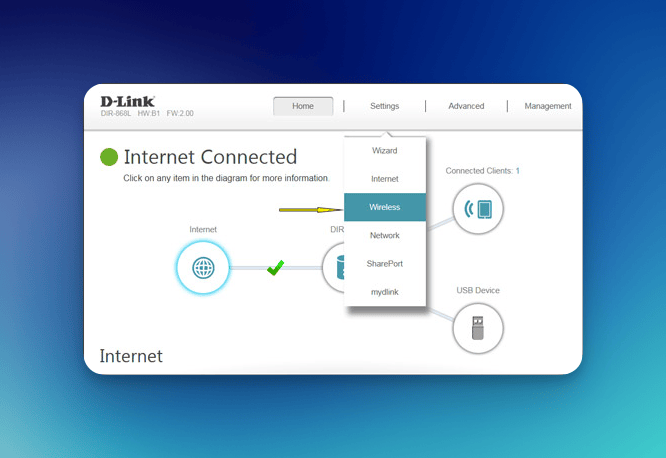
Once you open the dashboard, you can go to Settings > Wireless. If you are opening the dashboard for the first time, you may see a Setup option on the page.
#3 Modify SSID and Password
On the next page, you can see the SSID and password for both the 2.4GHz and 5GHz networks from the Wi-Fi router. You can change the SSID and choose a password of your choice.

Make sure that you choose a complex password for the network. While you are at it, you should enable the Guest Network option if the D-Link router allows you to.
Wrapping Up
I understand that you may be trying to access the login page and dashboard for purposes like changing the password. However, I have covered a bit more than accessing the D-Link router login page. Ultimately, it will help you ensure the best Wi-Fi experience from the D-Link Wi-Fi router.
