I’m sure you have accidentally closed an important tab while using a browser like Google Chrome. It may have been an impulsive action or a wrong keyboard shortcut combination. I sometimes press Command + W instead of Command + S.
However, there are ways to restore Chrome tabs in the event of crashes and lost sessions, among other situations. I have prepared an extensive guide to help you learn the art of tab management.
How to Reopen Closed Tabs on Chrome
Like many other web browsers, Google Chrome has a built-in option to reopen closed tabs. Therefore, if you accidentally close an important tab, you can use this function to reopen it. You can use a function using the menu bar feature or a keyboard shortcut.
Method #1
You can right-click on the tab bar of Google Chrome, not on the tabs. From the context menu, you can select the option named “Reopen Closed Tab.” This option will reopen the tab that you last closed.

Method #2
If you think it takes time to reach the menu bar, you can use the following keyboard shortcuts to reopen the tab that you closed last.
Command + Shift + T
Control + Shift + T
You can repeat this keyboard shortcut as many times as you need. For instance, if you repeat it four times, Google Chrome will reopen the four recently closed tabs.
Note: These are global shortcuts and should work regardless of the version of Google Chrome you are using. However, the feature does not work with Incognito Mode. That is, if you close a tab during Incognito Mode, it cannot be reopened. This feature is designed to improve the privacy aspect of an Incognito Window.
Recovery After Browser Crashes and System Restarts
Things are a little different when your Chrome browser crashes or gets closed due to a system restart. You typically have two options to recover tabs after a system crash or an unexpected restart.
Option #1
In most cases, when you reopen Chrome after a system crash/unexpected restart, Google Chrome will show an option to restore the Session. You can click this button, and Chrome will automatically restore all the tabs that were open during the last session. You can then close the ones you don’t want.
Option #2
In this method, you can rely on the History function of Google Chrome. Google Chrome has a rather proactive way of keeping browsing history. As soon as you open a webpage, it is added to your browser’s history. So, you can access this History page to restore the tabs you lost. The steps are:
- Click the three-dot button on the right side of Chrome
- Choose History > History
- Check the latest entries on the page, and you should see the tabs you lost.
- You can open these tabs just as you would any other link.
This option gives you more control because you don’t have to restore the entire thing. It does not matter if you don’t know which tab you closed last. The latest version of Google Chrome offers an advanced method for recovering your browsing sessions.
Advanced Recovery Techniques
Sometimes, you may have multiple tabs in a single session. In these cases, you may have to reopen the entire session instead of individual tabs. Fortunately, the latest version of Google’s browser offers a feature within the History page. You can count on this feature to enable advanced tab recovery. Here’s an overview.
Accessing Tabs by Group
Let’s say you were doing some research on a product, with a few Reddit threads and product pages into the mix. Won’t it be great if you can recover the entire session and reopen all those tabs in a single click? Yes, it is possible to check individual entries from the History page, but Chrome offers an alternative option: by group.

You can access this by going to the three-dot menu > History > Grouped History.

You can soon see the Grouped History page, where Chrome will arrange all the tabs you opened within a group. So, instead of a list of tabs organized by time, you would see groups organized by session.

At this point, you can use the three-dot menu and open all the tabs from the session. Doing this will restore all tabs from that particular session in a new tab group. This option works great when you want to bring back an entire session to the screen.
Opening Closed Tabs by Default
If you want to take it a step further, you can set up Chrome to automatically open closed tabs. That is, Google Chrome will reopen the tab you were using when you closed the web browser window the last time. For this to work, you need to modify how Chrome behaves when it starts up.

By default, Google Chrome opens the New Tab page when you launch the application. However, you get to change it by going to the Three-dot Menu > Settings > On Startup. Here, you can choose the option named “Continue where you left off.”
From this point onward, Chrome will reopen the tab that you were using when you closed the window.
Third-Party Solutions and Extensions
While Google Chrome offers some handy options for tab management and recovery, you may also want to explore a few third-party solutions and extensions. You can approach this problem from several different angles. One option you may need is to manage your tabs and sessions better. Alternatively, you can keep a backup of all the tabs you end up opening.
Here are a few options I have tried.
#1 OneTab
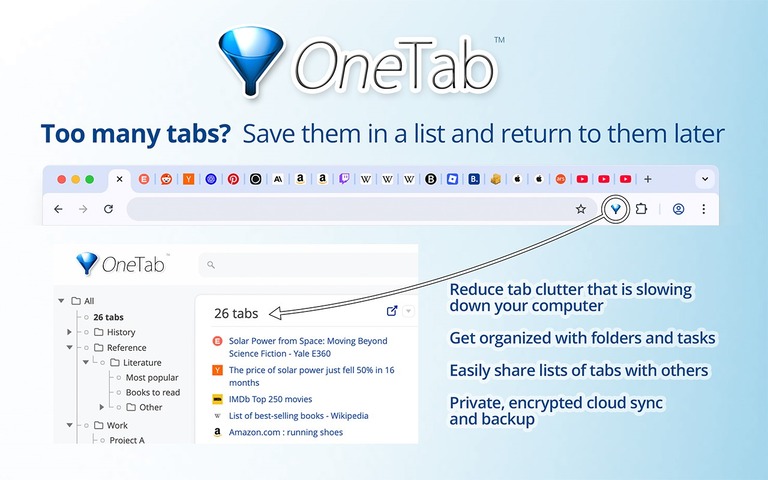
OneTab is a multipurpose Google Chrome extension that helps with browser management. The extension is designed to reduce tab clutter by turning your entire tab collection into a list. These lists are not only easy to access but also feel effortless to share. You can count on OneTab to ensure that you don’t miss the tabs.
#2 Session Buddy
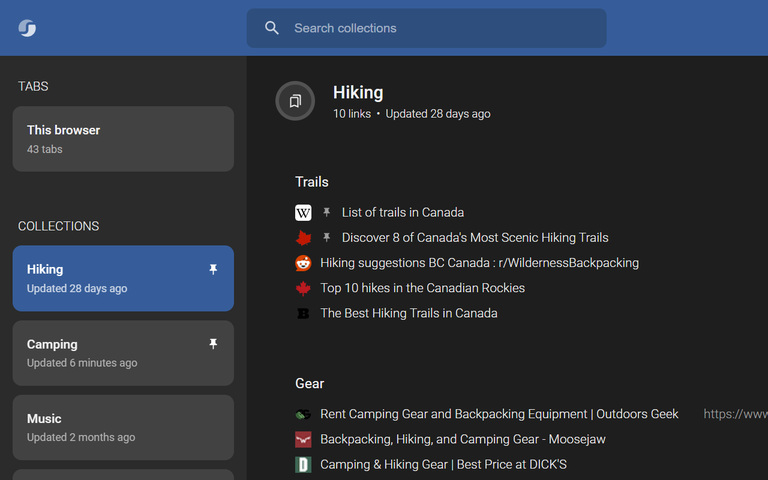
Session Buddy, a personal favorite of mine, offers an easy way to manage tabs and sessions. As soon as you open a tab, Session Buddy adds it to a session that you can access and restore at your convenience. You can also create collections of tabs to be accessed later. It can essentially save you from accidentally closing tabs.
Preventive Measures: Avoiding Future Tab Loss
I already recommended a few extensions that keep track of the tabs you open. These tools should help you access the tabs even if you need to close them. Please note that these features are not available in Incognito Mode. However, if you want some advanced options, here they are:
- You should find out how you accidentally close tabs. It could be a keyboard shortcut. You may want to turn off the keystroke combination in any way.
- Some users complain that Chrome’s Memory Saver causes some tabs to crash. You may want to consider turning that option off.
I believe these steps can reduce the instances of accidentally closed tabs.
Wrapping Up
I hope this guide helped you understand the process of restoring Chrome tabs for lost sessions, as well as recovering from system crashes. While the built-in options are great, third-party extensions can also achieve the same, if not better, results.