Although not without its caveats, Google Chrome is one of the best web browsers available today. Yet, there come times when you don’t get the best browsing experience from Chrome. Fortunately, restoring Chrome to default settings can help you here. In this guide, I will show you how to reset Google Chrome to its default settings. I’ll start by explaining why you need a reset in the first place.
Why Resetting the Chrome Browser is Important?
Like other software, Google Chrome also generates a lot of junk/cache/temporary files as you use it. It could lead to a slow browsing experience, among other issues. As you can guess, a slow browser can be not only annoying but also a hindrance to productivity. So, you may want to consider the following uses of resetting the Chrome browser.
- Resetting the Google Chrome browser can improve its performance, including faster opening times and quicker page loading speeds.
- A complete reset is an effective way to start fresh with Google Chrome. This may be handy if you feel you’ve installed too many extensions.
- Resetting the Chrome browser can also help remove adware, spyware, and other malware that may have been installed.
Additionally, a thorough reset can resolve many Google Chrome issues, including login and sync problems. It is thus a great way to improve your browsing experience using the Google web browser.
Therefore, if you want to take advantage of any of these benefits, you can proceed with resetting the Chrome browser.
How to Reset Google Chrome
I will now tell you how to reset Google Chrome on different devices. However, you should know about a few things beforehand.
Resetting Google Chrome will erase all the modifications you may have made to the browser. The browser will behave as if you have just installed it. For instance, you will lose cookies, site data, pinned tabs, startup pages, search engine, and other content-based settings. In most cases, the Reset process won’t affect items such as bookmarks, browsing history, and saved passwords, as they are synced with a Google account. Please note that a reset will disable extensions, but not remove them from your system.
If you are okay with these changes, you can proceed with the Reset. Even otherwise, you can back up what you want to keep.
Resetting Google Chrome on Desktop (PC and Mac)
Here are the steps to reset Google Chrome to factory settings on desktop devices:
- Open Google Chrome
- Click the three-dot button on the top-right side and select Settings
- Find Reset Settings from the sidebar menu
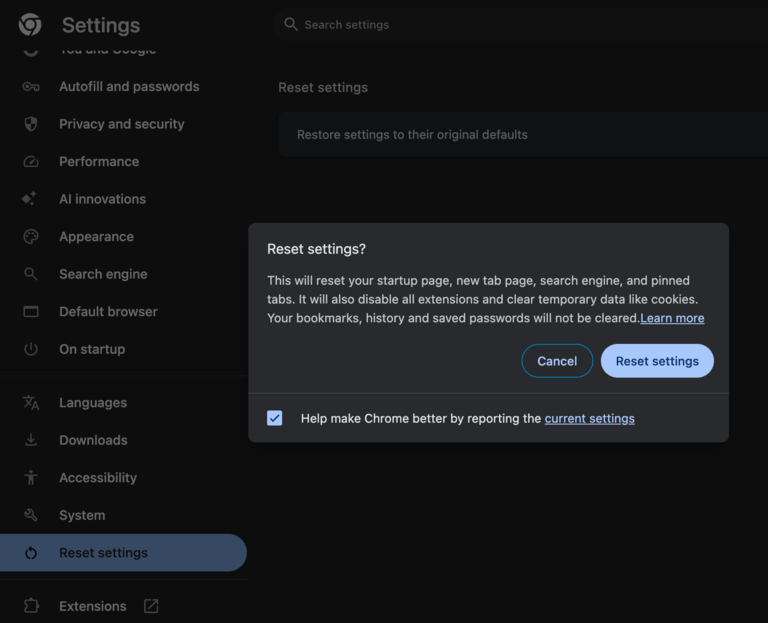
- Click Restore settings to their original state on the next page
- Select Reset Settings when asked to confirm
In a few seconds, Google Chrome will be reset to its original state. Now, you can expect Chrome to function with better speed.
Resetting Google Chrome on Mobile Devices
The mobile version of Google Chrome does not offer a dedicated option for resetting. However, you can use a different method:
- Go to Settings on your smartphone and choose Apps
- Select Google Chrome from the list of applications
- Go to Storage/Data settings
- Tap Clear Data/Storage to remove all files pertaining to Google Chrome.

Please note that this method does not uninstall Google Chrome. However, this action will force Chrome to start up as if it were newly installed. Once again, data that you have synced using your Google account won’t be affected.
Restore Chrome to Default Without Losing Data
Sometimes, you might want to improve the speed and performance of the Google Chrome browser without losing data. Here are two ways you can use:
#1 Standard Reset
You can follow the steps we mentioned for the standard reset of Google Chrome. As I said, this reset doesn’t remove bookmarks or browsing history. It won’t affect saved passwords, either. However, if you want to be sure, you must sign in to your Google account using Chrome and enable sync.
This way, all the content you’ve changed will reflect when you sign back into the account after the reset.
However, keep in mind that Google Sync will also keep a record of the extensions you have installed. When you log back in, all those extensions will be reinstalled. Therefore, if you want to exclude an extension, you must manually uninstall it.
#2 Create A New User Account
User profiles are one of the lesser-known features on Google Chrome. When you sign into a Google account, a user account is created. This user account contains all the data, including cache and cookies. So, you can create a new user account and delete the existing one.
Since you have enabled Google Sync, passwords and auto-fill information won’t be lost. At the same time, you can get rid of junk that slows down your web browser.
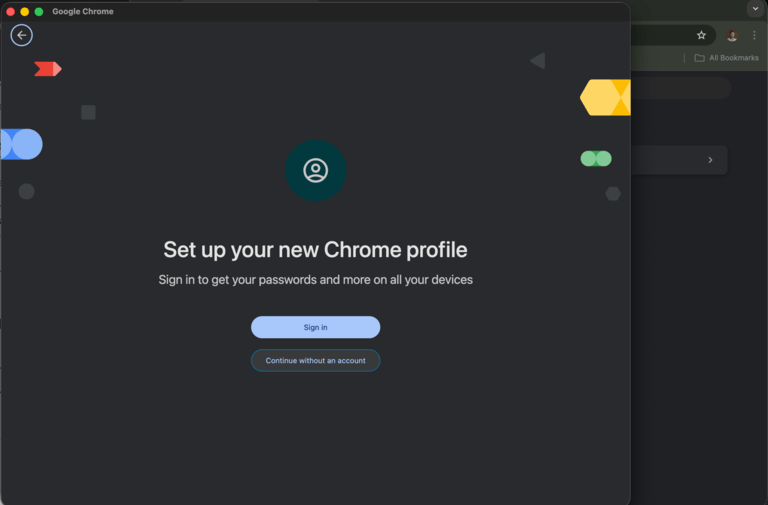
You can create a new account by clicking on the Profile Icon > Add Chrome profile. Then, you can sign in using the same Google account you are signed in with. Once the setup is done, you can go to Profile Icon > Manage Chrome Profiles and delete the old one.
These steps should be sufficient to obtain a default experience in Google Chrome without losing data.
By the way, if you really want to start afresh with Google Chrome, you should try the following steps:
- Make sure that you have disabled the sync option for browsing history and extensions
- Now, uninstall Google Chrome from your computer
- Install Google Chrome from the official source
- Set it up as you would a new web browser.
Since you completely removed and reinstalled Chrome, this step should resolve the issue.
Best Practices After Resetting Chrome
Here are a few practices to follow after resetting Google Chrome. These steps should help you keep Chrome running without glitches or slowdowns.
Selective Sync
Once you sign in, Google Chrome will synchronize almost everything connected to your account, including browsing data and extensions. However, it doesn’t have to be the case always. Instead, you can go to the 3-dot menu > Settings > You and Google > Sync and Google services > Manage what you sync.
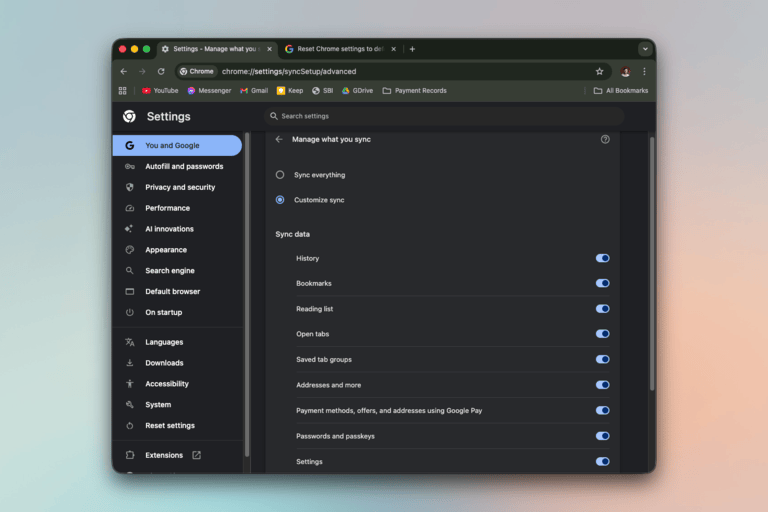
On this page, select ‘Customize sync’, and choose what will be synced with your Google account. For instance, you may want to disable the sync option for settings. This way, Chrome will not reinstate those settings.
Selectively Enable Extensions
During the reset, Google Chrome will disable all extensions on the browser. Instead of enabling them all at once, you can select the ones you need. You can do that by going to chrome://extensions. Make sure you remove the extensions you don’t want or recognize.
Boost Privacy and Security
You can also take some steps towards better privacy. For instance, you can go to Settings > Privacy and security > and select an option named ‘block third-party cookies.’ Similarly, you can disable options for ad piracy if you need a less distracting browsing experience.
Wrapping Up
With this reset process and additional tips, you can have a smoother browsing experience using the Chrome browser. Also, be mindful of the extensions you install on Chrome so that it does not slow down again.