Reliability is a major reason Mac users tend to stick with the Safari browser. For what it’s worth, Safari offers best-in-class performance as well. Nevertheless, Safari comes across multiple issues, and the auto-scrolling issue is one of them. If you are new to Mac and Safari, it may cause you trouble. However, you can fix the auto-scrolling issue in Safari by following the guide I have prepared. I will begin with an introduction to the problem.
What is the Auto Scrolling Issue?
As you can guess from the name, the auto-scrolling issue in Safari causes the web browser to scroll webpage content automatically. You may have opened a website and be planning to explore it. However, without any input from your side, the website will start scrolling in either direction.
It may not be a complete scroll either. In many cases, the auto-scrolling issue causes the webpage to behave incorrectly, resulting in lapses and choppy frames. Long story short, the auto-scrolling problem disrupts the way you interact with a webpage in Safari.
Unsurprisingly, the auto-scrolling issue can be frustrating. You don’t want this to happen during work or even personal browsing sessions, right? Fortunately, you can try a few solutions for this problem, and you should have a non-disruptive Safari experience soon.
Solution for Auto Scrolling Issue in Safari Browser
You can try the following solutions in the same order to fix the auto-scrolling problem in the Safari browser:
#1 Restart Safari and Mac
The first step, as you might expect, is to restart the browser and the system. For the best results, you should first go to Safari > Quit to close the web browser completely. After this, go to the Apple menu > Restart to restart your Mac.
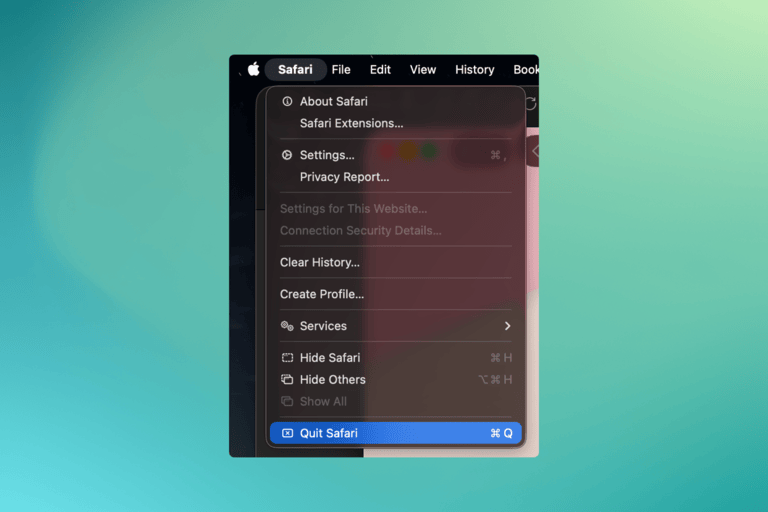
This way, Safari will be forced to reopen completely, clearing almost all temporary issues. If a temporary bug is causing the auto-scrolling issue, a thorough restart should resolve the problem.
#2 Update Safari
The next potential reason could be a bug with Safari or an exploit. You can solve such issues by updating the Safari browser to the latest version. On a Mac, this is easier than ever.
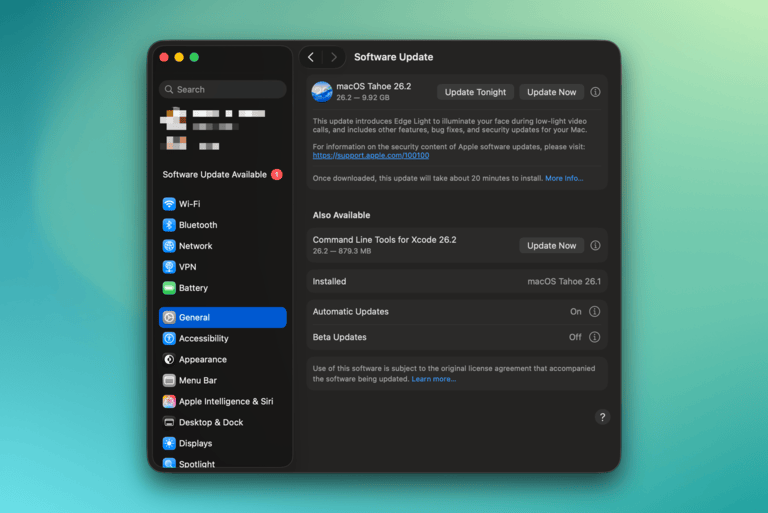
Go to System Preferences > General > Software Update. Ensure you are running the latest version of macOS. Safari updates are built into macOS updates. So, an up-to-date macOS means up-to-date Safari.
#3 Disable Extensions
Many Safari browser extensions may have system-wide permissions to affect the webpage content. Ad and tracking blockers are an example of this. Therefore, before taking any additional steps, you should confirm whether extensions are the culprit.
The process is simple. Go to Safari > Preferences > choose the Extensions tab. Here, you can disable all those extensions with webpage content access. Now, reopen the webpage where you witnessed the auto-scrolling issue. If it goes away, you can confirm that an extension caused the problem.
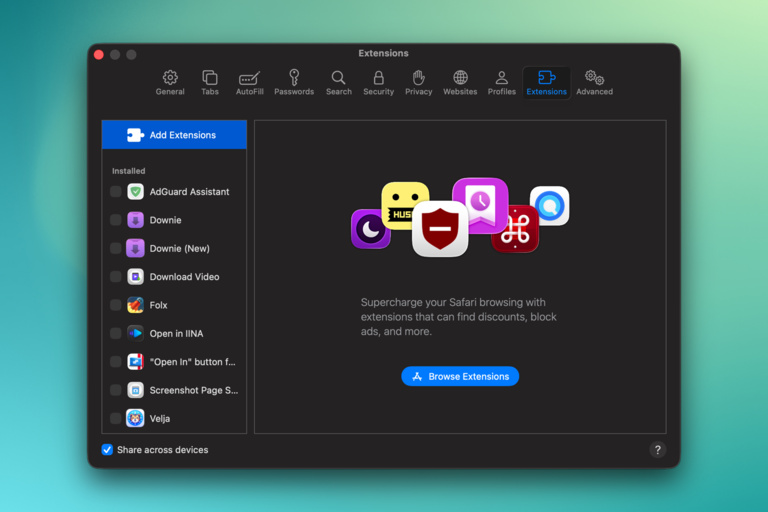
You may then choose to remove an extension or update it. I have encountered situations where extensions like Grammarly and other web helpers interfere with the browsing experience.
#4 Turn Off Experimental Features
Sometimes, experimental features in Safari can also trigger the auto-scrolling issues. In particular, the three following features can cause the problem.
- Momentum Scroll
- Rubber Banding
- Async Scrolling
You can turn off these features by navigating to Develop > Experimental Features. Please note that some options may be unavailable depending on the version of Safari you are using.
#5 Delete Scroll Cache
Like other caches, Safari maintains a cache for scrolling positions as well. Sometimes, these caches can cause the auto-scrolling problem. This is an advanced step, but you can delete these scroll caches from the Safari system folder.
- Open Finder and go to Go > Go to Folder.
- Enter ~/Library/Safari in the upcoming interface.
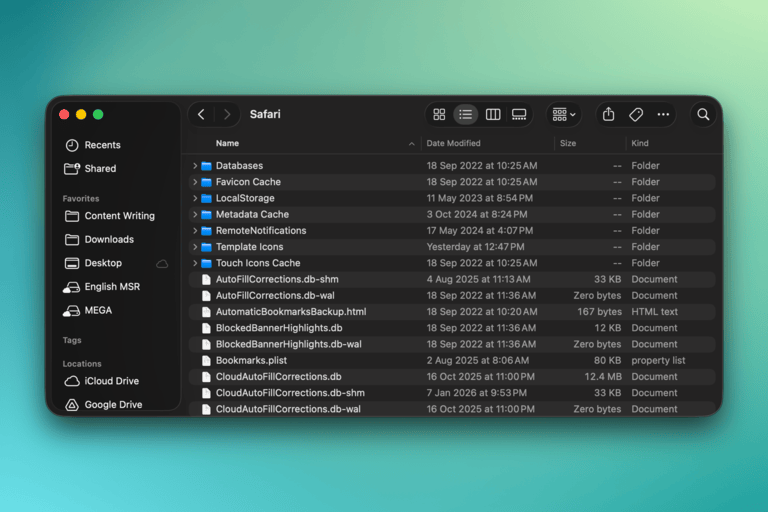
- When the folder opens up, search for a file named ScrollPositions.plist (if present).
- Delete the plist file, and you are good to go.
This step ensures that Safari does not retain any scrolling positions. This should solve the auto-scrolling issue for good.
#6 Retry Using Safe Mode
You should also check if a third-party app on your Mac is causing the auto-scrolling problem. The easiest way is to reboot the Mac using Safe Mode. Here are the steps:
- Restart your Mac as you normally would.
- As the restart happens, press and hold the Shift key.
- When the Mac boots up, open Safari and check if the scrolling issue persists.
- If everything works fine, you can confirm that a third-party app is causing the problem.
At this point, check your Mac for apps that can alter scrolling behavior. You may have installed an accessibility accessory or something else with system privileges.
Wrapping Up
In most cases, the methods above should help you fix the auto-scrolling issue in Safari. However, if they do not, you should suspect hardware elements, such as the trackpad or the Magic Mouse. I have also encountered issues while using third-party mice with my Mac.