I have always had a love-hate relationship with browser notifications. While I agree that they are great, many websites use them to an annoying extent. Keeping notifications turned off is not an optimal solution, either. This means you need to know how to enable and disable browser notifications at the browser and website levels. In this guide, I have covered how to do it in major browsers like Google Chrome, Safari, and Firefox.
Enabling and Disabling Browser Notifications
Before I tell you how to enable and disable browser notifications, you should know about the two levels at which you can manage them. They are:
- Browser-level
- Website-level
On both Windows and macOS, web browsers are treated as applications. So, apps like Chrome or Edge must be allowed to send you notifications in the first place. These apps will ask for the notification permissions as you set them up for the first time. However, it also means you can disable all notifications from a browser. It may be a viable solution when you do not want browser notifications in the first place.
Often, though, you only need to limit notifications from specific websites. Or you can allow notifications only from the websites you choose. In this context, website-level notification controls are handy. I will first show you the steps to enable or disable notifications on Windows and macOS.
Enable/Disable Browser Notifications on Windows
- Open the Start Menu and type Notifications.
- Open Notification settings.
- Find Google Chrome under app notifications.
- Toggle On/Off as required.
Enable/Disable Browser Notifications on macOS
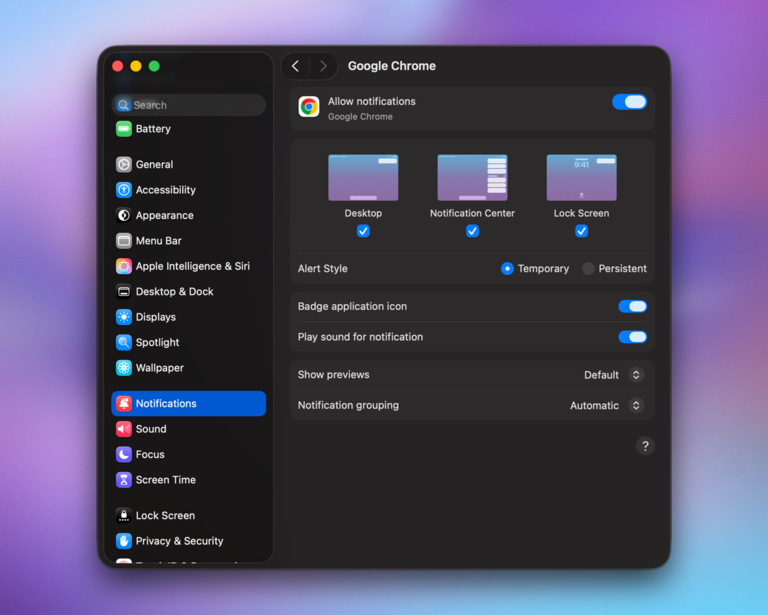
- Open System Settings.
- Select Notifications.
- In the app list, locate Google Chrome.
- Set Allow Notifications to Off
Keep in mind that this setting change will block notifications from the app. I’ve shown how to do it in Google Chrome, but the steps should work for any other web browser.
Now, I will show you how to change website-level notification settings in various web browsers, including Google Chrome, Safari, Microsoft Edge, and Mozilla Firefox.
Google Chrome
- Click the three-dot button and choose Settings.
- Navigate to Privacy and security and choose Notifications.
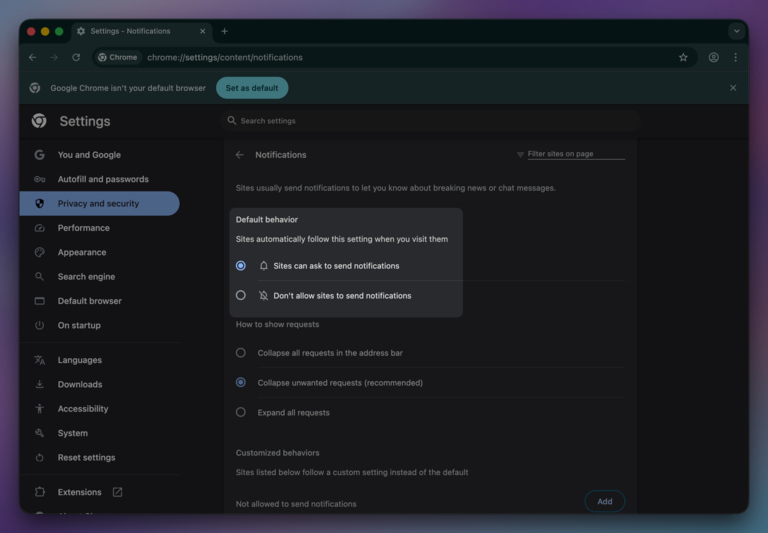
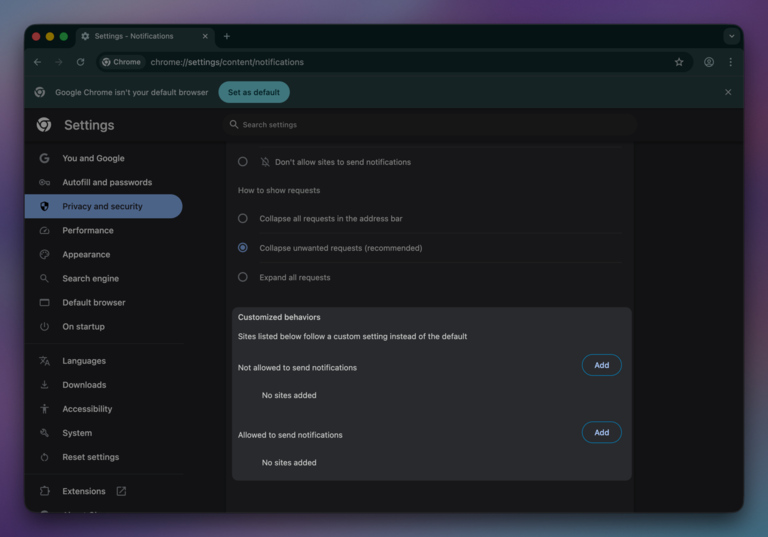
- This page lets you choose two things: Default Behavior and Customized Behaviors.
- Default Behavior lets you decide whether websites can ask to send notifications. If those notification requests bother you, you can turn this option off.
- Customized Behavior lets you allow or block specific websites from sending notifications. You can add or remove websites to these lists as you wish.
- You can also use the Search bar on the top-right section to search for websites.
Safari
- Go to the Safari menu and open Settings.
- Navigate to the Websites tab, then choose Notifications from the list.
- Safari will now show you a list of websites that have requested Notifications permissions.
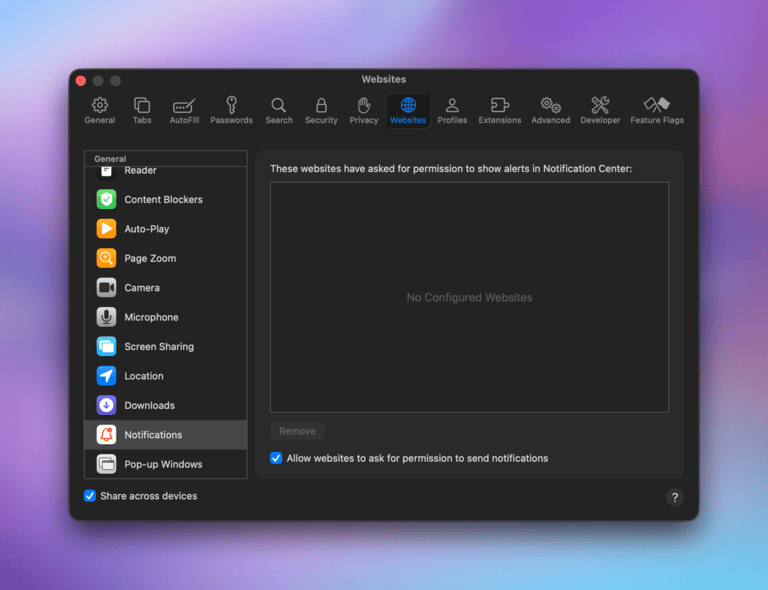
- You can disable individual websites from the option.
Microsoft Edge
- Click the three-dot menu and choose Settings from the options.
- Go to Privacy, search, and services from the sidebar menu.
- Navigate to Site Permissions > All Permissions.
- Select Notifications from the options and proceed.
- You should now see a page that lets you choose how Edge handles notification requests.

- As you did with Chrome, you can stop websites from asking to show notifications.
- Microsoft Edge offers an additional option that will prevent notification requests from interrupting you.
Mozilla Firefox
- Open Mozilla Firefox and navigate to Settings.
- Go to the Privacy and Security tab and go to the subheading Permissions.
- Click Notifications and Firefox will now show a pop-up window.
- You can use this window to see the websites with the Notifications permission.

- Firefox also lets you stop websites from requesting permission in the first place. The option to remove all websites from the list is also convenient if you need a fresh start.
So, you can use these steps to enable or disable notifications on your web browser at the app or website level.
Muting Notifications
In some cases, you may not want to turn off notifications. Instead, you want to stop them from interrupting your workflow. If so, consider muting notifications from the browser app. This way, you won’t hear any sound when a notification arrives. Even then, the notifications will be available for later reference.
Here’s how you can mute notifications from Google Chrome on a Mac.
- Open System Settings and go to the Notifications menu from the sidebar.
- From the list of applications, choose Google Chrome.
- Now, you don’t have to turn off all notifications from Chrome. Instead, make sure that notifications are turned on.
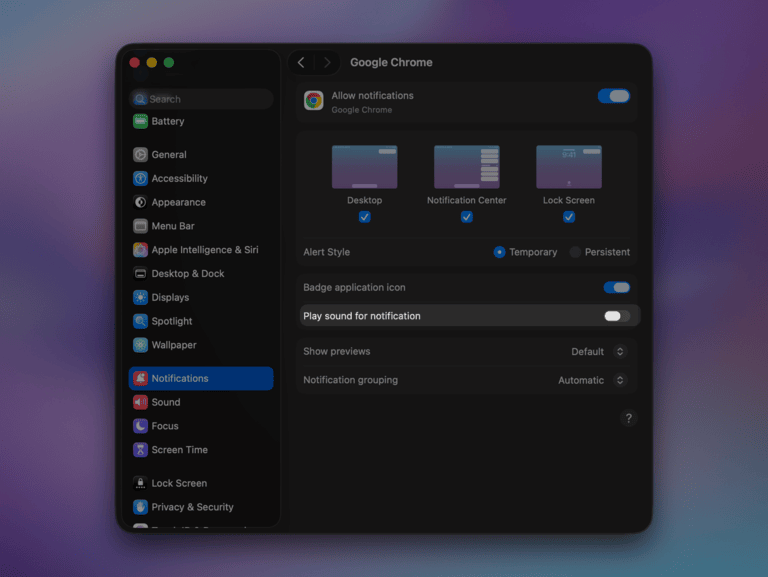
- Ensure that you have unchecked the option called ‘Play sound for notification.’ You can also decide where notifications could appear. For instance, you can enable them in Notification Center or the Lock Screen while keeping them off the Desktop.
This way, notifications from Google Chrome will remain in the Notifications Center for later access. You can check them out as per your convenience instead of letting them disrupt your workflow.
You can follow these steps to do the same on Windows:
- Open Settings → System → Notifications.
- Scroll down to Notifications from apps and other senders.
- Locate Google Chrome and click it.
- Turn off:
- Play a sound when a notification arrives
- Leave Show notification banners enabled if you still want visual alerts.
Wrapping Up
I believe this guide helped you understand how to disable and enable notifications on web browsers like Google Chrome, Microsoft Edge, Safari, and Mozilla Firefox. Given how many browsers rely on the Chromium rendering engine, you can follow similar steps on other options like Arc or Comet as well. Or, you can control how these notifications appear.