For most people, web browsers are super-apps these days. They do more than display web pages. For what it’s worth, developers have been upping their game, too. However, it does not mean that all browsers always work seamlessly. On the contrary, you come across quite a few common browser issues. Fortunately, most of these issues have easy solutions. In this guide, I have compiled some of those common issues and fixes.
Browser Crashing
While uncommon, most web browsers occasionally crash. This can occur when multiple tabs or windows are open. Here are a few fixes you can try when your browser continues to crash.
Causes
A browser may continue to crash when you have opened too many tabs or websites that consume excessive resources. It may also occur due to insufficient RAM on your device or when running outdated versions of the web browser. Sometimes, browser extensions could also be the reason for this crashing behavior.
Here are a handful of solutions you can try:
#1 Restarting the Browser
The first step is to close the web browser and then reopen it. You should wait for a few seconds between the closing and opening. On a Mac, try quitting the web browser from the right-click menu of the dock icon. If this option is unavailable, go to the Apple menu > Force Quit and select the browser from the window.

#2 Mind Your Tabs
As I mentioned, crashes occur when your browser has more tabs than it can handle. The solution? You should keep track of the number of tabs you currently have open. You would notice some signs when your browser starts to struggle. At this point, take a break or free up system resources by closing another app.
#3 Check Your Extensions
Extensions that you have installed on the web browser could also be responsible for the crashing issue. Therefore, you should check whether the browser continues to crash even after disabling all extensions. To solve the problem, try enabling each of your extensions individually.
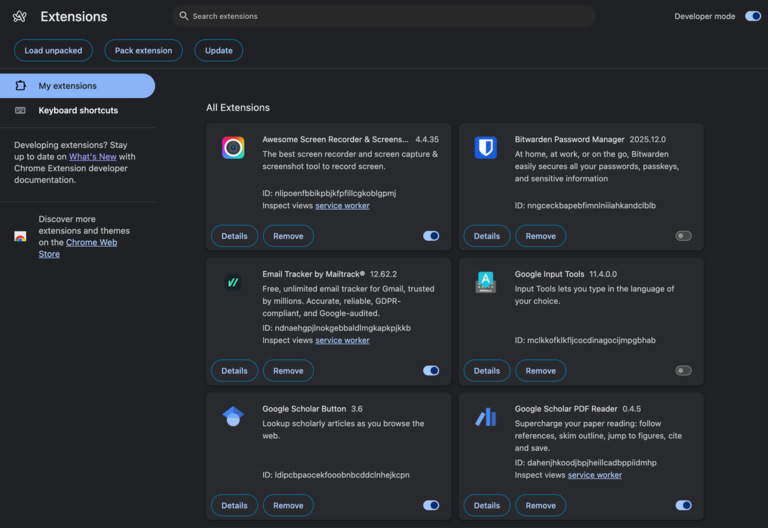
#4 Check for RAM Availability
Most web browsers use RAM resources to manage tabs and other features. Therefore, if your system doesn’t have sufficient RAM resources, the web browser will crash. You can use Task Manager or Activity Monitor to see if this is the case.
#5 Update the Web Browser
An outdated version of the web browser could also be responsible for frequent crashes. Therefore, it is always better to update the web browser to the latest version. You should also check whether you are using an unsupported web browser. Such browsers will not be able to handle modern websites or web apps.
#6 Reset or Reinstall
If the above-mentioned solutions do not resolve the problem of frequent crashes, try resetting or reinstalling the web browser. Resetting the web browser essentially restores the browser to its factory settings and may disable all installed extensions. On the other hand, reinstalling would be equivalent to removing the application from your system and then reinstalling it.
Pop-up Windows
Pop-up windows can also be quite annoying when you use a web browser. These may appear when you open the web browser or a specific webpage. Either way, you can use the following fixes:
#1 Check Browser Settings for Pop-up Windows
Pop-up windows appear when you visit certain websites. Websites typically use pop-ups for purposes such as authentication and other security measures. However, if you feel that too many pop-ups are appearing, you can always disable the option at the browser level. This way, even if a website attempts to show a pop-up, the browser will disallow it. You may also want to enable pop-ups on trusted websites so that you don’t stop essential pop-ups.
#2 Use Ad/Tracking Blocker
You might come across several pop-up interfaces when you visit certain websites containing too many ads and sponsored links. In these instances, it makes more sense to use an ad blocker that can intelligently identify problematic elements and block them. Therefore, there is no chance of you clicking on these elements and triggering the pop-up. Since these pop-ups are also used for tracking, using an ad blocker helps you avoid tracking-related issues.

#3 Use Safe Browsing Practices
On a related note, it is also essential to practice safe browsing habits. One of the key precautions is not to click on malicious links or visit problematic websites that may contain tracking or ad-based interfaces. In most cases, these ads and pop-ups are designed to scam you by often pretending to be malware or something similar, and making you download problematic applications or extensions. By using safe browsing practices, you also protect yourself in the long term.
#4 Remove Shady Extensions
Some shady browser extensions can also cause pop-ups to appear even when you don’t open any website. Some of these extensions are clever enough to modify your new tab page in a way that it contains ads and pop-up triggers. If you have installed one of those extensions, you may want to remove it from your browser. Chrome and other extension web stores do a basic job of protecting you from these extensions, but you may have installed them from a third-party source.
URL Suggestions
Does your web browser suggest problematic/shady URLs? It could be a problem that needs to be fixed. Here are a few options to try.
#1 Check Browser History
The first step is to check your browser history and remove entries that trigger a URL suggestion. Since URL suggestions are based on the browser history, this action should also remove those suggestions. This option is useful when you want to remove suggestions without making any changes.
#2 Turn off URL Suggestions
If you feel that URL suggestions are affecting your workflow, you can turn them off altogether. Only a handful of browsers would allow this option, though. You may also have an option to disable search suggestions or change the search suggestion provider. In most cases, browsers use the default search engine to provide search suggestions and auto-complete.
#3 Check for Adware/Extensions
In some instances, adware and web browser extensions can force-change the default search engine and the suggestions for auto-complete. Therefore, you should check for such entries and remove them. These web extensions and adware cause more harm than the benefits they claim to provide. So, you are better off with none of them.
Slow Performance and Page Loads
Sometimes, a web browser may take seconds or minutes to load a webpage. If this happens even with a fast Internet connection, you need some solutions.
Note: Before taking any step, check the Internet speed of your connection. If the speeds are relatively slower, the browser will take time to load a page. However, if you have a 5G or fiber-optic Internet connection, this should not happen.
#1 Close Unused Tabs/Windows
The most common culprit is a tab that is consuming a lot of system resources. As a result, other tabs or features will face a lack of resources, causing the browser to slow down. Therefore, you should check the browser for such tabs and close unused ones.
#2 Get Rid of Unused Extensions
Some web browser extensions can also cause the browser/tab to slow down, which in turn affects the page loading speed. Even worse options, such as cryptojacking extensions, will exacerbate the issue by utilizing your system resources to mine cryptocurrencies. It is one reason not to install extensions from untrusted sources. Anyway, if you find such extensions on your browser, you should remove them.
#3 Clear the Cache
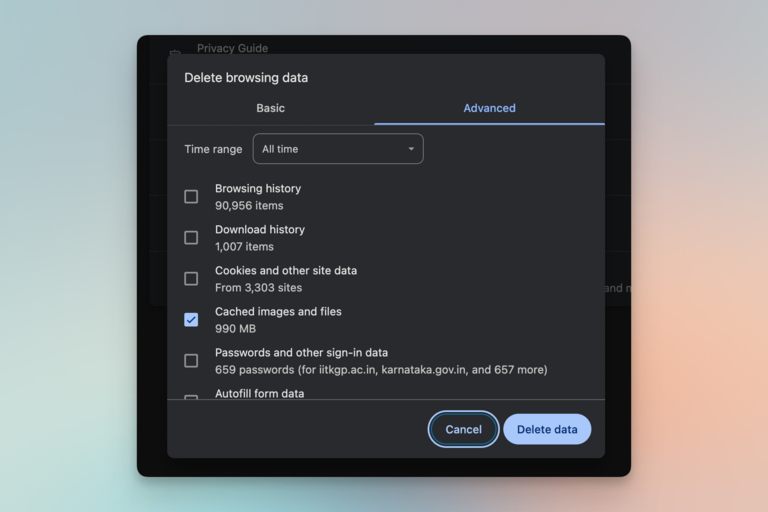
Sometimes, the browser cache can also slow down the browsing experience, especially if you haven’t cleared the cache in a long time. A long-accumulated cache can also show you old versions of a webpage. Therefore, you should go to browser settings and clear the Browser cache (not cookies or passwords) to improve the overall speed and page loading time.
#4 Use A Tab Suspender
Using a tab suspender extension or a built-in feature can help you avoid performance issues. This feature is designed to put unused tabs to sleep after a specific period. You can then use the freed-up resources on other tabs and features. This option makes a lot of sense when you have a device with limited RAM.
Wrapping Up
I have compiled these solutions based on my experience resolving common browser issues. You should keep in mind that you can often resolve most of these issues by performing a browser reset/reinstall. However, some issues, such as slower speeds and performance, require proactive steps, like adjusting your browsing practices.