Languages are beautiful, and there are so many of them. However, things aren’t easy when you come across a language that you cannot read or understand. It doesn’t mean you can restrict your Internet experience to websites that publish content in the language you know. Fortunately, translation has come a long way, and automated translation offers a lot. In this guide, I will explain how to auto-translate any web page in your browser.
Importance of Webpage Translation
You probably know this, but here are some points why it is vital to have a webpage translation system.
- Automated translation enables instant access to foreign-language websites without leaving the web browser. You can explore parts of the web that are otherwise unavailable due to language barriers.
- Improves productivity by eliminating the need for external translation tools. You do not have to copy and paste content.
- It enhances accessibility for many non-native speakers and multilingual users. For example, your proficiency in English doesn’t really matter when you have a strong webpage translation system.
- An automated system reserves page layout and navigation during translation. You don’t have to get things translated by individual parts.
- You can browse international e-commerce sites with confidence. Modern translation systems often consider context to produce more realistic translation results.
You may also have additional benefits based on the specific context.
Translate A Webpage
Now, we will see how to set up automatic translation for any webpage in your browser. Some web browsers have built-in translation features, whereas others may require a third-party extension. I have covered all the steps you need to set up the auto-translate feature in Google Chrome, Safari, Firefox, and Edge.
#1 Google Chrome
You can probably expect one of the most seamless auto-translation experiences with Google Chrome.
As you know, Google Translate is one of the best ways to translate content from one language to another, and the support for languages has been increasing like never before. This feature has been integrated into Google Chrome, Google’s official web browser. Therefore, you can enable auto-translate, which ensures that all websites loaded in the selected language are automatically translated to your preferred language.
Enabling this option requires two steps. Keep in mind that you can enable this option only based on individual languages. You can’t expect Google Chrome to translate everything into a single language.
Turn on Automatic Translation
- Open Google Chrome and navigate to Settings from the three-dot menu.
- From the sidebar, choose Language and scroll down until you see the section Google Translate.

- Ensure that you have checked the option named “Use Google Translate.”
- You can also select the target language for translation.
Open a Webpage and Use Auto Translate
- Open the web page that contains a foreign language that you want to translate to your preferred language.
- Chrome will display a prompt to convert the language to the selected one.

- Click the three-dot button next to it, then select the option labeled “Always translate this language.”
From now on, Google Chrome will translate any page that contains the selected language into the preferred target language. As you can see, Chrome also lets you choose other options, such as never translating the language or never translating the website.
You can see why Google Chrome is the perfect choice when you need the best auto-translation experience.
#2 Safari
Unlike Google Chrome, Safari does not offer an auto-translation feature for websites. However, translation is built into the web browser. Here’s how you can use it.
- Please note that Translation is enabled by default in Safari on your Mac.
- You can open a website containing content in a foreign language.
- Safari will show you a prompt saying that Translation is available.
- You can now click the Translate button on the right side of the URL bar.

- Choose the Translate to English option.
You need to open the Preferred Languages window to adjust what appears here. Safari will list all languages you have enabled on your Mac. However, this language must also be available in Apple’s Translation system.
Keep in mind that even though macOS has an offline translation system, Safari and Siri will always use online translation. So, there is no point in downloading these offline translation resources.
However, I have come across some third-party extensions that enable automatic translation in Safari. You might have to pay additional costs, though.
#3 Mozilla Firefox
Similar to Google Chrome, Mozilla Firefox now ships with native translation capabilities. You must first enable translation in Firefox settings. Then, it works flawlessly.
- Go to Firefox Settings from the three-line menu.
- The Translation option is enabled by default. If not, you can turn it on.
- The next time you open a foreign webpage, a prompt will appear next to the URL bar.

- Click the prompt, then click the Gear button.
- Click the button named “Always translate [language]”.
This section also lets you manage translation languages and availability. Something impressive about Firefox
#4 Microsoft Edge
Microsoft Edge, another Chromium-based browser, also offers native, automated translation options. Edge is designed to offer translation by default. However, you can double-check whether this option is enabled.
- Open Edge Settings.
- Go to Languages.
- Turn on “Offer to translate pages that aren’t in a language I read”.
Once you have confirmed this, you can proceed:
- Open a webpage containing foreign language content.
- Edge will open a prompt that appears on the right side.
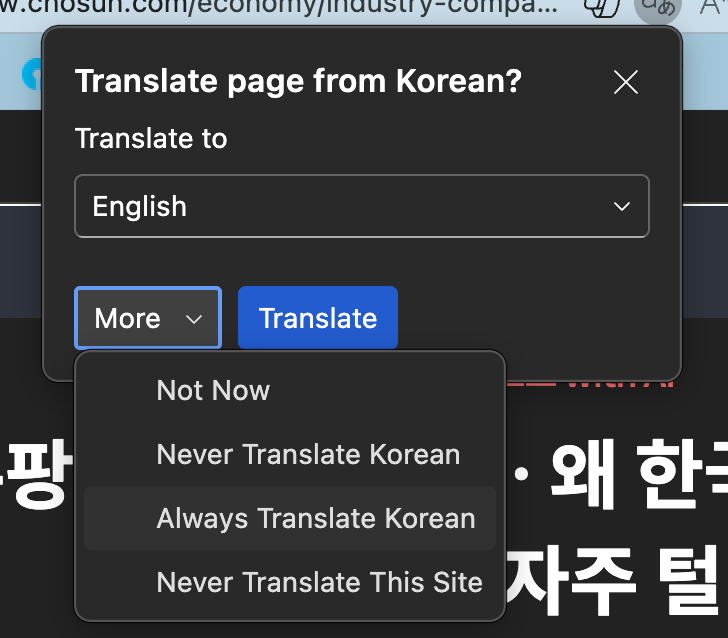
- Check the “Always translate pages from [language]” option.
From now on, Microsoft Edge will automatically translate any page that you load in that particular language. As I said, you can have this configuration for multiple languages.
Translate A Webpage on a Mobile Device
These days, translation options are available on mobile devices as well. The results will depend on the web browser in use, though. Here are some examples:
- Google Chrome displays a prompt when you open a webpage in a foreign language. You can use the on-page interface to see the translated version. You can automate the process from the settings.
- Edge also shows a similar prompt when you load a webpage. You can use the same method to set up automated translation.

- Safari on iOS/iPadOS will also prompt you when you load a webpage. However, you need to locate the button in the menu interface under aA.
As you can see, translating a web page into another language on a mobile device is pretty straightforward. You don’t have to spend so much time either, because most browsers have this feature enabled by default.
Translate A Webpage Using Google Translate
Now, let’s say that you want to quickly translate a web page into another language and see what it is about. You may not want to enable this option in your web browser, or even have it in one in the first place. In these instances, you can use the Google Translate page to translate a web page itself.
Here’s how you can go about it:
- Open the official website of Google Translate.
- From the options available at the top-left, choose Websites.

- Enter the URL of the page you want to translate. You can either let Google detect the language or specify the language.
- Click the Arrow button and wait for a few seconds.

- You should now be seeing the translated version of the webpage.
Wrapping Up
I’m positive this guide helped you understand how automated translation works on different browsers and the easiest ways to enable it. Keep in mind that the accuracy of these results depends on the translation system they’re using, since most of them rely on Google Translate. In Apple’s case, of course, they rely on something else, but the results are pretty good. However, you should not always take them for granted.