

Trying to connect a printer or extender to your Xfinity Wi-Fi but can’t find the WPS button?
You are not alone—newer xFi Gateways (like the XB7 and XB8) often hide this button on the back, or remove it entirely in favor of software controls.
In this guide, we show you exactly where the WPS button is located on every Xfinity model and how to use it to connect your devices in seconds without typing a password.
Key Takeaways
- Multiple Xfinity router models support WPS, and you can find the WPS buttons on the top or rear of the device.
- You first need to configure settings and enable the WPS method by logging in to the dashboard. You can turn on the push-button method or the passcode method.
- You may want to avoid the PIN-based method because it is more susceptible to brute-force attacks.
How to Use the WPS Button on Xfinity Routers
To use the WPS button on an Xfinity router, you first need to locate it. Then, after selecting the Wi-Fi network on your PC, press the WPS button instead of entering the password. You can also use a WPS PIN instead of the push-button method.
Where is the WPS Button on My Xfinity Gateway? (XB3, XB6, XB7, XB8)
Before we discuss how to locate and use the WPS button on Xfinity router models, we need a clear idea of WPS technology. Only then can you decide whether you need the convenience of connecting to the Xfinity router via WPS in the first place.
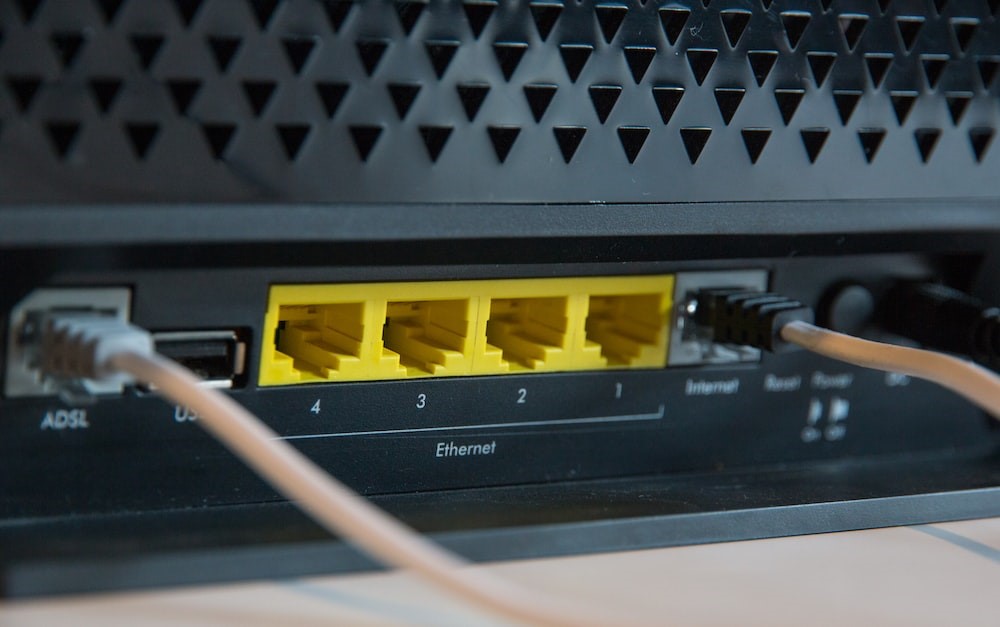
For starters, WPS stands for Wi-Fi Protected Setup, which is an easier method to connect to a Wi-Fi network. Normally, to connect to a Wi-Fi network, you have to find the SSID and enter a secure password. Depending on the network, the password requirements could be complex.

However, WPS allows connecting to the network without entering a password. Instead, you can press the WPS button or enter the WPS PIN that you have already set. While there are drawbacks to the push-button method, using the WPS button to connect to Wi-Fi is effortless.
As long as you have a router and a device (smartphone or computer) with WPS support, you can enjoy the convenience of a push-button connection (more on that later). Fortunately, most Xfinity Wi-Fi routers support WPS.
Why Should You Use WPS on Xfinity Routers?
Here are some pros of using WPS on Xfinity routers—or any other routers—to connect to a Wi-Fi network.
- You do not have the hassle of creating or remembering passwords every time you want to connect a device to the Wi-Fi network.
- For each connection, the WPS system will generate a random security key. So, from a security point of view, a WPS-based connection is more secure.
- The WPS button is a lot more convenient when you have many networks nearby. Instead of selecting the SSID manually, you can press a button on the Wi-Fi router.
- WPS support is relatively universal, in that most smartphones and routers have it. To consider the case in point, Xfinity routers support WPS.
Why Should You Not Use WPS on Xfinity Routers?
Like there are pros, WPS connections have a set of cons as well. So, here are a few things to look out for.
- The WPS PIN mode is prone to brute-force attacks. Since we deal with a four or six-digit PIN, there is a higher chance of attackers gaining access to your Wi-Fi network.
- On the other hand, while the WPS button option is convenient, it creates a scenario where any device can connect to your network as long as the WPS button is pressed. In practice, it means anyone with access to your router can connect any device to the network.
- Every once in a while, you may come across devices without WPS support. In these cases, you need to use the conventional password method.
As you can see, the cons of the WPS method do not really matter when you use an Xfinity router at home.
Now that you know how Wi-Fi Protected Setup works, we will discuss how to complete the task with Xfinity routers.
How to Find the WPS Button on Xfinity Router Models
Before we explore how to use the WPS button to connect to a network, locate it. Because we are dealing with three major gateway designs from Xfinity, things are simple. Below are ways to locate the WPS button on Xfinity router gateways.
Please note that finding the WPS button is necessary to enable push-button Wi-Fi connection and to set up the WPS PIN.
Xfinity Wireless Gateway WPS
The Xfinity Wireless Gateway is one of Xfinity’s entry-level Wi-Fi routers. So, unless you have opted for an upgrade, you will probably have this router.
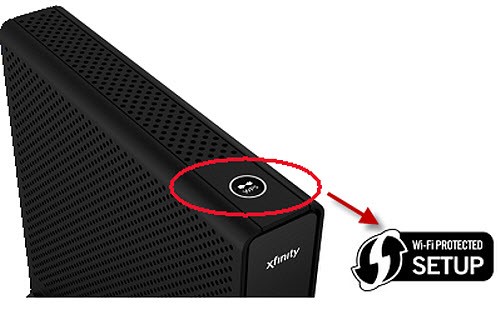
On this Wi-Fi router, you can find the WPS button on the top portion of the Wireless Gateway. It would also have a Wi-Fi Protected Setup logo on the button.
When you press the WPS button on the Xfinity Wireless router, the LED will start blinking, indicating that the router is in pairing mode.
The pairing mode will keep the LED blinking for 5 minutes or until you connect a device. When the Wi-Fi connection is successful, the LED will stop blinking.
Xfinity xFi Advanced Gateway WPS
If you have an Xfinity xFi Advanced Gateway WPS router, the WPS button is on the top-left of the device. You can also find a relatively small WPS logo on the button.
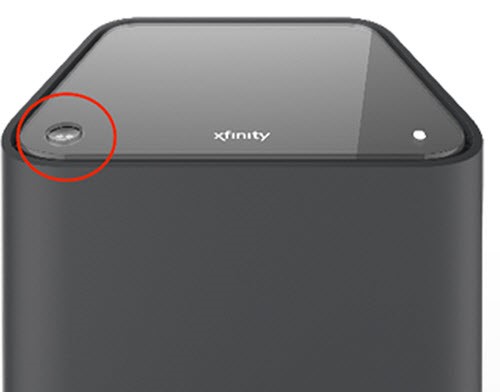
When you press the WPS button on this router, the blue LED blinks slowly, indicating that the router has entered WPS pairing mode.
After you have connected a device via WPS, the light will turn white. If you see a white light on the router, it means the WPS connection is operational.
Xfinity xFi Gateway 3rd Generation WPS
If you use the Xfinity xFi Gateway 3rd Generation with the WPS model, the WPS button is on the back of the router. It will be next to the LAN ports.
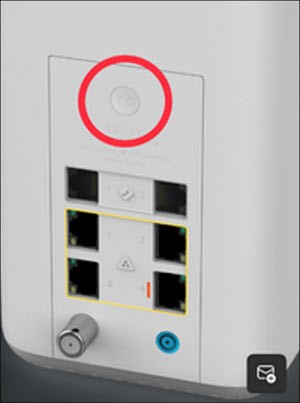
Once again, when you press the button, the router will enter WPS pairing mode and the LED light will start blinking in blue color.
After a device is connected to the router via WPS, you can see the light turning white and not blinking. This status means the connection is operational.
As you can see, finding the WPS button on Xfinity WPS routers is an easy task. You simply have to look for a WPS button, which would blink to indicate the connection status.
How to Use the WPS Button on Xfinity Router to Connect Devices
We will now walk you through connecting Wi-Fi-enabled devices to your network via WPS. Of course, you have to ensure that both devices support WPS. If you have one of the Xfinity routers listed above, it supports WPS. In other cases, check the model number.
Part #1: Set Up WPS on Your Router
As we mentioned earlier, you can use the Wi-Fi Protected Setup feature in two ways. One, you can use the push-button connection, which you activate by pressing the WPS button on the router. Two, you can use the WPS PIN method, which is a bit complicated but definitely more secure. In the second method, you can connect to the WPS-enabled Wi-Fi router using a PIN instead of a lengthy password.
The Push-button Connection Method
The push-button connection method, also called PBC, requires minimal setup. It would be enabled as soon as you set up the router and enable WPS. You can enable WPS in the router’s admin panel.
The PIN method for connection
If you want to use a PIN for a WPS-enabled connection, you have to set it up using the admin panel. The steps are:
- To enable this method, you need a device (preferably a computer) connected to the network.
- On such a device, you can use a browser to access http://10.0.0.1, which will take you to the Admin Panel utility of Xfinity Wireless Gateway.
- On the login page, you have to provide the credentials. If you are using the login panel for the first time, the credentials would be admin and password. If these credentials do not work, you may have to check the package/user manual of the router.
- Once you have logged in to the admin panel, navigate to Gateway > Connection > Wi-Fi.
- You may also have to enable the WPS connection once again
- Choose the PIN for the connection
At this point, you have successfully set up WPS on the router with a PIN. Keep this PIN in a reachable place since you would need it for connections.
Part #2 Connect to Wi-Fi using the WPS Button
For demonstration purposes, we will tell you how to connect a Windows PC to the network using the WPS button and PIN. You may need slightly different instructions if you want to connect a smartphone or a Mac. However, at the core, the core instructions remain the same.
- Make sure that you have enabled Wi-Fi on both devices
- From the Wi-Fi settings, select the Wi-Fi network that you would like to connect to
- Click Connect, and you would be asked to enter a password. However, you can see a nearby message that says, “You can connect by pushing the button on a router.”
- At this point, locate the WPS button on your Xfinity Gateway and press it.
- You may have to hold the button for a couple of seconds, and the PC will do the rest.
- It may show some messages like “getting settings from the router” and “connecting”. If everything is correct, you should see the ‘Connected, Secured’ message on the Wi-Fi panel.
It means your Windows PC has successfully connected to the Wi-Fi network. As you have seen, we did not have to enter the password. This method should be helpful when you do not want to enter a complex password every time you want a device to connect to the network.
Alternatively, if you want to connect another device with a WPS button, you can use a different method. To enable pairing, press and hold the WPS buttons on both devices. In a few seconds, you can check the pairing status using the LED lights.
Of course, you can use the PIN method, but support for it is limited these days. For instance, the latest versions of Windows 11 do not support WPS PINs due to the growing risk of brute-force attacks.
Therefore, if you need secure access to the convenience of WPS, we recommend sticking to the WPS button method.
My Experience with WPS Connections on Xfinity
Because I use Xfinity routers at work, I have some experience using WPS buttons and the client to set up connections from devices.
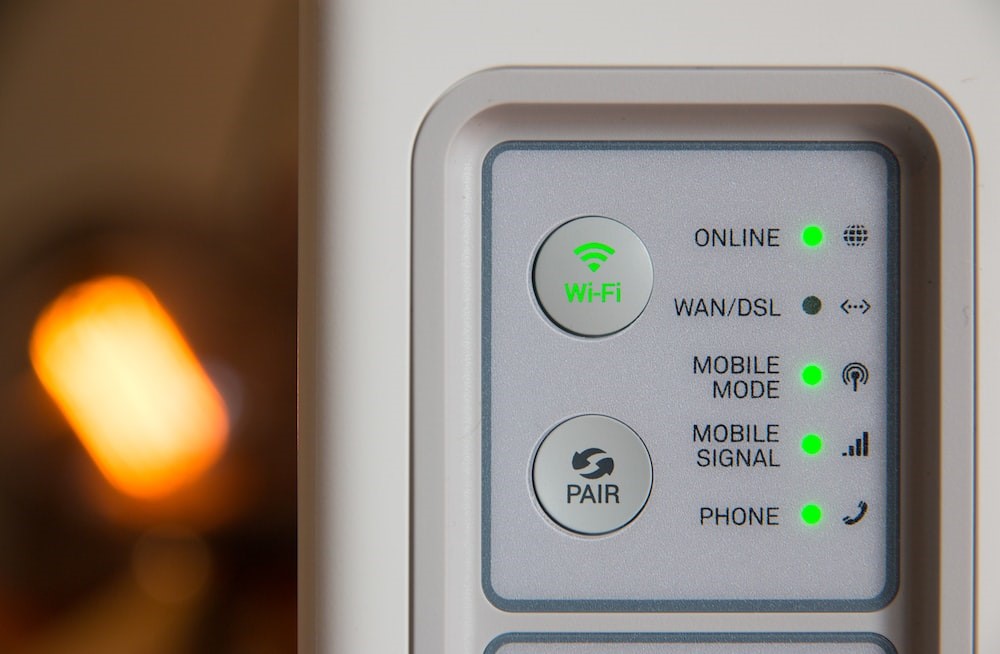
In my experience, I have not really relied on the pin method because of the potential risks. It had nothing to do with the method’s support, because that can be manipulated to some extent. So, as far as the push-button method is concerned, it is very convenient and secure as long as you keep the router in a safe place. I mean, you don’t have to worry about someone else having the time or access to the router to enable this push-button method
So, I think I am pretty confident in what Xfinity routers can do, and the whole process of setting up WPS connections via Xfinity is also simple.
Frequently Asked Questions
Can I Disable WPS on My Router?
Yes, you can disable WPS on your router in the admin panel. In many cases, due to WPS-related risks, most routers do not enable the feature by default. Therefore, unless you have manually enabled WPS features on the router, you do not have to worry.
Does WPS affect Wi-Fi speed?
No, WPS does not affect Wi-Fi speed in any way. You have to understand that WPS is an option for establishing a connection between a router and a Wi-Fi client. Wi-Fi speed depends on the router’s throughput and your device’s capabilities.
What Should I do if the WPS button on My Xfinity Router is Not Working?
The WPS button on your Xfinity router may stop working for various reasons. To ensure that the software works fine, you can load up the admin panel tool and enable push-button connection with the WPS part. On the other hand, rebooting or resetting the device can help resolve hardware issues that prevent the WPS button from working.
Conclusion
We have covered almost everything you should know about WPS and the WPS button on Xfinity router models in this article. You should keep in mind that the exact steps for the connection may vary, but WPS can make things more convenient in general.

17 Comments
Hey Pavan, great walkthrough on using the WPS feature on Xfinity routers! I’ve always found WPS a bit of a mixed bag considering its convenience vs security stance. I was curious, since you’ve delved deep into this, have you come across any recent updates from Xfinity addressing the known vulnerabilities WPS has? I mean, it’s super useful for quick connections but knowing it’s been a bit of a loophole for security, would love to know how Xfinity beefs up their game here. Also, any personal tips on safeguarding the network while still leveraging WPS would be gold!
Hi Tamara,
Great question there! While Pavan provided an excellent overview, it’s crucial to emphasize that despite its convenience, WPS should be used with caution. Always ensure your firmware is up to date for the latest security patches. A good practice is to disable WPS when not actively connecting new devices.