I am often surprised by the number of people who use the default password for their Wi-Fi network. Not only is it distasteful, but it can also cause a load of security issues in the long run. These days, routers come with advanced passwords. However, if you have an old model, its password could be as easy as 1234…
In this guide, I will explain how to change the Wi-Fi password.
How to Change Wi-Fi Password Quickly
You can change the Wi-Fi password in three ways. One, you can use the router companion app. Two, you may use the ISP companion app to change the network details. Third, you can use the web portal or the IP gateway portal to change the password.
How to Change Wi-Fi Password through the Router App
If you use third-party router equipment from popular brands, you may have an easy option to change the Wi-Fi password. For instance, if you have an ASUS router, you can use the companion application to change almost everything about the Wi-Fi network.
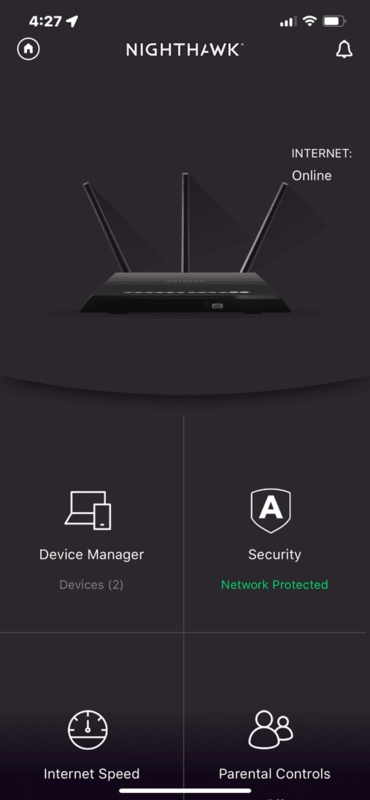
However, because these applications have different user interface designs, I cannot tell you the exact steps for every device. Instead, I can give you the basic idea.
- To get started, you have to open the router companion app on your Android or iOS smartphone. In the case of Google Fiber, you can use Google Home for this purpose. Or, if you have an ASUS router, you can download the ASUS router app for Android and iOS.
- Once you have logged in or connected to the Wi-Fi network, navigate to the subsection or tab called Network.
- There, you will find an option to edit the network information. You may have to enter the current Wi-Fi password, depending on the app.
- Once you have provided the information, the Wi-Fi router may restart.
Of course, once you change the password, the router will disconnect all connected devices. You will have to enter the new password to connect them again. Voila! You are ready with a more secure Wi-Fi network.
For reference, I have created a quick table to help you navigate through dedicated apps for popular Wi-Fi router products.
Brand | Application/Device | Detailed Navigation Path to WiFi Settings |
|---|---|---|
Amazon | Eero WiFi | Go to Settings, select ‘Wifi Name‘ and ‘Wifi Password‘ options |
ASUS | ASUS Router | Navigate to Advanced Settings, then choose ‘Wireless‘ |
Google | Google Home | Access Favorites, navigate to ‘Wifi‘, then go to ‘Settings‘ |
Linksys | Linksys App | Open the Menu, and select ‘WiFi Settings‘ |
NETGEAR | Nighthawk | Direct access to ‘WiFi Settings‘ from the main menu |
NETGEAR | Orbi | Open the Menu, go to ‘Settings‘, and select ‘WiFi Settings‘ |
TP-Link | Deco (Apple, Google) | Tap on ‘More‘, then select ‘Wi-Fi Settings‘ |
TP-Link | Tether | Go to Tools and select ‘Wireless‘ |
How to Change Wi-Fi Password through the ISP Companion App
Let’s say that you use a router provided by your ISP. This could be the case if you were searching for information on how to change your Verizon Wi-Fi password or AT&T Wi-Fi password. In these instances, you may not have access to the router manufacturer’s app. Instead, you need to use the ISP companion app.
Even in this case, changing the network’s Wi-Fi password is not a difficult task. For instance, if you have the internet planned from Google Fiber, you can use the Google Fiber app to make changes to the network. The steps are as follows.
- First, you must install the Google Fiber app on your Android or iOS smartphone.
- Now, ensure you have connected the device to the existing Wi-Fi network.
- Go to Settings > Network and choose Edit Network Settings.
- You can now change the password for the network and proceed.
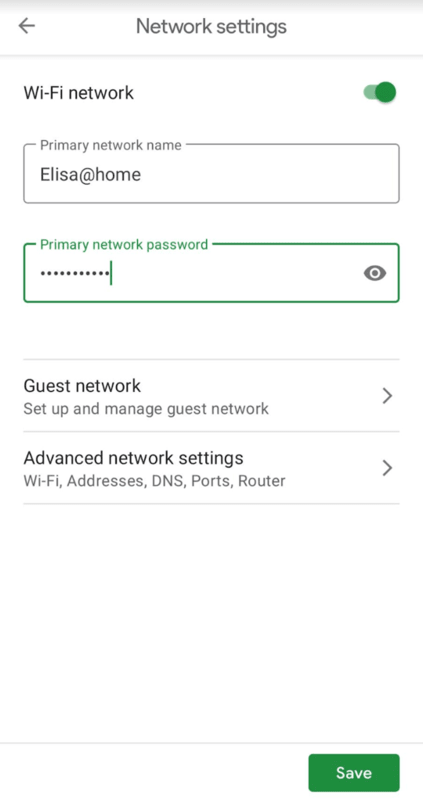
As mentioned in the last method, existing devices will disconnect from the network. But you can connect them again by entering the new password.
For reference, I will list popular ISP companion apps and how to use them.
Provider | App | Detailed Navigation Path to WiFi Settings |
|---|---|---|
AT&T | Smart Home Manager | Navigate to ‘More‘, then go to ‘Network‘ |
CenturyLink | My CenturyLink | Select ‘My Services‘, go to ‘WiFi Networks‘, then ‘Edit Network‘ |
Cox | Panoramic Wifi | Choose ‘Connect‘, see ‘Network‘, then ‘Edit WiFi Settings‘ |
Frontier | MyFrontier | Select ‘Manage Wi-Fi‘ directly from the menu |
Google Fiber | Google Fiber App | Go to ‘Network‘, then ‘Edit Network Settings‘ |
Optimum | My Optimum | Access ‘My WiFi‘ directly from the main menu |
Spectrum | My Spectrum | Go to ‘Services‘, ‘Your Spectrum Network‘, then ‘Edit Network Info‘ |
Verizon | My Verizon | Choose ‘Internet‘, then ‘My Networks‘ |
Xfinity | Xfinity App | Select ‘WiFi‘, choose ‘(Your network name)’, then ‘Edit WiFi Settings‘ |
How to Change Wi-Fi Password through Web Portal
If you do not want the hassle of installing mobile applications, you can change the Wi-Fi password through the web portal. Now, there are two ways to go about it.
The first is to log in to the router’s IP gateway and change the network settings. The second method is to change the details through the ISP web portal. While both of them are effective, you may have to choose one that fits your convenience. I will also cover the basic steps to do both these ways.
Option #1 Use the Third-party Router Gateway
If you use a third-party router for your internet connection, these steps are for you.
This may apply to you in two cases. One, you have set up your internet connection on your own using one of the routers you have bought. Two, you may have declined the ISP-provided equipment, opting for your custom choice. Either way, the steps are:
- You can open the router IP gateway using the information in the table below. If you cannot find the information for the router model, you may need to refer to the user guide.
- Log into the panel using the username and password. In most cases, the username will be admin, and the password will be admin or password.
- Go to the Network tab and choose Wi-Fi Network
- You will see an option to enter the new password.
- Confirm when you are asked to enter the existing password.

All the devices will disconnect, but you can connect them again.
Here is the reference table I talked about:
Manufacturer | Web Address | Detailed Path to WiFi Settings | IP Address |
|---|---|---|---|
ASUS | router.asus.com, asusrouter.com | Advanced > Wireless > General | 192.168.0.1, 192.168.1.1 |
D-Link | dlinkrouter.local, mydlink.com | Settings > Wireless, My Devices > Settings > Basic Settings | 192.168.0.1 |
Linksys | myrouter.local | Configuration > Wi-Fi > Basic Wireless Settings | 192.168.1.1 |
NETGEAR | routerlogin.net | Basic > Wireless, Settings > Wireless Setup | 192.168.0.1, 192.168.1.1 |
NETGEAR | orbilogin.com, orbilogin.net | Basic > Wireless | 192.168.1.1, 10.0.0.1 |
Synology | router.synology.com | Wi-Fi Connect > Wireless > Wi-Fi | 192.168.1.1 |
TP-Link | tplinkwifi.net | Basic > Wireless | 192.168.0.1, 192.168.1.1 |
TP-Link | tplinkdeco.net | N/A | 192.168.68.1 |
Option #2 Use the ISP Web Portal
By the way, if you use ISP-provided equipment, the steps vary substantially. In most cases, the ISP also wants you to use the centralized web portal to manage the Wi-Fi network. It also means you cannot access the mesh system/router IP gateway fully.
I genuinely recommend avoiding the web browser method if you use ISP-provided network equipment. You are better off installing the ISP companion app, which is optimized to work with the equipment. So, if you like to change Xfinity Wi-Fi password, you should install the Xfinity Home app.
Finding the Gateway IP Address for Your Router
I have tried to provide the IP address gateway information for most of the routers you can find. These are top manufacturers who have updated firmware and everything. However, there could be a situation where you cannot find the IP address gateway online.
In these instances, you need to look for the manual option, which is different for Windows, Mac and Android. I will quickly take you through the process of finding the gateway IP address for your network so that you can access the router control panel and make the changes to the Wi-Fi network.
How to Find the Gateway IP on Windows
On Windows, you can follow these steps to determine the gateway IP of the current network:
- Open Network and Internet Settings
- Choose Wi-Fi from the menu and select the specific wireless network
- Look for a data field called IPv4 address
Here, you can find an IP address that would lead you to the IP gateway.
How to Find the Gateway IP on Mac
On Mac, the steps are slightly different.
- Make sure that you have connected to the wireless network
- Open Wi-Fi Settings from the Wi-Fi menu
- Click Details and find the IP address against the Router entry.

That’s it.
How to Find the Gateway IP on Android
On stock Android, you can get the IP details through these steps:
- Open Settings and choose Network
- Go to the Wi-Fi menu and select the Wi-Fi network
- Now, go to Network Details and find the IP address under Gateway
Now, you can use the IP address to access the gateway.
Frequently Asked Questions
How do I access my router settings?
You can access your router settings by opening the router control panel IP address. You can find this address on the router user manual or through OS settings.
What is the admin password for the WIFI router?
By default, the admin password of most Wi-Fi routers is admin/password. However, some manufacturers have now started using unique combinations, which you can find in the user guide.
How do I find my router’s admin address?
You can refer to the table above to find the admin address of routers from popular makers. But if you can’t find it, you may look at the user guide or the router box.
Conclusion
I believe I have kept everything brief while providing the basic instructions to change the Wi-Fi password. I also think the processes are self-explanatory, especially while using the companion apps.