
Despite its quirks, WPS is a convenient way to connect supported devices to your Wi-Fi network. This is a major reason ISPs like Frontier offer WPS support on their routers. However, if you are new to Frontier routers, you may have trouble locating and using the WPS button. In this guide, you can find the steps to locate the WPS button on the Frontier router and connect devices using it.
Key Takeaways:
- The WPS button on a Frontier router allows you to quickly connect to other WPS-enabled devices using a push-button method or a passcode method.
- Most Frontier web routers have a dedicated WPS button on the side; you can trigger WPS by pressing it.
- On some devices, however, you may not find a physical WPS button. Instead, you can trigger the option in the app or the web-based interface.
What Is the WPS Button?
The WPS button is an integral part of the Wi-Fi Protected Setup (WPS) system. WPS is designed to make it easy to connect to a Wi-Fi network by eliminating the need for passwords. That is, you get to connect a device to a supported Wi-Fi router by pressing the WPS button on the router.
The WPS button is handy for connecting devices like printers and scanners to Wi-Fi. These devices mostly don’t have a password-entry interface. So, the option to pair these two devices using buttons makes a huge difference.
Warning:
WPS is a security risk because it uses a simpler connection/authentication method than a password system. You should use this option at your own risk.
Find WPS Button On Frontier Router
Frontier Internet may provide different router models depending on your location and subscription plan. You can find the WPS button at various locations. I will give an overview, though.
Typical Locations of the WPS Button
At the time of writing, you get Frontier routers from makers like Actiontec, Arris, D-Link, Greenwave, Pace, and NETGEAR.
Arris Routers from Frontier
ARRIS, NVG443B, NVG448B, NVG448BQ, NVG468MQ, and NVG589 are some of the typical Frontier router models you will come across. Among these, Arris NVG589 is the most popular option.
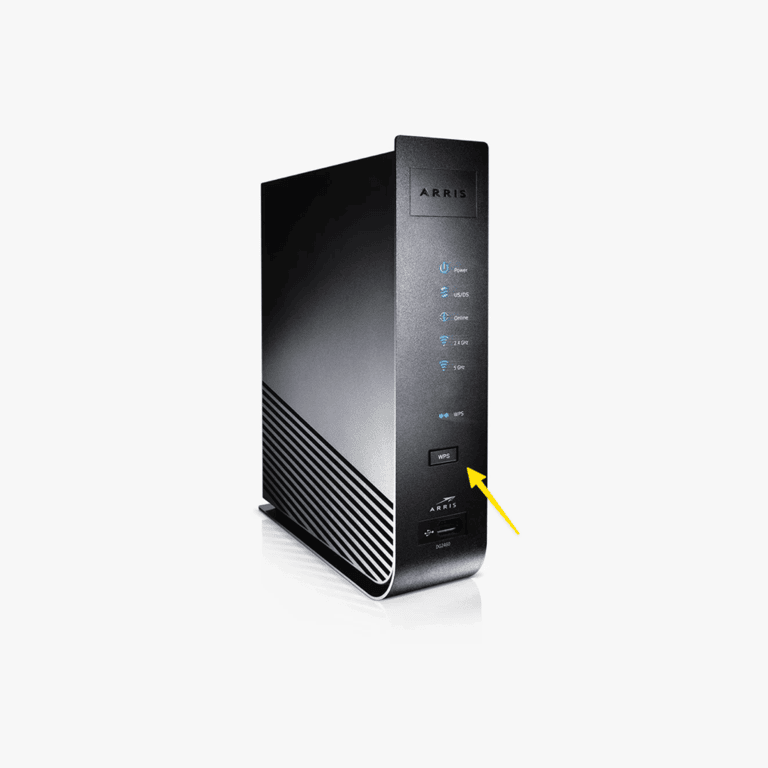
Arris routers from Frontier have the WPS button on the front. You can find the WPS button below the status LED lights.
D-Link Routers from Frontier
On D-Link routers, such as N300 DSL 2750B, you can find the router on the back panel. It will be next to the Ethernet/power ports.
Greenwave Routers from Frontier
These routers have a WPS button on the front panel. You can locate it next to the Wi-Fi and Internet status icons.
Pace Routers from Frontiers
Frontier routers from Pace also have a WPS button on the front. You can find it next to the LED lights.
In summary, you can find the WPS button on the rear panel or the front panel. Modern routers tend to keep it on the rear panel, next to the Reset button.
Visual Cues to Identify the WPS Button
Another idea is to look for visual cues, such as the WPS symbol.
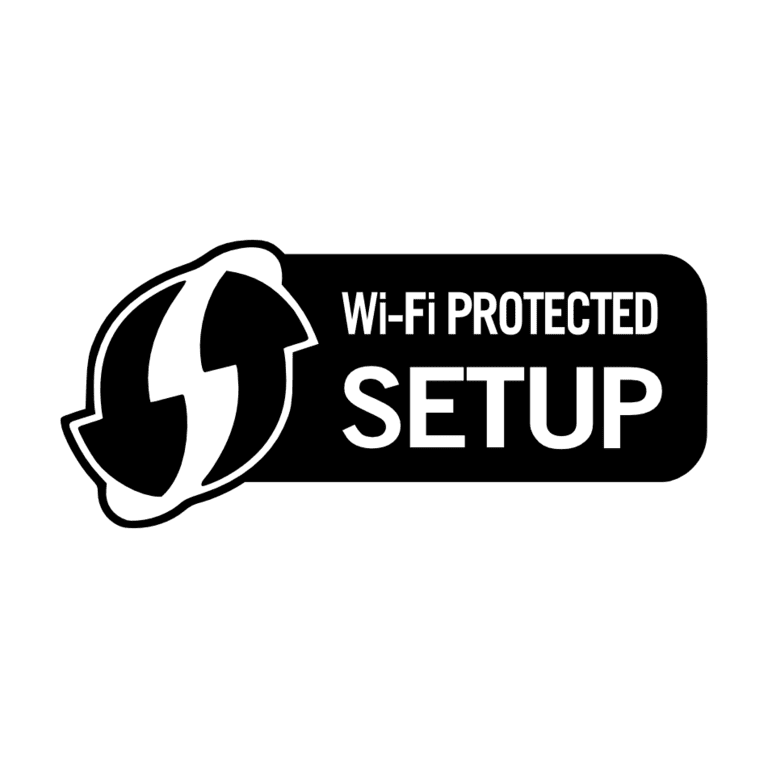
Most WPS buttons would have a symbol next to them, making them easier to find. Frontier Wi-Fi routers are no exception in this matter.
So, if you can’t find the button on the front/rear panels, you can keep looking for the WPS symbol.
Attention:
Some routers may not have a dedicated WPS button. This doesn’t mean the device doesn’t support WPS. Instead, you can set up the option in Settings.
WPS Connection Methods
You can use two methods to set up a WPS connection.
Push Button Configuration (PBC)
Push Button Configuration, also known as the push-button method, is the most convenient way to connect a device via WPS.
To use this method, you first need to connect the device to the network. When it is time to enter the password, you can press the WPS button instead. Alternatively, you can pair the WPS-enabled devices by pressing the buttons on both your Frontier router and the device.
PIN Entry Method
WPS also supports the PIN Entry Method, which lets you set up a WPS PIN. So, instead of entering the Wi-Fi password for the router, you can enter the PIN. This option is convenient if your printer has a keypad.
Security Considerations
Keep in mind that the PIN entry method is less secure. It is prone to brute-force attacks, in which hackers repeatedly try PIN combinations to bypass authentication.
If you need to use WPS on a Wi-Fi router, stick to the push-button configuration.
Enabling WPS also means anyone with access to the router can connect to your network. They do not need to know the password. So, I wouldn’t recommend turning off WPS on public routers, say the one in your office.
How to Solve WPS Connection Issues
Since it’s a legacy technology, WPS may encounter connection issues. Here’s how you can solve the most common WPS connection issues.
- The WPS pairing process may fail in the middle. At this point, you can try reconnecting using the WPS button again. You should also check whether the other device has a functioning Wi-Fi module.
- Some operating systems may have WPS connections disabled by default. In this case, you may need to override those settings and re-enable WPS connections.
- Similarly, some Wi-Fi models also set additional restrictions on WPS connections. You can resolve this issue by logging into the router dashboard and enabling the feature.
- Issues with the router firmware may also prevent a proper WPS connection. So, it’s better to install the latest firmware update before you attempt to reconnect via WPS.
I have also noticed that modern Wi-Fi routers disable PIN entry by default. It is a security measure that you should not override—for your own sake.
Conclusion
As you have seen, setting up WPS and connecting devices to your Frontier router is easier than ever. But you should be aware of the potential security issues. While WPS is indeed a convenient way to handle Wi-Fi, you need not compromise your security/privacy.

3 Comments
Hey there, Pavan. Quick q, where exactly on the Pace routers is the WPS button? Got this model from Frontier and honestly, it’s like finding a needle in a haystack. Thanks!
Hey Eliza, usually it’s on the back or bottom. Look for a small button, sometimes labeled WPS or with two arrows forming a circle. Hope this helps!
Found it! You’re a lifesaver. Thanks tons 🙂