---
title: "5 Best Wi-Fi Analyzer Apps and Tools"
date: 2025-11-26
author: "Pavan Lipare"
featured_image: "https://datafeature.com/wp-content/uploads/2025/11/5-best-wi-fi-analyzer-apps-and-tools-4.jpg"
categories:
- name: "Internet"
url: "/category/internet.md"
---
# 5 Best Wi-Fi Analyzer Apps and Tools
A solid Wi-Fi connection keeps tasks running smoothly, but common problems like **signal overlap** or **poor reach** often cause slowdowns. A Wi-Fi analyzer makes it easier to see how your network truly performs as it can reveal real-time data on strength, congestion, and connected gadgets nearby. Instead of guessing where flaws lie, these tools highlight weak spots clearly across different operating systems. For this round-up, we checked options on **Windows**, **Mac**, **Android**, and **iPhone devices** thoroughly. Each recommended pick delivers quick feedback with reliable details, so fixes take less time.
## What is a Wi-Fi Analyzer & Key Features to Look For
A WiFi scanner shouldn’t just show networks around you. The best tools explain how your signal acts, when and why your **devices lose speed**, and point out what messes up your channels. WiFi analyzers uncover everything happening in your **wireless space** and help you boost strength and reach reliably. Picking an app or tester? Know key functions first and how they operate:
- **Channel visibility**. A strong Wi-Fi analyzer shows all nearby channels and highlights which ones suffer from **overcrowding**. Clear channel graphs help you choose cleaner frequencies and reduce interference from neighboring routers.
- **Signal strength and quality metrics**. Accurate **RSSI** (signal strength) and **SNR** (signal-to-noise ratio) readings reveal how well each device connects to your router. These metrics help you evaluate range, coverage, and the stability of your connection in every room.
- **Interference detection.** Good tools expose interference from **overlapping networks**, non-Wi-Fi devices, and physical obstructions. This information helps you **adjust router placement** or **switch channels** before performance drops.
- **Device discovery and security insights**. A capable WiFi analyzer identifies every connected device, shows **IP and MAC details**, and flags unknown or suspicious clients. This visibility helps you secure your network and track bandwidth usage.
- **Speed and latency tests.** Speed tests and latency checks help you confirm whether the network responds properly under load. These tests also reveal bottlenecks that appear only during peak usage.
- **Heatmaps or visual coverage maps.** Advanced apps provide heatmaps that highlight **strong and weak coverage areas**. These maps allow you to optimize access point placement, improve coverage, and eliminate dead zones.
- **Cross-platform support.** Different platforms offer **different diagnostic levels**. Desktop tools often deliver deeper analysis, while mobile apps give you fast on-site checks. A good analyzer should match your platform and workflow.

Each feature in this list plays a direct role in the quality of a WiFi analyzer. Strong channel visibility helps you avoid overcrowded frequencies. **Accurate RSSI** and **SNR metrics** give you a realistic view of signal strength. Solid interference detection exposes problems that most users never identify on their own. Device discovery protects your network, and heatmaps or speed tests help you confirm improvements after you adjust settings or reposition equipment.
We reviewed these features carefully when selecting the tools in our list. Every app we recommend meets clear **performance standards** and provides value beyond simple scanning. A good analyzer should match your platform and workflow. Businesses that need custom wireless testing solutions or enterprise-level dashboards often work with a **[full cycle software development company](https://www.uptech.team/services/full-cycle-software-development-services)** to build tools that extend beyond standard WiFi analysis apps.
## The 5 Best Wireless Testing Software
The five apps below stand out for performance and the value they provide for home users, and more advanced wireless setups .
### 1. NetSpot
NetSpot is one of the best network analyzer apps that provides advanced wireless diagnostics across homes and professional environments. It offers full **WiFi heatmaps**, **channel quality visualization**, **signal-to-noise evaluation**, and **interference detection**. The survey mode delivers room-by-room mapping, which gives users a clear understanding of coverage gaps and noise levels. Its design suits both beginners and network specialists who need accurate, visual performance data.
**Pros:**
- Detailed heatmaps that reveal **dead zones** and **weak signal regions**.
- Strong accuracy across all metrics, including SNR and channel quality.
- Professional survey tools for office layouts and **multi-room homes**.
- Clean interface with clear data presentation.
- Reliable performance for long scans.
**Cons:**
- No mobile version.
- Larger surveys require time and manual point placement.
The free edition covers basic scanning and network information, while the commercial license starts at about **$199** per user. Users who want long-term access to new features can add the optional **$49 lifetime upgrade pack**, which unlocks all future updates.
### 2. Fing
Fing focuses on device discovery, security insights, and network visibility. It identifies every connected device, reports vendor data, **checks open ports**, and alerts users when unknown clients appear. Fing also includes outage detection, internet performance tests, and weak-spot diagnostics. Its fast scans and broad platform support make it one of the strongest general-purpose WiFi checker app solutions.
**Pros:**
- Detailed device identification with vendor and **MAC address**.
- Fast and accurate network scans.
- Strong security checks and unauthorized-device alerts.
- Cross-platform support on mobile and desktop.
- Internet outage map covers **[global ISPs](https://datafeature.com/best-internet-service-provider-in-usa/)**.
**Cons:**
- Some automation tools require an account.
- Advanced monitoring features lock behind **Fing Premium**.
- The desktop version focuses more on security and less on signal analysis.
The free version offers full scanning and complete device discovery, while Fing Premium costs about **$6.99 per month** or **$59.99 per year** and unlocks automation tools, advanced alerts, and extended activity history.
### 3. Acrylic WiFi Home
Acrylic WiFi Home provides **real-time information** about nearby networks, including signal strength, channel numbers, supported standards, and encryption types. The interface gives users a clear view of how many routers compete for the same frequencies. The **color-coded graphs** help you locate interference and choose cleaner channels with confidence.
**Pros:**
- Real-time channel graphs that detect interference quickly.
- Clear breakdown of security standards and encryption
- One of the best free WiFi analyzer apps.
- Modern interface with extensive network details.
- Fast scan performance across crowded **[2.4 GHz and 5 GHz spaces](https://datafeature.com/2-4ghz-5ghz-6ghz-wi-fi-bands/)**.
**Cons:**
- Some advanced features belong only to the Pro version.
- No mobile app.
- Limited customization options in the free edition.
Acrylic WiFi Home remains completely free, while Acrylic WiFi Professional starts at **$44.95** per year or **$99.95** for a perpetual license that removes ongoing subscription costs.
### 4. inSSIDer
inSSIDer focuses on solving slow WiFi caused by channel congestion. It shows exactly where interference occurs, **displays SNR values**, **identifies overlapping networks**, and recommends **more efficient channels**. Many network technicians prefer inSSIDer because it delivers clear guidance instead of raw data. It remains one of the best options for analyzing crowded WiFi environments.
**Pros:**
- Strong accuracy for SNR, channel overlap, and noise measurements.
- Visual recommendations that help users improve router placement.
- Clean graphs with minimal clutter.
- Solid performance in crowded apartment buildings.
**Cons:**
- Most features require a paid subscription.
- Limited to desktop use.
- Fewer security-related insights than other tools.
MetaGeek Plus, which includes full inSSIDer access, starts at **$200 per year**, and users can test the software first through a free trial that offers limited features. Desktop-level diagnostics attract users who work across multiple systems, and those who prefer Linux can check a dedicated list of the **best Linux tools for developers** to expand their toolkit.
### 5. WiFi Analyzer
WiFi Analyzer for Android offers quick and reliable insights without **unnecessary complexity**. The app converts your phone into a **real-time Wi-Fi scanner** that shows channel usage, signal strength, and network ratings. It gives you a fast way to spot the **best channel for your router** or confirm weak coverage areas while you move around your home.
**Pros**:
- Simple interface with clear graphs and easy navigation.
- Instant channel visualization.
- Low resource usage.
- Accurate signal strength readings for mobile testing.
- Ideal for quick checks in different rooms.
**Cons**:
- Lacks enterprise-grade features.
- No speed test in some versions.
- Limited data export options.
The free version remains available on the **Google Play Store**, while the Pro version typically costs **$2–$5** depending on the region and removes ads while unlocking additional settings.
## How to Use a Wi-Fi Analyzer to Improve Your Network
A WiFi analyzer becomes most useful when you apply its data to specific changes in your network. The process stays simple once you know what the graphs and metrics represent:
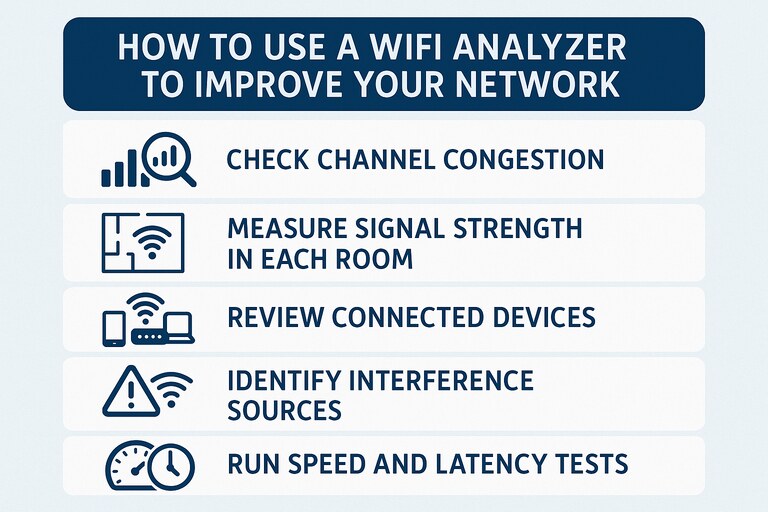
1. **Check channel congestion**. The analyzer shows crowded frequencies and highlights cleaner ones. Switch your router to a **free** or **low-traffic channel** to reduce interference and lift throughput. This single step often solves unstable connections in apartments and offices.
2. **Measure signal strength in each room**. Walk through your space and observe signal strength and **SNR data**. Weak readings point to coverage gaps or obstacles that block the signal. Move your router to a higher or more central position, or shift it away from walls, metal surfaces, or appliances. Stronger readings confirm the improvement.
3. **Identify interference sources**. Many analyzers reveal interference from **overlapping networks**, **Bluetooth devices**, **microwaves**, or **smart home equipment**. Once you know the source, you can adjust placement, change channels, or reduce the number of devices competing for the same frequency.
4. **Review connected devices**. Use the device discovery feature to check how many clients rely on your network. Unknown or **outdated devices** may overload the router or lower speed for every user. Remove unused devices or **update old hardware** that struggles with modern Wi-Fi standards.
5. **Run speed and latency tests**. Speed and latency results help you confirm whether your adjustments raise performance. Test near the router, then test in distant rooms. Look for lower latency and higher **upload and download speed** after each change. These results show whether the channel, placement, or device adjustments work.
In larger homes or offices, switch to apps with heatmaps or advanced analysis. Heatmaps show coverage patterns across entire floors and help you decide where to add **access points** or **mesh units**. Developers who work on network utilities or plan to build their own diagnostic tools often explore resources on **hiring app developers** to understand which skills support advanced wireless tool creation
## Frequently Asked Questions
### Do WiFi analyzers show hidden devices?
WiFi analyzers identify devices that actively communicate on your network. They detect **IP addresses**, **MAC addresses**, **open ports**, and **vendor details**. When a device hides its name or uses a generic identifier, the analyzer still displays it because every connected device broadcasts technical data the network requires. However, analyzers cannot reveal devices that stay completely offline or disconnected. They report only active and reachable devices, so they help detect unknown clients but cannot expose hardware that never authenticates with your network.
### How do WiFi analyzers improve speed?
WiFi analyzers improve speed because they reveal issues like **crowded channels**, **overlapping signals**, low signal strength, or misconfigured routers. The analyzer shows which channels remain overloaded and which ones stay clear, so you can switch to a better option. It identifies **dead zones**, interference sources, and devices that occupy too much bandwidth. After you adjust **placement**, **channels**, and **device load**, the network gains stronger stability and higher throughput. The analyzer does not increase speed on its own, it exposes the exact factors that hold the network back.
### Can a WiFi analyzer replace a router upgrade?
A WiFi analyzer cannot replace a router upgrade. It diagnoses problems, but it cannot fix hardware limitations. If your current router lacks **modern standards** ([**Wi-Fi 5/6/6E**](https://datafeature.com/wifi-7-vs-wifi-6/)) or struggles with multiple devices, analysis alone will not raise performance. A WiFi analyzer helps you confirm whether the slow speed comes from configuration issues or outdated equipment, but the analyzer itself cannot compensate for old hardware.
### Are mobile WiFi analyzers accurate?
Mobile WiFi tools offer reasonably good results. They are great for such tasks as checking interference levels and **connection power**. However since performance relies on the device’s **built-in radio chip** (different from one model to another) the readings can differ. These apps handle home troubleshooting with no issues, though they are not as good as dedicated professional software or **PC-based systems** equipped with high-end antennas. While average users find them trustworthy for everyday use, precision remains below that of lab equipment.